
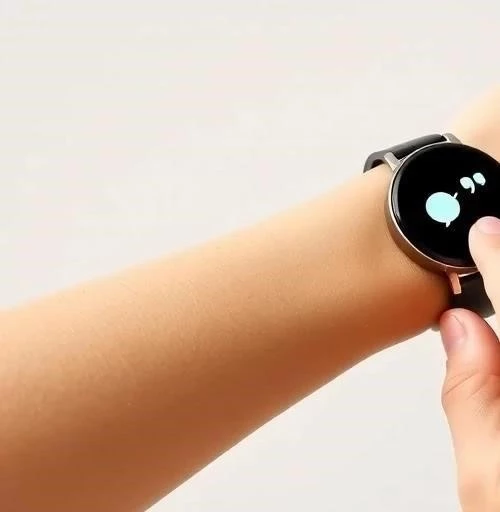
Replying from a Samsung Galaxy Watch is useful when your phone is in a bag, across the room, or inconvenient to reach. Depending on your watch model, phone, and software version, you can answer from a notification or open the Messages app and choose a conversation. The available reply methods may differ, but the basic process is straightforward.
Before you start
Pair the watch with your phone using the Galaxy Wearable app and make sure Bluetooth is on. For replies to work reliably, the watch needs a connection to the phone, Wi-Fi, or a mobile network on LTE models. Check that notifications are allowed for your messaging app: in Galaxy Wearable, look under Watch settings → Notifications → App notifications and enable the app you use.
Menu names can vary slightly by model and software version. A Galaxy Watch with LTE may be able to send messages without the phone nearby when its mobile service is active. A Bluetooth-only watch generally relies on its connected phone or a Wi-Fi connection. Some messaging features also depend on your carrier, phone, and the app.
Reply from a notification
- When a message arrives, raise your wrist or tap the notification to read it. If it disappears, swipe up on the watch face to open the notification list and select the message.
- Scroll through the message, then tap Reply. On some watches, you may need to swipe up or tap a small reply icon to reveal the option.
- Choose how to respond: dictate a message, use the keyboard, select a suggested reply, or send an emoji, if those options are available.
- Review the message and tap the send icon. Wait for confirmation or check the conversation to make sure it was sent.
If you only see options such as Open on phone or Dismiss, the notification may not support replies. Try opening the Messages app on the watch instead, and check that the correct messaging app is installed and permitted to send notifications.
Reply from the Messages app
Press the Home button, open Messages, and tap the conversation you want. Scroll to the latest message and choose the reply field or compose icon. Enter your response using one of the input methods below, then tap Send. This is a useful approach when you want to answer an older conversation rather than a message that has just appeared.
If the conversation is missing, confirm that Messages is set up on the paired phone and that the watch is connected. On some setups, the watch displays notifications from a third-party app but does not offer its full conversation history. In that case, reply directly from the notification or use that app’s watch version, if available.
Ways to enter a reply
- Voice dictation: Tap the microphone, speak clearly, and wait for the watch to convert your words to text. Check names and punctuation before sending. Dictation may require an internet connection and the relevant language settings.
- On-screen keyboard: Tap letters or swipe across them if supported. The keyboard works best for short replies; a larger text field or handwriting input may be available on certain models.
- Suggested replies: Tap a short response such as “Thanks” or “I’ll call you later.” Suggestions are convenient, but make sure the wording fits the conversation.
- Emoji or voice message: Choose an emoji when a brief reaction is enough. Some combinations of watch, phone, carrier, and app support sending a recorded voice message; others do not.
Set up quick replies
To make short answers easier, open the Galaxy Wearable app on your phone and look in the watch settings for message or quick-response options. Add or edit phrases you commonly use, such as “I’m on my way.” The exact location and availability of this setting vary by device and software. If you cannot find it, search the settings or check the Messages app on the watch.
If replying does not work
- No Reply button: Update the watch and phone apps, enable message notifications, and test with another conversation. Some apps or notification types do not allow replies.
- Message will not send: Check the phone’s connection and internet access. For an LTE watch away from the phone, verify that mobile service is active. Then reopen the conversation and try again.
- Dictation is unavailable: Check microphone permission, language settings, and network access. Use the keyboard or a saved quick reply as an alternative.
- Notifications never appear: Make sure the phone is not blocking the app’s notifications and that the watch is paired and connected. Restarting both devices can help after checking those settings.
Make replies safer and easier
Keep replies brief, especially when walking or doing another task; a tiny screen is not ideal for editing long messages. Before sending sensitive information, consider who might see the watch display or hear dictation. For a detailed answer, tap Open on phone and continue on the larger screen. With notifications enabled and a preferred input method ready, most everyday messages can be answered in just a few taps.
3 Comments. Оставить новый
The troubleshooting advice is a strong part of this article. Noting that some notifications offer no reply option, and directing readers to check app permissions or use the Messages app, gives them practical next steps rather than implying every watch behaves the same way.
The guide is helpful because it distinguishes replying directly from a notification from opening the Messages app. Its explanation of Bluetooth, Wi-Fi, and LTE connections also sets realistic expectations about when a watch can send a message without the phone nearby.
The instructions are clear and accessible, especially the reminder that menu names and reply methods can vary by model and software version. That qualification makes the guidance more reliable for readers using different Galaxy Watch and phone combinations.