Forgetting the password for Huawei’s App Lock is frustrating, but it does not mean you should immediately erase your phone or install an unfamiliar “unlocker.” The safest approach is to use the recovery option built into the phone, if available, and then check that you can still access the protected apps. Huawei menus and recovery choices vary by model, Android version, and EMUI or HarmonyOS release, so a label or step may differ slightly on your device. The instructions below focus on legitimate recovery on a phone you own or are authorized to manage.
First, identify which password you have forgotten
Huawei phones can use several different kinds of protection, and they are not interchangeable. App Lock protects selected apps. The screen-lock PIN, password, or pattern unlocks the phone itself. PrivateSpace has its own separate lock, while a third-party app may have a password system of its own. A Huawei ID password is an account credential, not necessarily the App Lock password.
If the phone unlocks normally but one or more apps ask for a password, you are probably dealing with App Lock. If the whole phone is locked, do not follow App Lock reset instructions: use the official screen-lock recovery options for your device or contact Huawei support. If only an app such as a banking or messaging app asks for a code, that app may manage its own password and Huawei App Lock settings will not reset it.
Method 1: Use “Forgot password?” on the App Lock screen
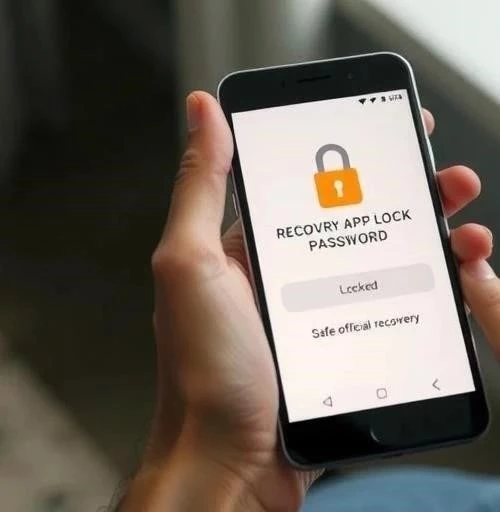
This is usually the best first option because it is designed to restore access without wiping the phone. On supported versions, Huawei offers a password-recovery link on the App Lock prompt. Depending on your settings, recovery may use a security question, a linked Huawei ID, or another verification method.
- Open an app that App Lock has protected, or open the App Lock settings if you can reach them.
- On the password prompt, look for Forgot password? or a similarly worded recovery option. It may appear below the keypad or after an unsuccessful attempt.
- Tap the option and follow the on-screen instructions. If asked a security question, enter the answer you chose when you enabled App Lock. If offered Huawei ID verification, sign in using the account already linked to the phone.
- When recovery succeeds, set a new App Lock password. Choose one you can remember, but do not reuse your screen-lock PIN or a password used for an important online account.
- Open the protected apps again to confirm that the new setting works. Review the App Lock list and keep only the apps you actually want to protect.
A security answer may be sensitive to spelling, spaces, or the language in which it was originally entered. Try only answers you genuinely remember. Repeated guesses can waste time or trigger a temporary delay, and guessing is not a substitute for account recovery. If the phone offers a Huawei ID option but you cannot sign in, recover the Huawei ID through Huawei’s official account-recovery process first. Do not give your account password or verification code to a website or person claiming to unlock the phone.
Method 2: Reset App Lock from Settings
If you can still enter the App Lock settings, you may be able to change or turn off the feature there. On many Huawei phones, the path is similar to Settings > Security > App Lock. On some versions, App Lock is under Security, Privacy, or a related menu. Settings also has a search box: searching for “App Lock” is often quicker than following a path written for a different model.
- Open Settings and search for App Lock, or navigate to the security section.
- Authenticate if prompted. This may require the current App Lock password, a recovery answer, or another method supported by your version.
- Choose the option to change the password, disable App Lock, or manage protected apps. The exact wording differs between versions.
- If you disable the lock, confirm the choice and check that the apps open as expected. If you change it, test the new password before relying on it.
This method is not a way around a forgotten credential: the Settings page may still require the existing password. If it does, return to the recovery option rather than repeatedly trying unrelated PINs. A menu that cannot be opened without authentication is working as intended; it prevents someone with temporary access to an unlocked phone from silently removing your app protections.
If the recovery option does not appear
Not every Huawei model or software release displays the same recovery link. Its availability may depend on how App Lock was configured, whether a security question or account was added, and the software version. Restarting the phone once and checking for an official system update may help with a display or software issue, but neither action should be treated as a password-reset method. An update is best installed only when the phone is stable, charged, and backed up.
- Check that you are using Huawei App Lock. If the prompt belongs to an app downloaded from an app store, use that app’s official recovery instructions.
- Check the exact menu for your device. Search Settings for “App Lock,” and consult the user guide for your model and software version.
- Confirm access to your Huawei ID. If the phone offers account verification, make sure you can access the recovery email address or phone number associated with that account.
- Contact Huawei support or an authorized service centre. Give them the model and software version and explain that you are the owner. They can confirm which recovery options apply without recommending risky third-party tools.
Should you clear data or uninstall system components?
Advice to clear the data of a system app, remove a “security” package, or use ADB commands is often unreliable. App Lock’s implementation differs across software versions, and removing or changing system components can cause unexpected problems, fail to remove the credential, or affect other security features. Clearing data from the wrong app may also remove useful settings or local information. Do not delete system files or use instructions intended for a different Huawei model merely because they worked for someone else.
Similarly, avoid unofficial unlocking programs, modified firmware, and websites that ask you to install an APK or provide remote access. Such tools may steal account information, install malware, damage the operating system, or erase data. They can also leave the phone unable to receive updates. A legitimate recovery route should not require you to disclose your Huawei ID password to an unknown operator.
Factory reset: a last resort, not a password shortcut
A factory reset may remove App Lock settings, but it also erases data stored on the phone; It should be considered only when the normal recovery methods have failed, you understand the consequences, and you have permission to reset the device. It does not simply reveal the forgotten password; it returns the phone to an initial setup state.
Before resetting, back up photos, contacts, documents, and other important files wherever possible. Confirm that you know the Huawei ID and any Google account previously used on the device. Depending on the model, software, and region, setup after a reset may require verification with an account previously associated with the phone. This anti-theft protection is intended to prevent unauthorized use. A reset does not remove the legitimate owner’s account requirement, and trying to bypass it can leave the device unusable.
If you choose to reset, follow Huawei’s official instructions for your exact model or have an authorized service centre guide you; Do not use button combinations or recovery menus copied from an unrelated phone: they can differ by model, and options may have destructive effects. If your data is important and you cannot make a backup, ask Huawei support about the available options before proceeding. Once a factory reset has erased local data, it may not be recoverable.
What if App Lock protects just one important app?
Some apps have their own PIN, password, or biometric lock in addition to Huawei App Lock. If Huawei’s lock is the only barrier, recovering App Lock should restore access. If the app then asks for another credential, use that app’s official password-reset process. For a banking app, contact the bank through the number or website printed on your card or official documents. For a work-managed app, ask your organization’s IT administrator. Avoid repeatedly deleting and reinstalling apps before checking whether their data is backed up; local information may be lost.
After you regain access
Take a few minutes to make the next recovery easier. Set a new password that is not easy to guess, but store it in a reputable password manager or another secure place. If the phone offers a recovery question or Huawei ID link, configure it with information you can reliably access. Keep your Huawei ID recovery email and phone number up to date. Do not write the password on the phone case or share it with someone who does not need access.
Consider whether every protected app needs App Lock. Protecting a small number of sensitive apps is easier to manage than locking everything and can reduce the chance of being locked out of ordinary tasks. Check that your screen lock is also strong: App Lock adds a layer of protection, but it does not replace a secure device PIN, current software, or a backup. Test the recovery method after setting it up, while you are still able to reach Settings.
Frequently asked questions
Can I remove App Lock without knowing its password?
Only if your Huawei software provides a recovery option that verifies you through an accepted method, or if you can authenticate through the relevant settings. There is no safe universal code that removes App Lock on every Huawei phone. If recovery is unavailable, ask Huawei support about model-specific options before considering a reset.
Will restarting the phone reset the App Lock password?
No. A normal restart does not reset a forgotten password. Restarting can be useful if a menu is temporarily malfunctioning, but it should not be expected to remove App Lock.
Will a factory reset keep my photos and messages?
Do not assume so. A factory reset generally erases data stored locally on the phone. Data that was successfully backed up or synced may be restored after setup, but anything that exists only on the device can be lost.
Does my Huawei ID password unlock App Lock?
Not necessarily. Some versions may offer Huawei ID as a recovery method, but the Huawei ID password and App Lock password are distinct credentials. Use the account only if the phone itself presents it as an official recovery option.
Bottom line
Start with Forgot password? on the App Lock prompt and complete the official security-question or Huawei ID verification offered by your phone. If that is unavailable, check the App Lock entry in Settings and consult instructions for your specific model or Huawei support. Avoid unofficial bypass tools and treat factory reset as a final option because it can erase personal data and trigger account verification during setup. This order is sensible: it prioritizes recovery, protects your information, and avoids turning a forgotten app password into a larger device or data problem.