
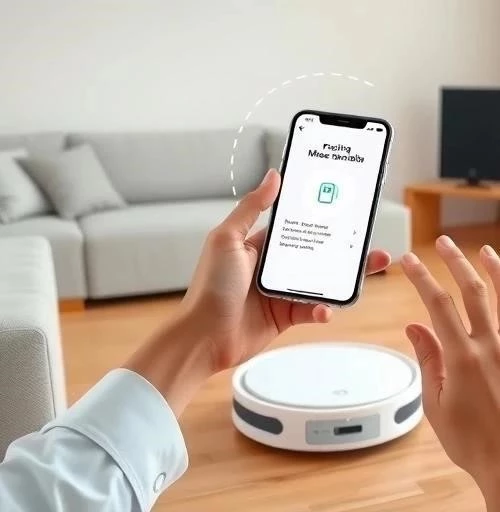
Connecting a Xiaomi robot vacuum to Marusya can let you start or stop cleaning with a voice command and, on compatible models, check its status. The exact setup depends on the vacuum, its region and the current integrations available in the Marusya app. Xiaomi devices do not all work with every voice assistant, so check compatibility before troubleshooting the connection.
Before you begin
- Set up the vacuum in the official Xiaomi Home app, also called Mi Home in some regions. Make sure you can start cleaning from that app first.
- Connect your phone and vacuum to a reliable home Wi-Fi network; Many Xiaomi devices require a 2.4 GHz network during setup; follow the instructions for your model.
- Install or update the Marusya app and sign in with the VK account you use with the assistant.
- Keep your Xiaomi account login details available. You may be asked to authorize access to your smart-home devices.
Do not reset the vacuum or remove it from Xiaomi Home just to begin linking accounts. A reset can erase its network setup, maps or other settings.
Link Xiaomi Home in Marusya
- Open the Marusya app on your phone and go to the smart-home or Devices section. The wording and location of buttons may differ slightly between app versions.
- Tap Add device or the plus icon, then look through the available brands, services or integrations for Xiaomi Home or Mi Home.
- If the integration is listed, select it and tap the option to link an account. Sign in using the same Xiaomi account that contains your vacuum.
- Read the authorization request and approve access if you are comfortable sharing the requested device information with Marusya. Return to the app after authorization.
- Wait for the device list to load. Select the vacuum, assign it to a room if prompted, and save the settings.
- Test the connection in the app first. Then ask Marusya to start cleaning, using the vacuum’s displayed name.
Menus can change, and an integration might be unavailable in a particular app version or country. If Xiaomi Home or Mi Home is not shown in the device catalog, the vacuum cannot be linked directly through that route at that time. Do not choose a similarly named service or enter your Xiaomi password on an unfamiliar website.
Try a voice command
Once the vacuum appears as an available device, try a short command such as “Marusya, start cleaning” or “Marusya, turn on the vacuum.” If you have more than one robot or smart device, say its exact name—for example, “Start cleaning with the kitchen vacuum.” Supported commands vary: some integrations allow only basic start and stop actions, while room cleaning, suction settings, dock commands or status questions may not be available.
Check the device card in Marusya to see which controls are actually supported. A successful account link does not guarantee that every feature in Xiaomi Home will be exposed to the assistant. You may still need Xiaomi Home for maps, schedules, firmware updates and detailed cleaning settings.
If the vacuum does not appear or respond
- Confirm local control: Open Xiaomi Home and start the vacuum there. If it is offline in that app, fix its Wi-Fi connection before linking Marusya.
- Check the account: Make sure the vacuum is registered to the Xiaomi account you authorized, rather than another family member’s account.
- Review region settings: Xiaomi devices and cloud services can be tied to a selected region. The vacuum’s region in Xiaomi Home must be supported by the integration. Avoid changing regions casually; devices may disappear from the app or require setup again.
- Refresh the link: In Marusya’s device or account settings, use the refresh or rescan option if available. You can also unlink and relink the service, but do this only after confirming you can sign back in.
- Update and retry: Install the latest versions of both apps, restart the phone and router if needed, and wait a few minutes for cloud devices to sync.
- Check permissions: If authorization was denied or expired, reconnect the Xiaomi account and approve the necessary access.
If the vacuum still does not show up, check the current compatibility list or help section in Marusya. Model support can change with software updates, and the name “Xiaomi” alone does not confirm that a particular robot is supported.
Alternative options and safety
If there is no direct Xiaomi integration, check whether Marusya offers another officially supported route for your exact model. A third-party hub or Home Assistant setup may be possible for some users, but it is more technical and is not a guaranteed or official connection. Avoid unofficial services that ask you to disclose account passwords or provide broad access without explaining why.
In short: first set up the robot in Xiaomi Home, then look for Xiaomi Home or Mi Home in Marusya’s smart-home catalog and authorize the correct account. If the service is absent, or your model is not listed, direct voice control is not currently available through that integration.

4 Comments. Оставить новый
The practical Wi-Fi and account tips make this easier to follow. I appreciate that the article notes menus and compatibility may differ.
The reminder not to reset the vacuum is especially helpful. Losing saved maps just to troubleshoot an integration would be frustrating.
This guide clearly explains the setup process and wisely recommends checking that the vacuum works in Xiaomi Home before linking accounts.
Good overview for beginners. It would also be useful to check whether Xiaomi Home is currently listed in Marusya, since integrations can vary by region.