
Resetting a Huawei router can help resolve persistent connection or configuration problems‚ or restore access when the administrator password is unknown․ A factory reset erases the router’s saved settings and returns it to the state it was in when first configured․ This is different from restarting the router‚ which simply turns it off and on without deleting its settings․
Instructions vary by model‚ firmware version‚ and internet provider․ Before proceeding‚ check the label on the device and consult its manual or the provider’s support page if available․ The reset button’s location‚ the length of time it must be pressed‚ and the setup process may differ․ If the router was supplied by an internet service provider‚ its settings may be managed by that provider․
Before you reset the router
A factory reset should not be the first step for every connection problem․ If Wi-Fi is slow or unavailable‚ first check that the router is powered on‚ inspect its cables‚ and try a normal restart: disconnect power‚ wait about 30 seconds‚ then reconnect it․ Allow several minutes for the router to start․ Restarting does not normally remove the Wi-Fi name‚ password‚ or internet configuration․
If a reset is still necessary‚ consider the following points:
- Save important settings․ If you can access the administration page‚ note or export the current configuration where the interface permits it․ Record the Wi-Fi network name and password‚ and any provider-supplied connection details․ Do not assume that a factory reset will preserve them․
- Check whether the router is provider-managed․ Some internet providers configure Huawei equipment remotely or require specific settings to reconnect․ Contact the provider before resetting if you do not know how the service is configured․
- Keep the device powered․ Do not unplug the router while a reset is in progress․ Interrupting a firmware update or other maintenance operation can cause additional problems․
- Identify the correct device․ A home network may include a router‚ modem‚ optical network terminal (ONT)‚ and mesh units․ Resetting the wrong device can disrupt service or erase settings that are not easy to restore․
Method 1: Use the physical Reset button
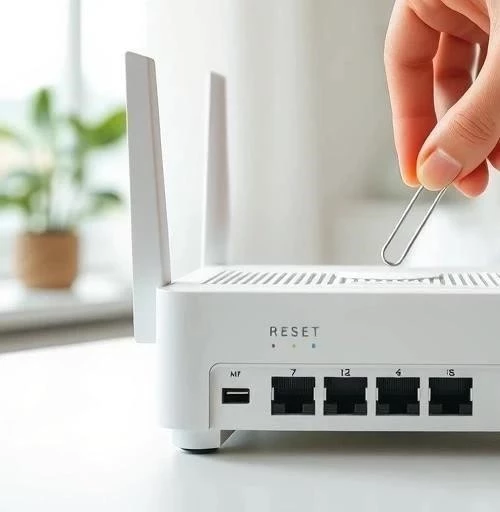
This method is useful when you cannot sign in to the router’s web interface․ The button is commonly on the back or bottom of the device․ It may be marked RESET or RST‚ and on some models it is recessed to prevent accidental presses․ A nearby button labelled WPS is not necessarily the reset control․
- Leave the router connected to power and wait until it has finished starting․ If possible‚ disconnect devices or pause activities that rely on the network․
- Locate the reset control using the markings on the router or its manual․ If it is recessed‚ use a straightened paper clip or a similar non-sharp object․ Avoid forcing it or inserting an object into an unmarked opening․
- Press and hold the reset button for the period specified for the model․ Many Huawei routers require a hold of several seconds‚ often around 10 seconds‚ but the exact timing is not universal․ Watch for the indicator lights to change‚ or follow the model’s instructions․
- Release the button and wait․ The router may restart automatically‚ and its lights may switch off‚ flash‚ and come back on․ This can take a few minutes․ Do not disconnect power during this process․
If a brief press does not appear to reset the device‚ do not repeatedly press different buttons․ Check the model-specific instructions first; On some equipment‚ the same control has different functions depending on how long it is held‚ while other models require a particular sequence․
Method 2: Reset through the administration page
If you can sign in‚ resetting through the web interface may be more convenient․ Connect a computer or phone to the router’s Wi-Fi or to a LAN port․ Open a browser and enter the router’s management address․ Huawei devices commonly use an address shown on the device label or in the manual; possible addresses vary by model and network configuration․ Do not assume that 192․168․1․1 or 192․168․0․1 is correct for every router․
If the address is unknown‚ check the label‚ the documentation‚ or the device’s network details for the default gateway․ On a computer‚ the gateway is usually listed in the connected network’s information․ Make sure the computer is connected to the Huawei router rather than a separate guest network or another access point․
- Open the management address in a browser and sign in with the administrator credentials․ These may have been changed during initial setup; they are not necessarily the same as the Wi-Fi password․
- Look for a menu named System‚ Maintenance‚ Advanced‚ or Backup and Restore․ Menu names depend on the model and firmware․
- Select the option labelled Restore Default Settings‚ Factory Reset‚ or similar‚ then confirm only after checking the warning on screen․
- Wait for the router to restart and finish initializing before reconnecting or beginning setup․
If the browser cannot open the management page‚ first verify that the device is connected to the router and check the correct gateway address․ Temporarily disable a VPN if it prevents access to the local network․ A page that does not load does not by itself mean that the router needs a factory reset․
What changes after a factory reset?
A successful reset generally removes user-defined settings․ These may include the Wi-Fi name and password‚ administrator password‚ guest network‚ parental controls‚ port-forwarding rules‚ DNS settings‚ and custom security options․ The router may broadcast the default Wi-Fi name printed on its label‚ or it may require a wired connection for setup․ The exact behavior depends on the model․
The reset does not normally cancel an internet subscription or change the provider’s account․ However‚ the router may lose the configuration needed to connect to the provider․ Depending on the service‚ setup could require a connection type‚ login credentials‚ VLAN details‚ or provider activation․ Do not guess these values․ Obtain them from the provider or use its approved setup procedure․
Set up the router again
- Connect to the default network shown on the router label‚ or connect a computer to a LAN port with an Ethernet cable․
- Open the setup page or the official Huawei app if the model supports it․ Use only the app and instructions intended for that device and region․
- Follow the setup prompts․ Enter internet settings only when required and use details supplied by the internet provider․
- Create a new administrator password and a Wi-Fi password․ Use strong‚ unique passwords and store them securely․ If the router offers a choice of security modes‚ select a current supported option rather than an open network․
- Reconnect phones‚ computers‚ televisions‚ and other devices using the new Wi-Fi details․ Update any mesh nodes or extenders if they do not reconnect automatically․
If the reset does not work
Confirm that the router had power and that the button was held for the model-specific duration․ Check the lights and allow enough time for the restart to complete․ If the administration page remains unavailable‚ try a wired connection and verify the management address․ A router that repeatedly restarts‚ shows unusual indicator patterns‚ or cannot complete startup may need support rather than another reset attempt․
For provider-supplied equipment‚ contact the provider if service does not return after the reset․ For privately purchased equipment‚ consult the manual or Huawei support using the exact model number․ Avoid installing firmware from unofficial sources or using reset instructions for a different model․
To reset a Huawei router‚ use either its physical Reset button or the factory-reset option in its administration interface‚ following instructions for the exact model․ A factory reset deletes saved configuration‚ so record essential settings and check with the internet provider when necessary․ Afterward‚ complete setup again‚ secure both administrator and Wi-Fi access‚ and reconnect network devices․
2 Comments. Оставить новый
This is a practical overview of precautions to consider before resetting a Huawei router. The guidance appropriately notes that procedures can vary by model and service provider.
The article clearly explains the difference between restarting a router and performing a factory reset. Its reminders to check provider-specific requirements and save configuration details are useful.