
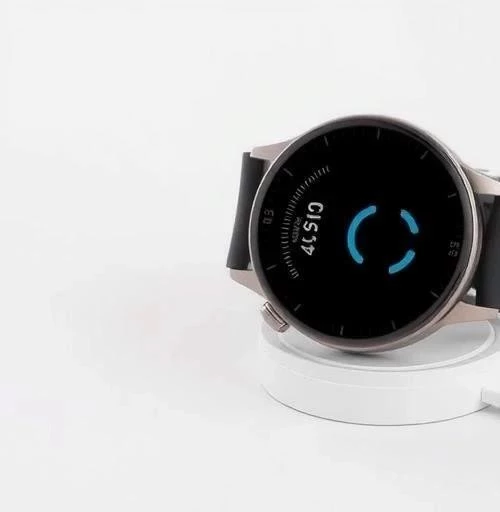
Resetting an Apple Watch SE erases its settings, apps, and personal data. If you plan to sell, give away, or troubleshoot the watch, choose the method that fits your situation. Before erasing it, keep the watch and its paired iPhone nearby and make sure both have enough battery power.
Before you begin
If possible, unpair the watch using the iPhone it is paired with. This creates a current backup on the iPhone and removes Activation Lock from the watch. The backup may be used when setting up an Apple Watch again. Erasing the watch directly does not remove Activation Lock, so the Apple Account credentials previously used with it may still be required.
Unpair and erase using your iPhone
- Keep the iPhone and Apple Watch close together, then open the Watch app on the iPhone.
- Tap My Watch, choose All Watches, and tap the information button next to your Apple Watch SE.
- Tap Unpair Apple Watch, then confirm. If the watch has cellular service, select whether to keep or remove the plan. If you are transferring ownership, remove the plan and contact your carrier if needed.
- Enter your Apple Account password if prompted. Wait until the unpairing process finishes.
The watch will erase its contents and return to the setup screen. For a sale or handover, verify that it no longer appears in your Apple Account’s device list. Removing it there may be necessary if it remains associated with your account.
Erase the watch without the iPhone
Use this method if the paired iPhone is unavailable. On the watch, open Settings > General > Reset, then tap Erase All Content and Settings. Enter the passcode if asked and confirm the erase. For a cellular model, choose whether to keep or remove its plan. This erases data but may leave Activation Lock enabled.
If you forgot the passcode
- Place the Apple Watch on its charger and keep it connected during the process.
- Press and hold the side button until the power controls appear.
- Press and hold the Digital Crown until the erase option appears.
- Tap Reset, then tap it again to confirm. Wait for the watch to erase.
Button screens can vary slightly by software version. If the erase option does not appear, restart and try again while the watch is charging. After erasing, you may still need the Apple Account and password previously linked to the device to complete setup.
After the reset
To use the watch again, bring it near an iPhone and follow the setup instructions. Choose to restore from a backup if one is available, or set it up as new. A reset is not the same as unpairing: for troubleshooting, try restarting or updating the watch first. If selling or gifting it, unpair through the iPhone whenever possible and confirm that the new owner can start setup without your account.

8 Comments. Оставить новый
The article clearly distinguishes between erasing an Apple Watch through its paired iPhone and erasing it directly on the watch.
The article makes clear that erasing the watch directly may not remove its association with the previous Apple Account.
The instructions provide a straightforward overview of the main reset options and the effects of each method.
The explanation of Activation Lock is useful, especially for readers preparing to transfer ownership of a watch.
The reminder to keep both devices charged and nearby provides practical preparation before starting.
The steps are organized by situation, making it easier to find the appropriate reset method.
The separate guidance for a forgotten passcode is helpful for readers who cannot use the usual settings menu.
Including the cellular plan choices helps clarify an additional consideration when unpairing or erasing the device.