
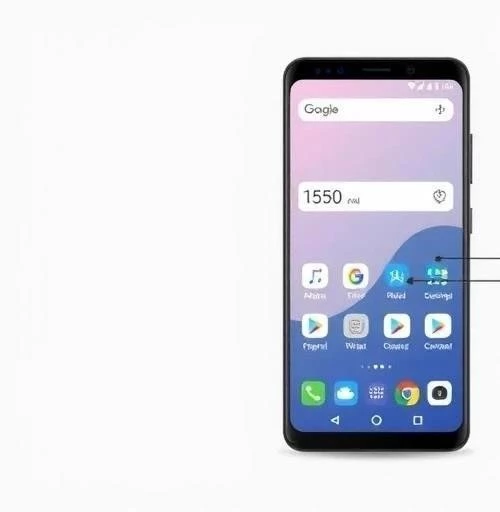
“Resetting the desktop” usually means restoring the home-screen layout—not erasing the phone․ The distinction matters: resetting the launcher can remove rearranged icons, folders, and widgets, while a factory reset deletes personal data․ Try the less destructive option first․
Option 1: Reset the home-screen layout
Menu names vary between MIUI and HyperOS versions, so look for the closest matching setting:
- Open Settings and go to Home screen․
- Look for Home screen settings, Arrange items in Recents, or a layout/reset option․ If a reset option is available, follow the on-screen prompt․
- If there is no reset control, open Settings > Apps > Manage apps․ Tap the menu icon and enable Show all apps or Show system apps, if needed․
- Find System launcher (sometimes listed as MIUI System Launcher), open Storage, then tap Clear data or Clear all data․
- Confirm only after reading the warning․ Return to the Home screen and give it a moment to rebuild․
This clears the launcher’s saved arrangement, so icons may return to their default positions and folders or widgets may disappear․ Your installed apps, photos, messages, and accounts should remain․ However, launcher preferences can also be reset; take screenshots of important pages first․ Avoid clearing data for unrelated apps․
If the launcher is frozen or missing
Restart the phone and check whether the Home screen works again․ If you use a third-party launcher, select Settings > Apps > Default apps > Launcher and choose the Xiaomi system launcher․ Menu labels differ by software version․ Installing system updates can also resolve launcher problems, but back up important information before troubleshooting further․
Factory reset is different
Do not choose Factory reset merely to tidy the desktop․ It erases data stored on the phone․ Use it only if you intend to wipe the device, after backing up files and confirming you know the passwords for linked accounts․ The home-screen reset is the safer, more proportionate fix for a cluttered layout․