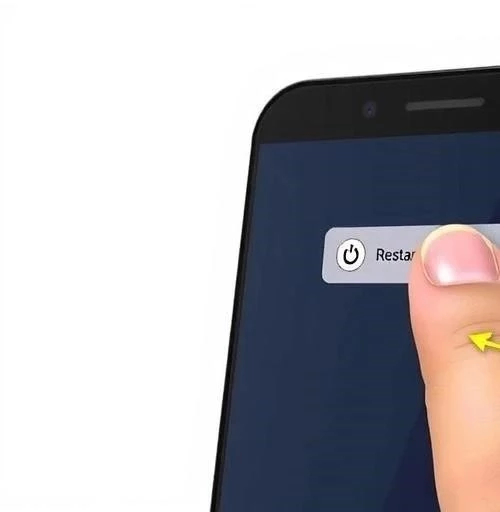
A broken or unresponsive power button can make restarting a Xiaomi Redmi 4 difficult, but the right option depends on the phone’s current condition․ If Android is still running, software controls or a computer may be able to restart it․ If the phone is switched off, however, there may be no dependable software method to turn it on: the Redmi 4 does not have a universal button-free startup procedure․ In that situation, a temporary charging response is possible, but repairing the button is usually the reliable solution;
This guide covers safe options for a Redmi 4 that is on, frozen, or completely powered down․ It also explains what to avoid․ The Redmi 4, Redmi 4A, and Redmi 4X are different models, and menu names and available features can vary by model, Android version, and MIUI version․
First, identify the situation
- The phone is on and responds to touch: Try a software power menu, an already configured accessibility feature, or ADB from a computer․
- The phone is on but frozen: Wait briefly, disconnect accessories, and try ADB if it was previously set up․ A software restart may not work if Android has stopped responding․
- The phone is off: Connect it to a reliable charger and allow time for the battery to charge․ If it does not start on its own, software commands cannot normally reach it while it is off․
- The phone repeatedly shuts down or will not charge: The issue may involve the battery, charging port, or another hardware fault, not just the button․
If the phone is on and the touchscreen works
Look for an on-screen power menu
Some Android or MIUI versions provide a power menu through an accessibility control or a floating shortcut․ Availability and labels differ, so check the features already present on the phone rather than assuming that every Redmi 4 has the same menu․
- Open Settings and look for Accessibility, Additional settings, or an equivalent menu․ The location depends on the installed software version․
- Check whether an accessibility shortcut or on-screen menu is enabled․ If available, turn it on and open its floating button or shortcut․
- If the menu includes Power or Restart, select the appropriate option and confirm the action․
A floating control such as Quick ball may offer navigation and other shortcuts, but it does not necessarily include a restart command․ If the available controls only provide actions such as Home, Back, or Lock screen, they cannot be assumed to replace the power button․ Do not install an unfamiliar app or grant broad permissions just because it advertises a restart feature․
Use ADB from a computer, if it was set up earlier
Android Debug Bridge (ADB) can request a restart while the phone is running․ This is an option only if USB debugging was enabled before the button stopped working and the computer was authorized by the phone․ A new computer usually needs an on-screen approval prompt; without a functioning way to approve it, the connection may not work․
- Use a trusted computer with Google’s Android platform tools installed․
- Connect the unlocked phone with a data-capable USB cable․ A charge-only cable will not provide the required data connection․
- Open a terminal or command prompt in the platform-tools folder and run
adb devices․ - If the Redmi 4 appears as an authorized device, run
adb reboot․
The phone should then restart if Android is responsive and the connection remains active․ If the device is listed as unauthorized, check for an approval prompt on the phone․ If no prompt can be accepted, stop: ADB cannot bypass that authorization․ If the phone is switched off, adb reboot cannot start it, because ADB requires the Android system to be running․
Consider a power schedule only for a planned restart
Some MIUI versions include a scheduled power-on and power-off feature․ If the phone is currently operating and the option is available, a schedule can sometimes arrange a later shutdown followed by a scheduled startup․ It is not an immediate restart command, and its behavior can vary with software version, battery level, and device state․
To check, search Settings for terms such as Schedule power on/off or Scheduled power on and off․ Set the times with enough separation to allow the phone to shut down before the startup time․ Keep the phone charged and do not rely on the schedule for an urgent restart or as a guaranteed substitute for a faulty button․ If the feature is absent, do not assume it can be added safely through an unofficial app․
If the phone is frozen
A frozen screen is different from a phone that is simply slow․ First wait a minute or two, especially if an update or demanding app was running․ Disconnect the USB cable and other accessories, then check whether the display responds to touch․ If it does, use an available on-screen power menu or an authorized ADB connection as described above․
When Android is completely unresponsive, a forced restart normally depends on holding the physical power button․ Since that button is unavailable, there may be no safe user-level way to force a restart immediately․ Do not repeatedly connect and disconnect the charger in the hope of forcing a reboot․ If the battery is removable on the particular device and the owner is comfortable following the model’s proper service instructions, removing it may power the phone down; opening a phone that is not designed for user battery removal is a different matter and should be left to a technician․
If the phone remains frozen, becomes unusually hot, or shows signs of battery swelling, stop using it and seek service․ Do not press, puncture, heat, or attempt to open a swollen battery․
If the Redmi 4 is switched off
Try a normal charging connection
- Inspect the cable and charger for visible damage․ Use a known-good charger and cable that are suitable for the phone․
- Connect the phone and leave it charging for at least 20–30 minutes․ If the battery was deeply discharged, the screen may not light immediately․
- Look for a battery icon, charging indicator, vibration, or other sign that power is reaching the phone․
- If it starts automatically, allow it to finish booting and back up important data before attempting further troubleshooting․
Some phones show a charging screen without starting Android, and some may start when connected to power․ Neither behavior is guaranteed on every Redmi 4․ A charging icon only confirms a charging response; it does not necessarily mean the operating system has booted․ If the phone stays off after charging, plugging it into a computer or wall adapter is not a dependable replacement for the power button․
Do not rely on button combinations that need the broken button
Key combinations for recovery or fastboot commonly involve the power button together with one or more volume buttons․ If the power button cannot make contact, those combinations may not work․ Volume buttons alone do not normally provide a general-purpose way to start or restart the Redmi 4․ Avoid repeated attempts to enter recovery or fastboot using unverified instructions for another Xiaomi model․
Likewise, an ADB command cannot switch on a phone that is completely powered down․ Fastboot commands require the phone to enter fastboot mode first, which is not a solution if the required hardware control is unavailable․ Connecting the phone to a computer may be useful for charging or diagnosis, but it does not by itself guarantee startup․
When repair is the practical option
If the phone is off and does not start when connected to a working charger, or if you need a dependable way to use it again, have the power-button assembly inspected․ The fault may be the external button, its internal switch or flex cable, or a separate power or battery problem․ A technician can test these parts and advise whether repair is worthwhile․
Before service, explain that the power button does not work and describe what happens when the charger is connected․ Ask about the diagnostic cost, repair estimate, and possible data impact․ A button repair does not normally require erasing user data, but no repair process can guarantee that data will remain intact․ If the phone still works, back up photos, contacts, and other important files first․ Avoid a factory reset unless there is a specific reason and a backup is available; a reset does not repair a broken button․
What to avoid
- Do not short contacts or probe the phone with metal tools․ This can damage the motherboard, cause a short circuit, or create a battery hazard․
- Do not follow instructions for a different model blindly․ Redmi 4 variants and software releases may differ․
- Do not unlock the bootloader or flash firmware to solve a button fault․ These steps are not a normal repair and can erase data or make the phone unusable․
- Do not install random “reboot” applications․ Many require root access, special permissions, or a working screen, and may not restart the device at all․
- Do not force open the handset without the correct tools and experience․ Internal components and the battery can be damaged․
Frequently asked questions
Can I restart the Redmi 4 using only the volume buttons?
Usually not․ Volume buttons may be part of a startup key combination, but they are not a standard substitute for the power button․ A combination that also requires Power will not solve a failed Power switch․
Will connecting a charger turn it on automatically?
It may, depending on the phone’s state and software, but it is not guaranteed․ Leave it connected to a known-good charger for a while․ If it only displays a charging screen or remains off, service may be needed․
Can I restart it from a computer?
Only in specific circumstances․ ADB can request a restart when Android is running, USB debugging was already enabled, and the computer is authorized․ It cannot normally start a phone that is completely off․
Will a restart erase my data?
A normal restart is not intended to erase personal data․ A factory reset or firmware operation is different and can erase it․ Do not select reset or wipe options while troubleshooting a power-button problem․
If the Redmi 4 is on, first check for an on-screen power option; if USB debugging was previously enabled and the computer is authorized, try adb reboot․ A scheduled power feature may help with a planned restart if the installed MIUI version provides one, but it is not guaranteed․ If the phone is off, charge it and see whether it responds, while recognizing that charging may not boot Android․ When no software option is available and the power button is physically faulty, professional inspection or repair is the dependable way to restore normal control․