
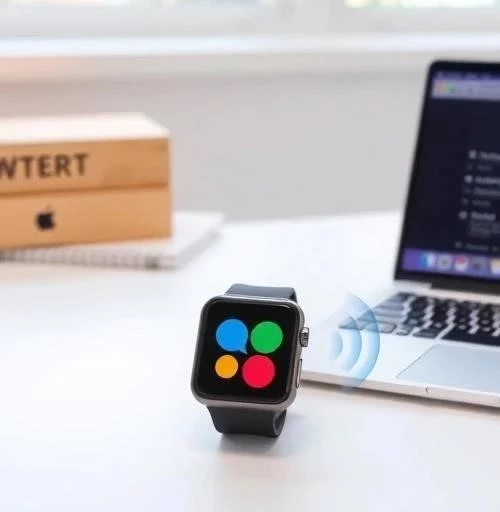
The short answer: you cannot pair an Apple Watch directly with a MacBook or Windows laptop in the same way you pair a mouse, headphones, or phone. Apple Watch is designed to be set up and managed with an iPhone. A laptop can work with the watch in a few useful, limited ways—most notably, a compatible Mac can be unlocked with it—but Bluetooth pairing alone will not turn the watch into a general computer accessory.
Why direct pairing does not work
Apple Watch does not provide a standard laptop-pairing process for transferring files, mirroring the watch screen, or using the watch as a Bluetooth input device. Its Bluetooth and Wi-Fi connections support watch features and communication with its paired iPhone; they are not a substitute for a general-purpose connection to macOS or Windows. Searching for the watch in a laptop’s Bluetooth menu is therefore unlikely to achieve what you want; Even if a device appears, that does not mean the laptop can manage or use it.
This distinction matters because attempting to “pair” the devices can waste time and lead to misleading troubleshooting. If your goal is to set up, update, or change settings on the watch, use the iPhone associated with it. If you want a particular laptop feature, check whether macOS supports that feature rather than trying to create a direct Bluetooth connection.
Set up and manage the watch with an iPhone
- Turn on the Apple Watch and keep it close to the iPhone you want to pair it with.
- Make sure Bluetooth and Wi-Fi are enabled on the iPhone, and connect the phone to the internet.
- Follow the pairing prompt on the iPhone. If it does not appear, open the Watch app and choose the option to add a watch.
- Follow the on-screen instructions to sign in, choose settings, and complete setup. Keep the watch near the phone until the process finishes.
The iPhone is the proper route for installing watchOS updates, choosing many apps and notifications, and adjusting most watch settings. A laptop cannot replace the iPhone for initial setup. If you no longer have the iPhone that was paired with the watch, you may need to erase and reset the watch and then pair it with another compatible iPhone. Activation Lock may require the Apple Account previously used with the watch, so resetting it does not necessarily remove the account requirement.
Use an Apple Watch to unlock a Mac
If you have a compatible Mac, the most direct laptop-related feature is automatic unlocking. This is not the same as pairing the watch as a computer accessory: the Mac and watch use your Apple Account and nearby wireless connections to confirm that you are present. The feature is convenient, but it depends on correct account and security settings.
- Sign in to the Mac and Apple Watch with the same Apple Account, with two-factor authentication enabled.
- Set a passcode on the watch and make sure wrist detection is turned on.
- Turn on Wi-Fi and Bluetooth on the Mac, and keep the watch unlocked, on your wrist, and close to the computer.
- On the Mac, open System Settings and look under Touch ID & Password or Login Password for the option to use the Apple Watch to unlock the Mac or apps. The exact label and location depend on the macOS version.
After enabling the option, wake the Mac or open a screen that requests authentication; When the watch is nearby and meets the requirements, the Mac may unlock and the watch will give a brief confirmation. If the option is missing or does not work, check that both devices are updated, signed in to the same account, and using two-factor authentication. Restarting the devices and checking Wi-Fi and Bluetooth can also help. Some security-sensitive actions may still require you to enter the Mac password; unlocking is a convenience, not a replacement for every password prompt.
What if the laptop runs Windows?
A Windows laptop does not offer Apple’s Mac-unlock feature, and it cannot manage an Apple Watch as though the watch were a paired Windows device. You can still use Apple services on a computer where available—for example, access supported iCloud features through a browser—but that is separate from connecting the watch. Notifications, health information, and watch settings are not made available to Windows simply by turning on Bluetooth.
Can the laptop charge the watch?
Charging is possible if you have the Apple Watch magnetic charging cable or a compatible charging puck. Connect its USB end to a suitable laptop port or power adapter, then place the watch on the charger. This supplies power; it does not create a data connection or pair the watch with the computer. A laptop port may also provide less convenient charging than a wall adapter, so use a reliable power source and the correct charging accessory.
Quick troubleshooting and the right solution
- Trying to set up the watch? Use the Watch app on a compatible iPhone, not the laptop’s Bluetooth settings.
- Want to unlock a computer? Use the Apple Watch unlock option on a supported Mac and verify account, passcode, and wireless settings.
- Want to transfer watch data? Use the iPhone and Apple services designed for that data; a USB cable to a laptop will not expose the watch like a storage drive.
- Only need power? Use the magnetic charger. Charging is not pairing.
Bottom line: an Apple Watch cannot be connected directly to a laptop for general control or management. The iPhone remains essential for setup, while a compatible Mac can use specific features such as unlocking. Knowing the difference avoids fruitless Bluetooth searches and helps you choose the connection that actually supports your goal.
7 Comments. Оставить новый
The article appropriately directs readers to the paired iPhone for updates and settings. That advice is more reliable than trying repeated Bluetooth troubleshooting on a Mac or Windows laptop.
The step-by-step setup instructions make the advice actionable, while the opening gives readers the answer right away. It would also be useful to mention that available Mac features can depend on compatible hardware and settings.
I appreciate the explanation that seeing a device in Bluetooth settings does not necessarily mean the laptop can use or manage it. That clarification addresses a common source of confusion.
The article is useful because it separates direct pairing from the limited ways a watch can interact with a Mac. The practical guidance to use the iPhone for setup and management is especially helpful.
This clearly explains the key distinction: Apple Watch is designed to pair with an iPhone, not function as a general-purpose Bluetooth accessory for a laptop. That should save readers from spending time on an unsupported setup.
This is a balanced explanation rather than a blanket claim that the watch cannot interact with computers at all. It points out the difference between a supported Mac feature and direct Bluetooth pairing.
A concise and practical overview of what Apple Watch can and cannot do with a laptop. The explanation of its intended connection to the iPhone makes the limitation easier to understand.