
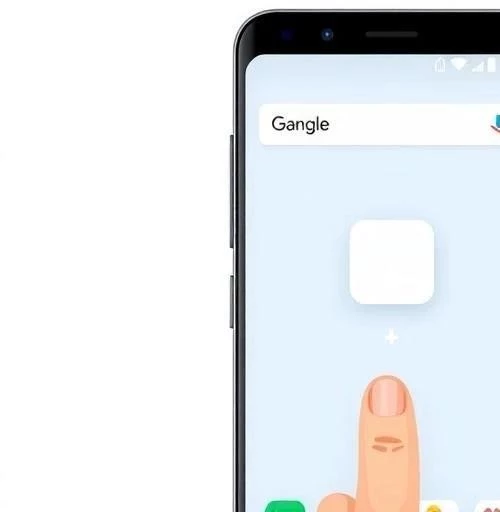
A missing app icon can make your Xiaomi phone feel as if it has misplaced a tiny piece of itself. The good news: in most cases‚ the app is still installed. It may have wandered into the app drawer‚ a folder‚ a hidden-app list‚ or a different home-screen page. This guide will help you track it down and bring it back—without resetting your phone or deleting your photos.
Xiaomi phones use different versions of the home-screen software: MIUI‚ HyperOS‚ and‚ on some models or regions‚ a different launcher. Menu names and layouts can vary slightly. Treat the paths below as signposts rather than magic words: if one label is not an exact match‚ look for a similarly named option such as Home screen‚ Launcher‚ or Manage apps.
First‚ identify what has gone missing
Before changing settings‚ decide whether you are missing an app icon‚ a widget‚ or a shortcut to a website or file. An app icon opens an installed application. A widget shows information or controls on the screen‚ such as a clock or weather forecast. A shortcut may point to a particular contact‚ document‚ or web page. These items return by different routes‚ so a quick identification can save you a tour through the settings maze.
Also check whether the icon is missing from just one home-screen page or from the phone altogether. Swipe left and right through every page‚ open folders‚ and look at the dock along the bottom. A familiar icon can be tucked inside a folder with an unhelpfully vague name—or hiding on a page you rarely visit.
Method 1: Put the app back from the app drawer
If your Xiaomi home screen uses an app drawer‚ the app may simply have been removed from the home screen while remaining installed. Swipe up from the bottom of the home screen to open the drawer‚ then browse the list or use its search field to find the app.
- Find the app in the drawer.
- Touch and hold its icon.
- When the home screen appears‚ drag the icon to the page and position you want.
- Lift your finger to place it.
On some versions‚ holding the icon opens a small menu with an option such as Add to Home screen. Tap that instead of dragging. If the drawer does not appear when you swipe up‚ your phone may be set to the classic layout. You can check the layout under Settings > Home screen or by long-pressing an empty area of the home screen and opening its settings. The precise wording depends on the software version.
Method 2: Search for the app in Settings
Can’t find the app in the drawer? Check whether it is still installed. Open Settings > Apps > Manage apps and search for its name. On some phones‚ the path may be Settings > Apps or Settings > Apps > See all apps.
If the app appears in the list‚ open its information page. If you see Open‚ the app is installed and available; Return to the drawer and search for it there; then add it to the home screen. If you see Enable‚ the app has been disabled. Tap Enable‚ wait a moment‚ and look for it again. A disabled system app may not behave exactly like a downloaded app‚ but enabling it is usually the right first step.
If the app does not appear in Manage apps‚ it may have been uninstalled‚ removed by an update‚ or installed in another user profile. Open the Play Store or Xiaomi’s GetApps store‚ search for the app‚ and reinstall it if appropriate. Check that you have selected the correct account and profile before assuming the app has vanished for good.
Method 3: Look in Hidden apps or App lock
Some Xiaomi software versions let you hide selected apps. A hidden app may disappear from both the home screen and ordinary browsing‚ while its data remains on the phone. The setting’s location varies‚ so use the Settings search bar and try terms such as Hidden apps‚ Hide apps‚ or App lock.
You may also find it through the Security app: open Security‚ look for App lock‚ then check its settings for a hidden-apps option. On certain versions‚ a gesture on the home screen opens the hidden-app area; follow the instructions shown on your phone rather than guessing‚ as the gesture is not the same on every model.
When you find the app in the hidden list‚ switch off the option that hides it. Return to the home screen or drawer and search again. If App lock asks for a password or fingerprint‚ use the credentials already configured for that feature. Do not clear app data or reset security settings just to reveal an icon: those steps can remove information or lock you out of other protected apps.
Method 4: Check folders‚ pages‚ and home-screen search
Home screens are small maps‚ and maps sometimes hide things in plain sight. Open each folder‚ including folders on other pages‚ and look for the missing app. If you use several pages‚ swipe through them slowly. Try the launcher’s search function too: depending on your setup‚ swipe up to the drawer and tap its search box‚ or use the search bar on the home screen.
When search finds the app‚ long-press the result or its drawer icon and add it to the home screen. If a page is full‚ the launcher may place the icon on another page or refuse to drop it. Move an existing icon to make space‚ create a new page by dragging an icon toward the screen’s edge‚ or place the app in a folder. The goal is to restore a shortcut‚ not to rearrange your whole digital furniture.
Method 5: Restore a widget or a special shortcut
If the missing item is a clock‚ weather panel‚ calendar‚ or other widget‚ reinstalling the app icon will not restore it. Touch and hold an empty part of the home screen‚ then tap Widgets. Browse the available widgets‚ touch and hold the one you want‚ and drag it onto a clear space. Some widgets need more room than a single icon; move nearby items first if the phone reports that there is not enough space.
For a website shortcut‚ open the page in your browser‚ open the browser menu‚ and choose an option such as Add to Home screen. For a contact or document shortcut‚ open the relevant app and look for its own Add shortcut or Place on Home screen command. The exact option depends on the app. A shortcut is not the same as the app itself‚ so reinstalling the browser or file manager may not recreate a custom shortcut automatically.
Method 6: Restart the phone and refresh the launcher
Sometimes the icon is present but the home screen has not refreshed correctly after an update or temporary glitch. Restart the phone using the power menu‚ then check the home screen and app drawer again. A restart is simple‚ safe‚ and often enough to make the launcher redraw its pages.
If the problem continues‚ open Settings > Apps > Manage apps‚ search for System launcher‚ MIUI Launcher‚ or HyperOS Launcher‚ and open its app information. If available‚ tap Force stop‚ then return to the home screen; the launcher should start again when needed. Menu labels differ by version‚ and a system launcher might have a different name on your device.
Clearing the launcher’s cache may help with display glitches. Be cautious with Clear data: it can reset the home-screen arrangement‚ remove folders‚ and discard custom icon placement. It generally does not uninstall your other apps‚ but it can turn a carefully arranged screen into a blank canvas. Try restart and cache-clearing first. If you choose Clear data‚ take screenshots of your layout beforehand and make sure you are comfortable rebuilding it.
Could the icon have been removed by an update?
An operating-system update‚ app update‚ theme change‚ or launcher change can alter where an icon appears or how it looks. Search the app drawer and Manage apps before reinstalling anything. If the app opens from its information page but its icon looks unfamiliar‚ the icon artwork may have changed rather than the app itself disappearing.
You can temporarily switch to the default theme to test whether a theme is causing the confusion. Open the Themes app‚ choose a standard or default theme‚ and apply it. Theme menus differ across regions and software versions. Changing a theme can alter wallpapers‚ icons‚ and other visual details‚ so note your current choice first if you want to switch back. Avoid installing unknown launchers or icon packs as a first fix; they introduce extra settings when the built-in launcher may only need a refresh.
When the app is actually gone
If the app is absent from the drawer and Manage apps‚ search for it in the store from which you normally install apps. Reinstall only the app you recognize‚ from a trusted source‚ and check its publisher before tapping Install. After installation‚ its icon may appear automatically on the home screen‚ in the app drawer‚ or both‚ depending on your layout settings.
Some preinstalled Xiaomi apps can be removed‚ disabled‚ or updated differently from ordinary downloads. If a system feature is missing‚ check Settings > Apps and the phone’s system-app settings before using third-party “app recovery” tools. Be especially wary of websites offering APK files for unknown versions. A random download can create security and compatibility problems instead of restoring the icon.
A safe troubleshooting order
- Swipe through every home-screen page and check folders.
- Open the app drawer‚ if your layout has one‚ and search by name.
- Check Settings > Apps > Manage apps to see whether the app is installed or disabled.
- Look for Hidden apps or the relevant option inside App lock.
- Restore the icon by dragging it from the drawer or choosing Add to Home screen.
- Restart the phone if the icon should be there but is not being displayed.
- Only consider clearing launcher data after safer steps—and after recording your layout.
This order starts with the least disruptive explanations and leaves the most disruptive option until last. In particular‚ do not factory-reset the phone to recover one shortcut. A factory reset erases local data and settings; it is not a normal icon-repair tool.
Make disappearing icons less mysterious next time
Once the icon is back‚ consider creating a folder for less-used apps and keeping frequently used ones on the first page or in the dock. If the phone has a setting that automatically adds newly installed apps to the home screen‚ decide whether you prefer it on or off. Look under Settings > Home screen; the option might be called Add new apps to Home screen or something similar.
It can also help to take a screenshot of a home-screen layout you especially like. The screenshot will not restore the layout by itself‚ but it gives you a useful blueprint if a launcher reset or major update rearranges things. Keep the phone’s software reasonably up to date‚ but remember that updates can move menus and change labels. If a step in this guide does not match your screen‚ use Settings search for the key phrase rather than tapping through unrelated menus.
Quick answers
The app opens from Settings‚ but I cannot see its icon. What now?
Search for it in the app drawer‚ check Hidden apps‚ then long-press its icon and add it to the home screen. If the app is disabled‚ enable it first.
I cannot find an app drawer. Is something wrong?
Not necessarily. Your Xiaomi may use the classic home-screen layout‚ where app icons appear directly across the pages. Check all pages and folders‚ and use Settings search or Manage apps to confirm whether the app is installed.
Will clearing data delete my apps?
Clearing the launcher’s data normally resets the launcher’s layout rather than uninstalling your apps‚ but it can remove folders and custom icon placement. Do not confuse it with clearing data for the missing app itself‚ which may erase that app’s local information.
Why did the icon disappear after I changed the theme?
The theme may have changed the icon design or made it difficult to recognize. Try the default theme and search the app drawer. If the app is still installed‚ add its icon back if necessary.
The short version
On most Xiaomi phones‚ restoring an icon is a matter of finding the app—not recovering lost data. Check the drawer‚ search the installed-app list‚ look in hidden apps‚ and add the shortcut back to the home screen. Restart the phone if the launcher seems confused‚ and save launcher resets for last. The icon may have gone missing from its familiar spot‚ but the app itself is often only a few taps away.


5 Comments. Оставить новый
A missing icon feels like a tiny mystery with a very practical ending. I like that this guide starts with the simple places to look before sending anyone into the settings labyrinth.
The article’s best feature is its reassurance: a vanished icon does not automatically mean vanished data. That simple distinction can save readers a lot of unnecessary panic.
I appreciate the gentle warning that Xiaomi menus change names between versions. It makes the instructions feel like a map with landmarks, not a brittle list of magic incantations.
The reminder to distinguish an app from a widget or shortcut is unexpectedly useful. Those look-alikes can send you searching in entirely the wrong direction.
This turns a small phone annoyance into a calm little scavenger hunt. Checking folders and overlooked home-screen pages first is exactly the kind of no-drama advice people need.