
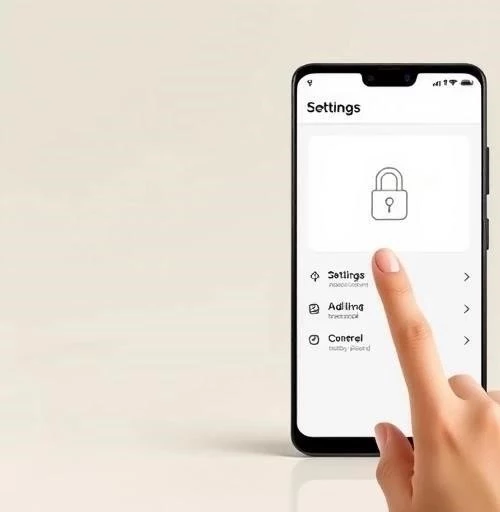
Setting a screen lock helps protect your messages, photos, accounts, and other personal information if your Xiaomi phone is lost or borrowed. The exact menu names can differ slightly between MIUI and HyperOS, and may also vary by model or software version, but the general process is similar. You can choose a password, PIN, or pattern; a password is usually the strongest option when it is long and unique.
Set a password for the lock screen
- Open Settings on your Xiaomi phone.
- Find and tap Passwords & security. On some versions, this menu may be called Security, Lock screen, or something similar. If you cannot find it, use the search box at the top of Settings and search for “screen lock.”
- Tap Screen lock or Screen lock password. You may need to confirm your existing PIN, pattern, or password first.
- Select Password. Depending on the software, the available choices may include a numeric PIN, an alphanumeric password, and a pattern.
- Enter the password you want to use, then enter it again to confirm. Follow any on-screen instructions and tap OK, Continue, or Done.
Once enabled, the phone will ask for this credential when it starts up and whenever it is locked. To test the setting, press the power button to turn off the screen, wake the phone, and unlock it using the new password. Make sure you have entered the password correctly before putting the phone away.
Choose a secure password
Use a password that is difficult for someone else to guess. Avoid your name, birthday, phone number, repeated digits, or familiar patterns such as “123456.” A longer password that combines letters and numbers is generally harder to guess than a short, predictable code. Do not reuse a password that protects your email or another important account.
Choose something you can remember, but do not write it on a note kept with the phone. If you use a password manager, store it securely there; Be aware that a phone may require the screen-lock credential after restarting, even when fingerprint or face unlock is available. You should be able to enter it without relying on biometrics.
Add fingerprint or face unlock
Biometric unlocking can make everyday use quicker, but it normally supplements rather than replaces the screen-lock password. First set a password, PIN, or pattern. Then open Settings and look under Passwords & security for Fingerprint unlock or Face unlock. Follow the prompts to register your fingerprint or face, and review which actions biometrics can unlock. Keep the password private: it remains the backup method and may be required after a restart or for certain security checks.
Lock individual apps
A screen lock protects access to the phone as a whole. If you want extra protection for selected apps while the phone is already unlocked, use App lock if your Xiaomi software provides it. Look in Settings under Apps or Passwords & security, open App lock, and follow the setup instructions. Choose the apps to protect and set or confirm the requested lock method. Menu locations and available features can vary by device and region.
Change or remove the screen password
To change your lock method later, return to the screen-lock settings and authenticate with the current credential. Choose a new password, PIN, or pattern and confirm it. If you want to remove the lock, select the option to turn it off, if available, and verify your current credential. Removing it makes the phone easier to access if it is lost, so consider keeping a lock enabled and adjusting the screen timeout instead.
If you cannot find the setting or forgot the password
Menu labels differ across Xiaomi models and software releases. Use Settings search, check for a system update, or consult the instructions for your specific model. If you have forgotten the screen-lock credential, fingerprint or face recognition may not be accepted as a substitute. Avoid unofficial unlocking tools or instructions that promise to bypass security: they can expose your information, damage the software, or cause data loss.
Use Xiaomi’s official support guidance for your model and region. A reset may be required in some cases, and it can erase locally stored data. Before taking that step, check whether your photos and files are backed up and make sure you know the credentials for the Google or Xiaomi account associated with the device. After a reset, account verification may be required; Setting a memorable, unique lock password now—and keeping a secure backup—can help prevent a stressful recovery later.


5 Comments. Оставить новый
I appreciate the suggestion to search Settings if the screen-lock option is hard to find. That should save time.
Helpful advice for protecting a phone, with a good balance of setup steps and reminders about choosing a strong password.
The password security tips are useful, especially the reminder not to reuse an important account password.
A straightforward guide that explains both how to set a password and how to test that it works.
Clear and practical instructions. Mentioning that menu names vary across MIUI and HyperOS makes the guide especially helpful.