
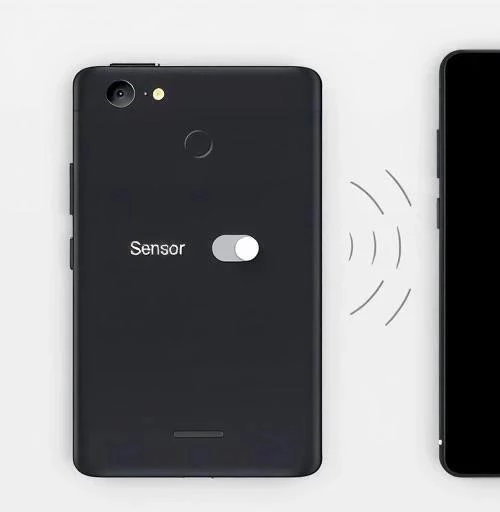
When you listen to a WhatsApp voice message or make a call‚ the screen may turn off as soon as you bring the phone near your face. This is normally the proximity sensor working as intended: it detects nearby objects and prevents accidental screen touches. Xiaomi phones do not usually provide a WhatsApp-specific switch for disabling this behavior. The available options depend on the phone model‚ Android version‚ and MIUI or HyperOS release.
Check WhatsApp and Xiaomi settings first
Start with the simplest checks. Open WhatsApp and look through its settings for audio or call options‚ but do not expect a proximity-sensor toggle: on most versions‚ WhatsApp does not offer one. The sensor is managed by Android and the phone’s firmware‚ rather than by a standard WhatsApp permission.
Xiaomi’s Pocket mode is sometimes confused with the proximity-sensor feature. It is intended to stop accidental touches when the phone is in a pocket; turning it off may change how the lock screen behaves‚ but it generally will not stop WhatsApp from switching off the display during a call or voice message. If you want to check it‚ search Settings for “Pocket mode.” Depending on the device‚ it may be under Settings > Lock screen or a similarly named section. Menu names and availability vary.
Use speakerphone or headphones as a workaround
If you mainly want to keep the screen on while listening‚ play the voice message through the loudspeaker instead of holding the phone to your ear. You can also use wired or Bluetooth headphones. For a WhatsApp call‚ select the speaker or headset option on the call screen. These options avoid bringing the phone close to your face‚ so the sensor is less likely to activate. They do not disable the sensor itself.
Check whether the sensor is being triggered incorrectly
If the screen goes black even when the phone is not near your face‚ check for a case‚ screen protector‚ dirt‚ or adhesive covering the sensor area. On many Xiaomi models‚ the sensor is near the top edge of the display or concealed beneath the screen; its exact location differs by model. Clean the top of the screen gently with a soft‚ dry cloth and temporarily remove accessories that might cover it. Then restart the phone and test WhatsApp again.
- Install available WhatsApp and system updates.
- Test a voice message and a call with the case removed.
- Check whether the same screen behavior occurs in other calling apps.
- If the sensor behaves incorrectly everywhere‚ use Xiaomi’s diagnostic test or contact an authorized service center.
A diagnostic menu is for testing‚ not a reliable way to turn the sensor off. Xiaomi devices may provide hardware tests through a CIT menu‚ sometimes opened by entering a model-dependent code in the Phone app or by tapping the kernel version in the device information settings. Codes and menu items vary‚ and some models do not expose the same tests. Avoid changing unfamiliar calibration or hardware settings.
Can the sensor be disabled through Android?
Some Android versions include a developer quick-settings tile called Sensors Off. If your Xiaomi has it‚ you may be able to find it in Settings > Additional settings > Developer options > Quick settings developer tiles. The precise path varies‚ and the tile may not be available. Developer options may need to be enabled first by tapping the OS version in the phone’s information page several times; follow the instructions shown on your device.
When available‚ “Sensors Off” is a broad system control‚ not a WhatsApp-only setting. It may disable several sensors at once and affect other apps or phone functions. Use it only for a brief test‚ then turn it off. Do not assume that it is safe or practical as a permanent fix. If you cannot find the tile‚ your firmware may not support it.
Why not use root tools or unofficial apps?
Apps that claim to disable the proximity sensor may require elevated access‚ may not work on current MIUI or HyperOS versions‚ or may interfere with calls and other features. Rooting or modifying system files can create security‚ stability‚ warranty‚ and update problems. There is no universally safe setting that disables only WhatsApp’s use of the sensor on every Xiaomi phone. Avoid installing unknown tools or changing system configuration unless you understand the risks and have a way to restore the device.
Recommended approach
For ordinary use‚ leave the sensor enabled and use speakerphone or headphones when you want the display to remain available. If it activates unexpectedly‚ remove anything covering the sensor‚ clean the screen‚ restart the phone‚ and test other calling apps. If the problem continues across apps‚ seek a hardware check. A Xiaomi settings menu or WhatsApp update may change over time‚ so verify instructions against your exact model and software version before making system-level changes.
7 Comments. Оставить новый
The information is organized around settings checks and practical workarounds, making it straightforward to identify options that may apply.
The troubleshooting suggestions, such as checking the case or screen protector, address common reasons the sensor might be triggered unexpectedly.
The suggested use of speakerphone or headphones offers practical alternatives without implying that they disable the sensor. The guidance is easy to follow.
The article clearly explains that the proximity sensor is generally managed by the phone rather than by WhatsApp. The distinction between sensor behavior and Pocket mode is useful.
It is helpful that the article notes settings can differ across Xiaomi models and software versions. This makes the advice appropriately cautious.
The article sets realistic expectations by explaining that WhatsApp usually does not provide a dedicated switch for this behavior.
The explanation of why the display turns off during calls or voice messages provides useful context for readers who may think the phone is malfunctioning.