
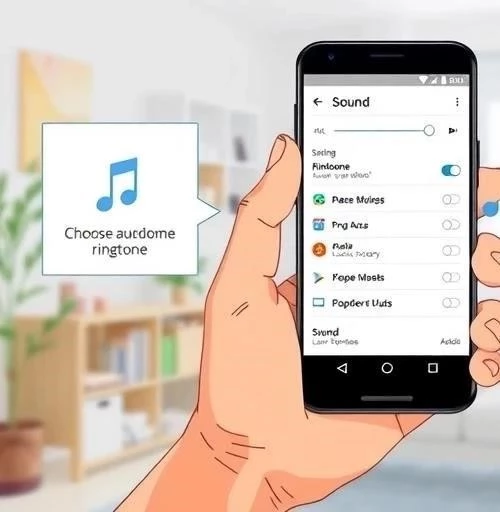
You can use one of the phone’s built-in ringtones or choose an audio file of your own. Menu names can vary slightly depending on your MIUI version, region, and installed updates, but the process is much the same on the Redmi 10 Pro and Redmi Note 10 Pro.
Before you start
If you want to use your own music, save the audio file on the phone first. MP3 files are usually the simplest choice; M4A and WAV files may also work, depending on the software version. A track available only through a streaming app may not appear in the ringtone picker. Download an audio file that you are entitled to use and can access offline.
Choose a built-in ringtone
- Open Settings on your phone.
- Tap Sound & vibration. On some versions, the menu may be called Sound.
- Tap Ringtone. If prompted, choose which SIM card you want to configure.
- Browse the available tones and tap one to hear a preview.
- Tap Apply, OK, or the confirmation button shown on your screen.
After applying the tone, ask someone to call you or use another phone to check that it plays at a suitable volume. The ringtone volume is separate from media volume: adjust it with the volume buttons, then open the on-screen sound controls, or return to Settings > Sound & vibration and move the ringtone slider.
Set your own song or audio file
- Copy the audio file to the phone’s internal storage, for example to the Music, Download, or Ringtones folder. You can transfer it by USB, download it in a browser, or receive it through a file-sharing app.
- Go to Settings > Sound & vibration > Ringtone, and select the SIM if asked.
- Look for Choose local ringtone, Select a ringtone from the device, or a similar option. The wording depends on the MIUI build.
- Choose a source such as File Manager, Recorder, or Music. If Android asks for access to files, allow it so the picker can display your audio.
- Open the folder containing the track, tap the file, and listen to the preview if one is offered. Confirm with Apply or OK.
If the picker opens on a page of categories, switch to the file or folder view and browse internal storage. You can also move or copy the audio into a folder named Ringtones; this can make it easier to find. Do not rename a file’s extension unless you have actually converted it, because changing “.m4a” to “.mp3” does not change the audio format.
Set a ringtone for one contact
To identify a particular caller by sound, open the Contacts app and select the person. Tap Edit or the three-dot menu, then look for Set ringtone or Default ringtone. Choose a tone and save the contact. The precise option may differ by Contacts app and MIUI version. If it is missing, check that the contact is saved to the phone or Google account rather than only to the SIM, then try again.
Use different tones for two SIM cards
On a dual-SIM model, open the ringtone settings and select SIM 1 or SIM 2 when prompted. Pick and apply a tone for each line. If you do not see a SIM choice, search Settings for “ringtone” or open SIM cards & mobile networks to confirm both SIMs are enabled.
If your audio file does not appear
- Check the folder: confirm the file is stored locally, not just listed in a cloud or music app.
- Check the format: try a standard MP3 audio file if another format is not recognized.
- Refresh the picker: close Settings, reopen it, or restart the phone after copying the file.
- Check access: allow the file-picker app to access music and audio when Android requests permission.
- Try another route: open the file in File Manager or Music and look for a menu option such as Set as ringtone. Not every app offers this feature.
Also check that the phone is not set to Silent or Do Not Disturb, and make sure the ringtone volume is turned up. These modes can make it seem as though a new ringtone has not been saved.
Quick recap
For a standard tone, open Settings > Sound & vibration > Ringtone, choose a sound, and apply it. For a personal tone, first save an audio file on the phone, then use the local-ringtone option to select it. Menu labels may differ across updates, so use the Settings search bar and type ringtone if you cannot find the option.

3 Comments. Оставить новый
A practical, easy-to-follow explanation for setting a ringtone on these phones. The advice to test the ringtone afterward helps ensure the changes actually worked.
This guide makes it easy to choose either a built-in tone or a personal audio file. I also appreciate the reminder that streaming tracks may not appear in the ringtone picker.
The step-by-step instructions are clear, and the note about different MIUI menu names is especially useful. The distinction between ringtone and media volume is a helpful troubleshooting tip.