
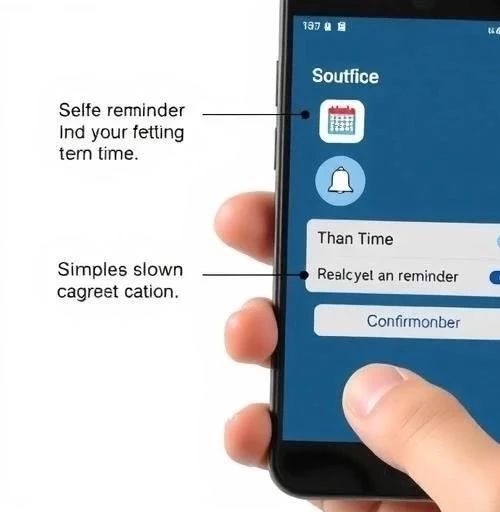
Your Xiaomi can be a pocket-sized timekeeper, gently nudging you to call the dentist, water the basil, or rescue dinner from the oven. The exact buttons vary slightly between MIUI and HyperOS versions, but the main routes are familiar: use the Calendar app for dated plans, Notes or Tasks for to-dos, or Google Assistant for a hands-free reminder.
Method 1: Create a reminder in Calendar
Choose Calendar when the task belongs to a particular day or time, especially if you want to see it alongside appointments.
- Open Calendar on your Xiaomi phone.
- Tap the + button, usually near the bottom of the screen. Depending on your version, choose Event, Task, or a similarly named option.
- Enter a short, clear title, such as Pick up the parcel.
- Set the date and start time. If the task needs a warning beforehand, open Notification or Reminder and choose when it should alert you.
- For something that repeats, select Does not repeat or Repeat, then choose a schedule such as daily, weekly, or monthly.
- Tap Save or the check mark.
To check that it worked, return to the calendar and open the date. Your new entry should appear there. A reminder set for a specific time is only useful if Calendar notifications are allowed, so check the notification settings if the alert goes missing.
Method 2: Use Notes or Tasks for a simple to-do
Need a nudge without a full calendar event? Open Xiaomi’s Notes app. Create a note or task, write what you need to do, and look for a bell, clock, or Reminder option in the editing screen or menu. Choose the date and time, then save. Some versions of Notes offer checklists but not timed alerts; if you cannot find a reminder control, use Calendar or Google Tasks instead.
Google Tasks is another handy option if it is installed and connected to your Google account. Open the app, tap +, enter the task, then use the date/time control to schedule a notification. You can also add details, such as an address or a short instruction, so the alert tells you more than “do the thing.”
Method 3: Ask Google Assistant
If your hands are busy, try saying, “Hey Google, remind me to take the laundry out at 6 p.m.” You can also say, “Remind me tomorrow at 9 to call Sam.” Follow any on-screen questions and confirm the date and time. Assistant may save the reminder in Google Tasks or another Google service, depending on your settings and app version. Open the resulting task to verify it has the right time.
If voice activation does not respond, open the Google app or Assistant manually and check that microphone access and Assistant permissions are enabled. Voice features and available reminder services can differ by language, region, and software version.
Make sure the alert actually rings
A saved reminder is a promise; a notification is the knock at the door. If you create one but hear nothing, check these settings:
- Notifications: Open Settings > Notifications (or Notifications & status bar), select the relevant app, and allow notifications. Enable sound or lock-screen alerts if you want them.
- Battery restrictions: In Settings > Apps > Manage apps, choose Calendar, Notes, or Tasks and look for battery or background-activity controls. If reminders arrive late, allow the app to run in the background or choose a less restrictive battery setting. Menu names differ across Xiaomi models.
- Do Not Disturb: Check whether a schedule is silencing alerts at the reminder time. You may need to allow the app through the mode’s exceptions.
- Date and time: Make sure the phone’s time zone and clock are correct, preferably with automatic time enabled.
Small tricks that make reminders stick
Write an action, not a mystery. “Send the signed form to Maya” is more useful than “form.” Add a little context. Include a building name, shopping aisle, or phone number when it will help in the moment. Use repeats carefully. A weekly reminder is excellent for bins or medication, but check the end date if you only need it for a short period. For critical medication or safety tasks, use an appropriate dedicated reminder and do not rely on a single notification as your only safeguard.
Before trusting a new setup, create a test reminder a few minutes ahead. Lock the screen, wait, and confirm that the alert appears and makes the sound you expect. If it does, your Xiaomi is ready to remember the small things while you get on with the big ones.
Quick route
Calendar: best for dated events and repeating schedules. Notes or Tasks: best for a straightforward to-do. Google Assistant: best when typing is inconvenient. The labels may shift after a MIUI or HyperOS update, but the recipe stays the same: create the item, set its time, save it, and make sure its app is allowed to notify you.
7 Comments. Оставить новый
This guide has the sensible, reassuring feel of someone showing you the shortcut rather than making you decode a manual. I’d happily put “rescue dinner from the oven” on my first test reminder.
A refreshing strength is that it admits Xiaomi menus can vary. Tech advice is much more useful when it leaves room for reality instead of insisting every screen looks exactly the same.
A pocket-sized guide to outsourcing the little things our brains insist on carrying around. I appreciate that it ends with the unglamorous but crucial detail: make sure notifications are allowed.
I like how this turns a phone from a glowing distraction into a tiny butler with a calendar. The note about checking notifications is especially useful—an alert that never arrives is just a very quiet promise.
The best tip here may be choosing the right tool for the job: Calendar for time-bound plans, a task list for everyday errands. It’s a small distinction that can save a surprising amount of digital clutter.
The article makes reminders feel less like nagging and more like leaving kind notes for your future self. The repeating-schedule instructions are a practical bonus for chores that keep coming back.
Good, clear guidance, especially the fallback to Google Tasks when Notes doesn’t offer timed alerts. That flexibility is the difference between a guide that sounds tidy and one that actually helps.