
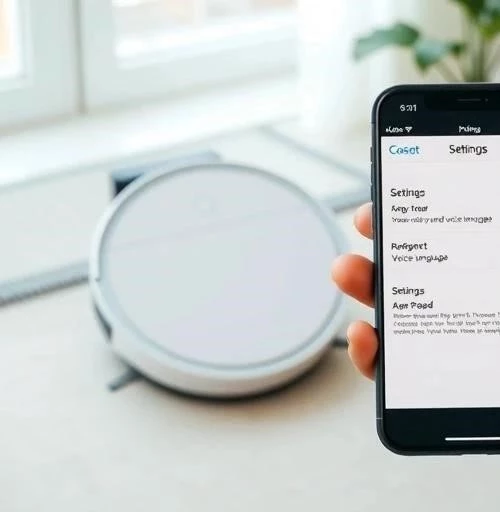
Your Xiaomi robot may already understand where to go; the trick is getting it to speak your language. On many models, Russian is available as a downloadable voice pack. On others, it is not offered for that model or region. The steps below start with the safe, official options and explain what to check if Russian is missing.
First, know what “Russian” means
There are two separate language settings. The Mi Home/Xiaomi Home app language controls the text and menus on your phone. The vacuum’s voice pack controls spoken announcements, such as “Cleaning started” or “Return to the dock.” Changing your phone’s app language will not necessarily change the robot’s voice.
Also identify your exact vacuum model. Find its name in the app’s device page or on the label underneath the robot. Xiaomi, Roborock, and regional versions may use different apps, menus, and supported voice packs, even when the machines look similar.
Try the official voice-pack setting
- Connect your phone and robot to the same home Wi-Fi network. Open Xiaomi Home (called Mi Home in some versions) and make sure the robot appears online.
- Tap the robot’s tile to open its control screen. Tap the three-dot menu or settings icon in the top corner.
- Look for a menu called Voice settings, Voice pack, Voice and volume, or something similar. Names and locations vary with the app version and model.
- If Russian appears, select it and tap Download or Apply. Keep the app open while the pack transfers. Leave the vacuum powered on and close to the router; do not unplug it or start a firmware update during the transfer.
- Play a test announcement, if the app offers one, or start and pause a short cleaning run. Check that both the voice and its volume are right.
If the menus are in another language, you can still follow the same route: open the robot, enter its settings, and find the sound or voice-pack option. Search the menu for a speaker icon. The exact wording changes, so a missing label does not always mean the feature is absent.
If Russian is not in the list
Check for an official app update first, then open the robot’s settings and check for an official firmware update. Restart the app and robot after updating, then look at the voice-pack list again. Updates can add or reorganize options, but they cannot guarantee that every model will receive Russian.
Next, check the region selected in Xiaomi Home. Some devices and downloadable resources are tied to the market for which the robot was made. A China-market model, for example, may show a different catalogue from a global version. Changing the app region can make a device disappear, disconnect automations, or require you to set it up again. Before changing it, note the current region and consider whether the robot’s model is supported there. Do not repeatedly switch regions at random.
If Russian remains unavailable, the pack may simply not be officially supported for your model, firmware, or region. The app’s interface can still be Russian while the robot speaks another language. These are independent settings.
What about custom voice packs?
Owners sometimes find community-made Russian packs for particular models. These are not universal: a file made for a different vacuum or firmware can fail to install, remove existing sounds, or cause the robot to behave unpredictably. Some unofficial methods require a device token, command-line tools, or firmware access. Treat them as advanced modifications, not as a normal app setting.
Before attempting one, verify the exact model and firmware, read the pack maker’s instructions and recovery advice, and keep a copy of the original sound files if possible. Never enter your Xiaomi password or token into an unknown website, install a random firmware image, or follow instructions that ask you to disable security without understanding why. If the robot is under warranty, unofficial changes may affect service options.
Quick troubleshooting
- Download will not start: check the Wi-Fi connection, free phone storage, and app permissions. Restart the app and try again.
- Russian downloads but the old voice remains: select the pack once more, wait for confirmation, then power-cycle the robot using its normal controls.
- The voice sounds too quiet: adjust the robot’s volume in its settings; phone media volume may not control announcements.
- The voice menu is missing: confirm the exact model, update the app, and check the manufacturer’s support information for that model.
Bottom line: open the robot’s settings in Xiaomi Home and install Russian from the official voice-pack list if it is offered. If it is absent after checking updates and the correct region, there may be no supported Russian pack for that version. A careful model check is safer than forcing a language file meant for another machine.

6 Comments. Оставить новый
A nicely grounded guide that leaves room for model differences instead of promising a magic fix. The test-announcement tip is a small detail that can save a lot of head-scratching later.
The safest route is also the clearest: check the exact model, use the official voice-pack menu, and don’t gamble with unofficial files. Practical advice with the calm energy of a robot returning to its dock.
I appreciate the sensible download precautions: keep the robot powered on, stay near the router, and let the transfer finish. Even a tiny voice pack deserves a smooth landing.
A useful little map through the maze of Xiaomi menus. I especially like the reminder that phone language and robot voice are different switches—one changes the screen, the other changes the vacuum’s personality.
The model-and-region caveat is important. Two vacuums can look like twins and still have completely different voice options; this article explains that without making the process feel intimidating.
This guide treats the settings menu like a small expedition, complete with speaker-icon clues. A helpful touch for anyone whose vacuum seems to speak every language except the one they’re looking for.