
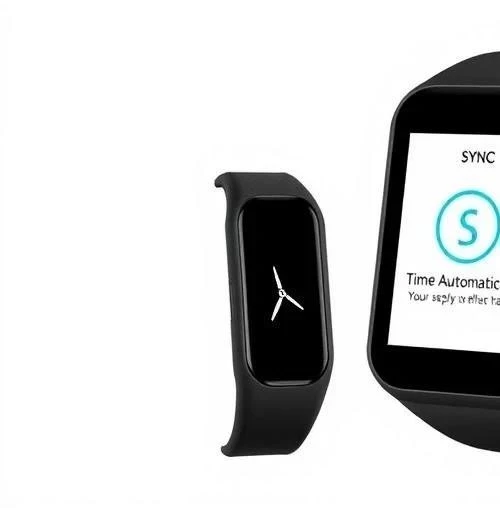
The Xiaomi Mi Band 3 does not have a separate clock-setting menu. Its time is synchronized from the smartphone it is connected to, so the reliable way to correct the band is to check the phone’s clock and then sync the devices. Trying to change the time directly on the band will not work.
Set the time through the phone
- On your phone, turn on Bluetooth and check that the date, time, and time zone are correct. Automatic date and time settings are usually the simplest option.
- Open the app paired with your Mi Band 3. The original companion app was Mi Fit; it is now known as Zepp Life in many regions. Use the app already linked to your band, or install the current compatible version.
- Sign in to the account associated with the band. In the app, open Profile and select Mi Smart Band 3. Menu names can differ slightly between app versions.
- Keep the band close to the phone and wait for the connection or synchronization to finish. If the band is already paired, opening the app and allowing it to sync is normally enough to update the displayed time.
After synchronization, check the watch face. The band follows the phone’s local clock, including its time zone; it does not independently determine the correct local time. This is why correcting the smartphone first is essential.
If the time does not update
- Check the phone clock. Confirm the correct time zone as well as the hour and minutes. A phone set to the wrong zone will pass that incorrect time to the band.
- Restore the connection. Make sure Bluetooth is on, bring the devices together, and reopen the companion app. Wait for a successful sync rather than relying only on the phone’s Bluetooth screen.
- Check app access. Allow the app to use Bluetooth and run in the background. Some phones restrict background activity to save battery, which can prevent a dependable connection.
- Restart both devices. Restart the phone, then restart the band if that option is available in its settings. Open the app again and try synchronizing.
- Update the app. An outdated or malfunctioning app may fail to communicate correctly. Update it from the official app store, sign in, and retry the sync.
If the band still shows the wrong time, unpairing and pairing it again can help, but use this as a later step: first confirm the account and ensure the app recognizes the correct Mi Band 3. Follow the app’s instructions to remove the device, then add it again and approve the pairing prompt on the band. A factory reset should be a last resort because it may remove local data and requires setting the band up again.
Important limitations
Mi Band 3 cannot be adjusted by pressing its button or choosing a time on the display. It also cannot show a different time zone from the paired phone through a normal manual clock setting. If you travel, update the phone’s time-zone settings and sync the band. For daylight-saving changes, the same process applies: once the phone has the correct local time, reconnect and synchronize.
In short: correct the smartphone’s clock, connect the Mi Band 3 through Mi Fit or Zepp Life, and complete a sync. That is the standard method because the band takes its time from the phone rather than keeping an independently editable clock.