
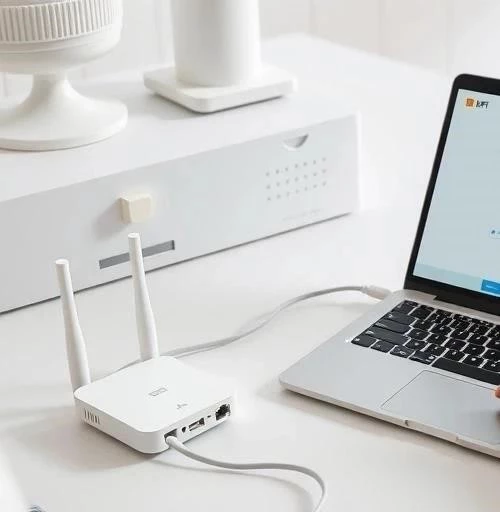
The Xiaomi Mi Router 4A can be configured through its web interface on a computer. You do not need a mobile app, but you will need an Ethernet cable or a working Wi-Fi connection and the connection details supplied by your internet provider. Interface wording can vary slightly by firmware version.
Connect the router
Place the router near the modem or incoming internet cable and connect its power adapter. If your provider uses a separate modem or optical terminal, connect its LAN port to the router’s blue WAN/Internet port. For a direct Ethernet connection from the provider, plug that cable into the WAN port instead.
For the most reliable setup, connect the computer to one of the router’s LAN ports with an Ethernet cable. You can also connect over Wi-Fi: look for the default network name printed on the router label or included documentation. A newly reset router may offer an open setup network.
Open the setup page
On the computer, open a browser and enter http://192.168.31.1 in the address bar. Some versions may also respond to miwifi.com. Do not enter the address into a search field. If the page does not load, check the computer’s connection, turn off any VPN temporarily, and try the numeric address again.
Follow the on-screen instructions. The interface may ask you to accept terms, select a region, or choose a language. If the router has already been configured, it may request its administrator password rather than starting the initial wizard. Use the password previously created for the router; it is not necessarily the Wi-Fi password.
Configure the internet connection
Select the connection type specified by your provider. Choose DHCP or “automatic IP” when the provider assigns settings automatically. Choose PPPoE and enter the supplied username and password if your service requires them. Use a static IP only when the provider has given you the IP address, gateway, subnet mask, and DNS values. Avoid guessing these details.
If your provider binds service to a particular device’s MAC address, ask whether registration or MAC cloning is required. Save the settings and allow the router a minute to connect. A successful status indicator or an internet connection on the computer confirms that the WAN setup is working.
Set Wi-Fi and administrator passwords
Choose a clear wireless network name (SSID) and create a strong, unique Wi-Fi password. Use WPA2 or the strongest compatible security option shown in the interface; do not leave the network open. The Mi Router 4A supports 2.4 GHz and 5 GHz Wi-Fi. Depending on firmware, these bands may appear separately or use a combined name. Separate names can make it easier to choose a band during troubleshooting.
Create a separate, strong administrator password when prompted. This password protects the settings page and should not be shared with guests. Store both passwords securely. If offered, enable automatic firmware updates or check the update page after the internet connection is established.
Finish and verify
Save the configuration and wait for the router to restart its wireless network. Reconnect the computer using the new Wi-Fi name and password, or keep using Ethernet. Open a few websites to test access. If needed, revisit 192.168.31.1 to review the connection status, connected devices, Wi-Fi options, and firmware settings.
Troubleshooting
- The setup page will not open: confirm the computer is connected to the Xiaomi router, try another browser, and enter the address directly. Check that the computer obtains an IP address automatically.
- Wi-Fi works but there is no internet: inspect the WAN cable and port, restart the modem and router, and verify the provider’s connection type and credentials.
- The password is unknown: if you own the router, hold its reset button for several seconds until the indicators signal a reset. This erases existing settings; run the setup again afterward.
Keep the router’s ventilation openings unobstructed and place it away from thick walls or sources of interference. Once configured, change settings only when necessary and keep a record of the provider details needed to restore the connection.
1 Comment. Оставить новый
The instructions are clearly organized and explain the main setup steps without assuming a mobile app is available. The notes about connection types and troubleshooting are useful, though checking the router label and provider information before starting can help avoid delays.