
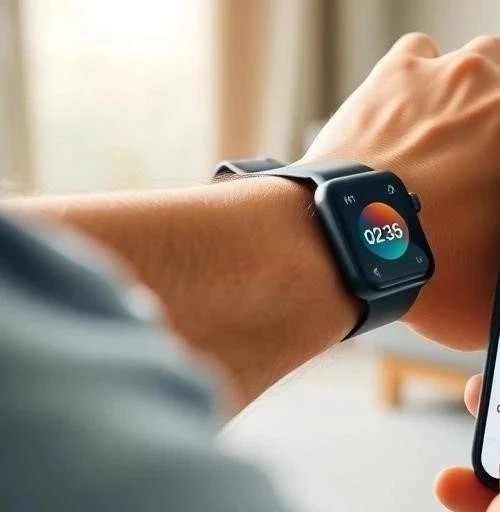
Your Apple Watch can take a small electrical snapshot of your heartbeat—but first, the ECG app needs to be available, installed and set up. On Apple Watch Series 4, the sensor is built into the back crystal and Digital Crown. Here’s how to get it working in Russia, what to do if the app is missing, and how to read the result without asking your wrist to play doctor.
Before you begin
- Check the watch: ECG is supported on Apple Watch Series 4 and later. Series 4 needs watchOS 5.2 or later; install the newest watchOS version offered for your watch and iPhone.
- Check the iPhone: Your watch must be paired with an iPhone running a compatible iOS version. Keep both devices nearby, connected to Wi-Fi, and preferably charging during updates.
- Check your age: Apple’s ECG app is intended for people aged 22 and older. Enter your correct date of birth in the Health profile.
- Check availability: ECG is a regulated health feature, so it depends on Apple’s country or region availability and approved software. It has been enabled in Russia on supported releases, but availability can change. Use Apple’s current support information if the app remains unavailable.
Set up the app step by step
- Update iPhone and watch. On iPhone, open Settings > General > Software Update. To update the watch, open the Watch app and choose General > Software Update. Follow the on-screen instructions. Series 4 may not support the newest watchOS generation, so install the latest version it offers rather than expecting an update it cannot run.
- Check your Health profile. Open Health on iPhone, tap your profile picture, and review your personal details, including date of birth. A missing or incorrect age can prevent setup.
- Start ECG setup. In Health, open Browse > Heart > Electrocardiograms (ECG). Tap Set Up ECG App and follow the explanations and safety information. Menu wording can vary slightly by iOS version.
- Look for the app on the watch. After setup, find ECG in the Apple Watch app list. If it hasn’t appeared, open the iPhone’s Watch app and check My Watch for the ECG app or available app installation. Restart both devices once if needed.
- Complete the first reading. Open ECG on the watch and follow the prompts. Your first recording also helps the app explain how to hold your finger and sit still.
How to take a reading
Wear the watch snugly on the wrist you selected during setup. Sit down, rest your forearms on a table or your lap, and relax. Open the ECG app. Place a finger from your other hand on the Digital Crown—touch it lightly; you do not need to press the button. Keep contact for the full 30-second recording, without moving or talking. The watch measures the electrical signals passing through your heart and displays a single-lead ECG.
When the recording ends, the app shows a result and saves it in the Health app. You can open Health > Browse > Heart > Electrocardiograms (ECG), select a recording and, where available, export a PDF to share with a clinician. A useful record includes the date, time and any symptoms you felt. It is not a substitute for a medical examination.
If ECG is missing or won’t record
- Check the country or region settings. Availability is tied to regulatory approval and Apple’s supported regions. Make sure your Apple Account, iPhone and watch are set up normally for your actual location. Changing regions or using another person’s account to force access may affect services and does not make a feature medically approved for you. If ECG is not listed, check Apple’s current country-availability page or contact Apple Support.
- Confirm the basics. Make sure the watch is Series 4 or newer, paired, updated as far as it can be, and that the Health profile shows an eligible age. If the iPhone was recently replaced or the watch restored, repeat setup in Health.
- Improve contact. A loose band, wet skin, movement, or a finger that is not touching the Digital Crown can cause an inconclusive or poor-quality result. Dry your hands, adjust the fit, rest your arms, and try again. Tattoos beneath the watch can also interfere with sensor contact.
- Restart and retry. Restart both devices, then reopen Health and ECG. If setup still fails, record the exact error message and ask Apple Support rather than installing unofficial profiles or modified software.
What the result does—and doesn’t—mean
The app may report sinus rhythm, atrial fibrillation (AFib), a high or low heart rate, or an inconclusive result. It can also flag a recording that is unreadable. “Inconclusive” does not automatically mean something is wrong: movement, a high heart rate, or other conditions may affect classification. Apple Watch ECG is designed to identify certain rhythm patterns, not heart attacks, blood clots, strokes, or every heart condition. It also does not continuously monitor your heart like a hospital ECG system.
If you have chest pain, shortness of breath, fainting, sudden weakness, or another severe or worrying symptom, seek urgent medical help in Russia—do not wait for another watch reading. If the watch repeatedly reports AFib or you notice symptoms, save the recording and discuss it with a doctor. Treat the watch as a careful note-taker, not a diagnosis machine.
The short version
Update both devices, verify your Health profile and regional availability, then set up ECG in the iPhone Health app. Sit still, touch a finger to the Digital Crown for 30 seconds, and review the saved result in Health. If the feature is unavailable despite meeting the requirements, use Apple’s official support route; don’t rely on region tricks for a health tool.
7 Comments. Оставить новый
The article manages to make a regulated health feature feel approachable without making it sound like a diagnosis machine. A calm little bridge between gadget setup and real-world caution.
A useful reminder that a watch can record a signal, but it cannot replace a clinician. I especially like the “don’t ask your wrist to play doctor” idea—it gives the whole guide a clear, sensible heartbeat.
The setup steps feel like a small troubleshooting map: check the devices, check the profile, then check availability. That order could save someone from blaming the watch when the real culprit is a missing setting.
I appreciated the note that Series 4 cannot run every newer watchOS release. Tech advice often treats “update everything” like a magic spell; this guide adds the useful fine print.
Good practical detail about keeping the iPhone and watch nearby during updates. It’s the sort of unglamorous tip that prevents a simple setup from turning into an afternoon of digital archaeology.
The country-availability explanation is important. When an app disappears, people often assume their device is broken; sometimes the invisible border is in the software rules, not the hardware.
This reads like a friendly checklist for a very modern ritual: wrist, phone, profile, permission. The best part is its steady reminder that a neat ECG trace is information—not the final word.