
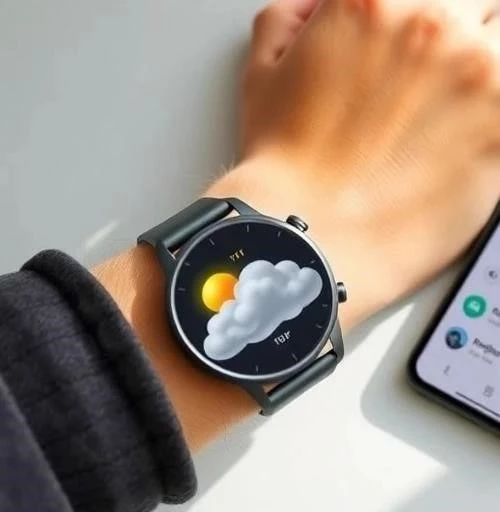
To display weather on a Watch 8 Pro, you usually need to pair the watch with its companion app, allow the app to access your phone’s location, and enable weather syncing. Menu names and supported features can differ between Watch 8 Pro versions, so use the app named in your watch’s manual or shown by its QR code. Avoid installing an unrelated app just because its name sounds similar.
Pair the watch with your phone
- Charge the watch and switch it on.
- Find the companion-app QR code in the watch menu, packaging, or instruction booklet. Scan it with your phone and install the recommended app from an official app store when available.
- Turn on Bluetooth on your phone. Open the app, create or sign in to an account if requested, and choose the option to add or bind a device.
- Select Watch 8 Pro from the list and confirm the pairing request on both screens. If the watch asks for permission to share notifications or other data, allow only the access you want.
Pair from inside the companion app rather than only from the phone’s Bluetooth settings. If the watch is already listed as paired in Bluetooth but is not connected in the app, remove that connection and start pairing again from the app.
Turn on location and weather access
Weather is generally supplied by the phone or the companion app, not measured by the watch itself. On your phone, enable Location Services. Then open the phone’s app-permission settings, select the watch companion app, and allow location access. Choose “While using the app” if that is sufficient; if weather stops updating when the app is closed, try “Allow all the time,” if your phone offers it and you are comfortable with that choice. On iPhone, also check that Location Services are enabled for the app.
Open the companion app and look for Device, Settings, Weather, or Health monitoring. Turn on weather synchronization and select the location option. Depending on the app, this may be your current location or a city you choose manually. Allow internet access for the phone and app so the forecast can be downloaded.
Show the forecast on the watch
Keep the watch connected to the phone and open the Weather tile, widget, or app on the watch. If weather is not visible, check the watch-face settings: some faces let you add a weather complication, while others do not support one. Choose a supported face or add the weather widget to the shortcut or tile screen. The first update may take a few minutes after pairing or after opening the companion app.
If the weather is missing or incorrect
- Check the connection: Make sure Bluetooth is on, the watch appears connected in the companion app, and the phone has internet access. Open the app once to encourage a fresh sync.
- Verify the location: Check that the app has location permission and that the selected city or current location is correct. If you are indoors, near a border, or using a VPN, the detected location may be inaccurate; choose a city manually if the app permits it.
- Review background settings: Battery saver, background-app limits, or restricted data can prevent updates. Allow the companion app to run in the background, and disable battery restrictions for it if necessary.
- Check units and refresh options: Set Celsius or Fahrenheit in the app or watch settings. If there is an update interval, choose a reasonable frequency; more frequent syncing may use more battery.
- Restart and resync: Restart both devices, reopen the companion app, and wait for synchronization. Install available app or watch updates only through the official app or the manufacturer’s instructions.
When to reset or contact support
If weather still will not appear, unpair and pair the watch again through its companion app. A factory reset is a last resort: it can erase settings and stored data, so sync anything important first. If the app has no weather setting, your particular Watch 8 Pro version may not support a weather display, or it may use a different companion app. Check the exact model number and manual, then contact the seller or manufacturer for the correct setup instructions.
Quick checklist: Watch paired in the correct app; phone location and app permission enabled; weather sync switched on; internet available; watch connected; and a compatible weather tile or watch face selected.
5 Comments. Оставить новый
The location-permission explanation is helpful, and I like that it suggests choosing the least permissive setting that works.
I appreciate the advice to use the app identified in the watch’s manual or QR code. That could save a lot of confusion.
A useful guide for troubleshooting weather syncing. The steps are easy to follow without assuming every Watch 8 Pro is identical.
Good point that weather usually comes from the phone or companion app, not directly from the watch.
Clear, practical instructions—especially the reminder to pair through the companion app rather than Bluetooth settings alone.