
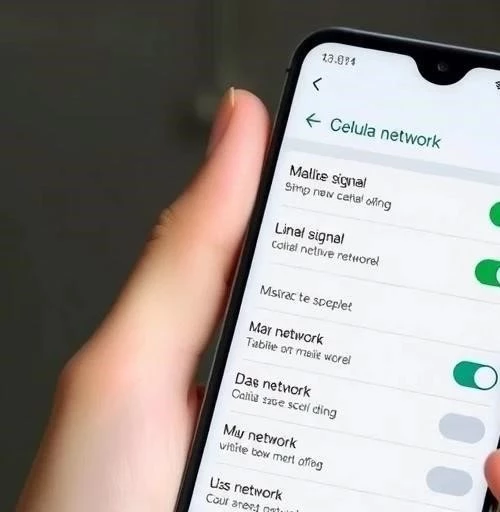
Your Xiaomi can treat mobile networks like a traveler treats roads: it usually chooses the route that seems best, switching between 5G, 4G, 3G, and sometimes 2G as signal conditions change. That automatic flexibility is useful—until the phone keeps wandering away from a perfectly good LTE connection. If you want to keep it on 4G, you can change its preferred network mode. If you want to lock it to 4G only, you may need a less obvious Android testing menu.
The exact labels depend on your Xiaomi model, Android version, MIUI or HyperOS release, carrier, and country. The methods below start with the safest built-in setting and then explain the more forceful option, its risks, and how to undo it.
First, what does “4G only” actually mean?
“4G” and “LTE” generally refer to the same generation of mobile network in everyday phone settings. A preferred-network option such as Prefer LTE lets the phone use 4G when available but may allow it to fall back to another network. LTE only, by contrast, tells the modem not to use older radio technologies for normal network service.
That distinction matters. A phone set to LTE only may lose service in places where 4G coverage is absent, even if 3G or 2G is available. It can also affect calls and text messages if your carrier does not support the required voice service over LTE. Before changing anything, think of this as a trade: fewer network switches in exchange for less flexibility.
Method 1: Choose 4G in Xiaomi’s regular settings
This is the best first step. It is easy to reverse and is less likely to cause trouble than a strict LTE-only lock.
- Open Settings.
- Tap SIM cards & mobile networks, Mobile networks, or a similarly named option. The wording varies between MIUI and HyperOS.
- If you use two SIM cards, choose the SIM you want to change.
- Tap Preferred network type, Preferred network type for this SIM, or Network type.
- Select an option that includes 4G or LTE. Depending on the phone, it may say Prefer LTE, 4G/3G/2G (auto), or 5G/4G/3G/2G.
This setting usually means “use 4G when possible,” not “never use anything else.” If your menu offers only a combined automatic option, your model or carrier may not expose a strict 4G-only control in ordinary settings. Don’t assume that selecting a label with “4G” guarantees a hard lock; the exact behavior is determined by the modem and software.
Method 2: Try Android’s testing menu for LTE only
Some Xiaomi phones provide a hidden Android information screen where the preferred radio mode can be changed. It is not a normal user-facing settings page, so treat it like a control panel behind a service hatch: useful, but best approached carefully.
- Open the Phone app used for dialing calls.
- Enter *#*#4636#*#* using the keypad. On many Android phones, the screen opens automatically after the final character; you do not need to press the call button.
- Tap Phone information. If you use two SIMs, there may be a separate information page for each one.
- Find Set preferred network type or a similar drop-down menu.
- Look for an option such as LTE only. Select it only if you understand that it can prevent fallback to older networks;
- Leave the screen and give the phone a moment to reconnect. If it does not reconnect, switch Airplane mode on briefly and then off, or restart the phone.
The code is not guaranteed to work on every Xiaomi. A device may ignore it, display a different screen, or block access because of its software build, carrier, or region. If nothing happens, do not keep trying random codes found online. Use the regular network settings instead.
Important: The menu may contain several similar-looking choices, including combinations of LTE, GSM, WCDMA, and NR. Do not experiment with unfamiliar options. Select only a clearly labelled LTE-only mode, and note your current selection first so you can restore it. The names and available combinations can differ by device.
Before locking the phone: check calls and emergency access
Voice calls do not work identically on every carrier. Some networks use VoLTE—voice over LTE—so calls can continue while the phone remains connected to 4G. Others may rely on a fallback network for calls, or require carrier provisioning before VoLTE is available. With LTE only selected, an incoming or outgoing call could fail if your phone and carrier cannot complete it over LTE.
Before relying on the setting, test a normal call and, if relevant, SMS messages. Do this somewhere you have another way to communicate. Never make a test call to an emergency number. If you depend on the phone for urgent contact, travel, work, or personal safety, the automatic or preferred-LTE mode is usually the more prudent choice.
VoLTE controls, when available, may be found under Settings → SIM cards & mobile networks → [your SIM]. Look for Use VoLTE, VoLTE calls, or a similar switch. A switch may be absent because the carrier controls the feature, the device does not support it on that network, or it is enabled automatically. Turning on VoLTE does not by itself guarantee that LTE-only calling will work; carrier support is essential.
How to tell whether the change worked
- Check the status bar. The icon may show 4G or LTE, but it only describes the current connection—not necessarily every network the phone is allowed to use.
- Open the testing menu again. If available, review the selected preferred network type. Be cautious not to change it while checking.
- Test where coverage is reliable. A phone cannot connect to LTE simply because you selected LTE only; a compatible signal and an active SIM plan are still required.
- Test calling and data separately. Mobile data working does not prove voice calls will work, and a displayed 4G icon does not guarantee a particular speed.
Network icons are small hints, not full diagnostic reports. Signal strength, congestion, your plan, indoor walls, and local band support all affect the experience. A 4G-only setting cannot make weak coverage strong or turn a congested cell tower into a private highway.
If the option is missing or the phone loses service
The menu does not show “LTE only”
That can be normal. Xiaomi software and mobile operators may hide or restrict radio choices. Update your phone only through official system settings, check the standard preferred-network menu, or ask your carrier whether your SIM and plan support LTE and VoLTE. Avoid unofficial tools that promise to unlock hidden bands or network modes; they may require risky permissions or change settings you cannot easily restore.
The phone shows no service after the change
Return to Set preferred network type and choose the previous setting or an automatic option such as LTE/3G/2G (auto). If the testing menu is unavailable, open the SIM’s regular network settings and select an automatic network mode. Then toggle Airplane mode or restart. If service still does not return, check whether the SIM is active and whether there is an outage before changing more advanced settings.
Mobile data works, but calls do not
Switch back to an automatic mode first. Then check VoLTE availability with your carrier and make sure the phone is approved for its network. Some carriers require VoLTE activation on the account; others do not support it on every model or regional variant. Do not assume that two phones with the same Xiaomi name have identical radio support.
The phone keeps changing back
A system update, SIM change, carrier configuration, or reboot may restore the default mode. Some software builds deliberately prevent a permanent LTE-only lock. If the setting repeatedly resets, use the supported preferred-network option rather than trying to force it with third-party apps.
Dual SIM, roaming, and battery considerations
On a dual-SIM Xiaomi, network preferences are commonly set separately for each SIM. Check that you changed the intended card, especially if calls use one SIM while mobile data uses another. Some devices also limit which SIM can use 4G or 5G at a given time. The SIM selected for data may not be the one whose network mode you changed.
Roaming adds another layer: your home carrier may allow LTE-only operation, while a roaming partner may require a different mode for calls or service. If you are travelling, automatic selection is generally safer unless your carrier gives specific instructions. A network lock can leave you offline precisely when you need maps, messages, or a ride.
There is no universal battery-saving promise here. Avoiding repeated network searches might help in some situations, but a weak LTE signal can also make a modem work harder. If battery life is the goal, compare it over a normal day and consider coverage, screen use, and background apps before blaming the network mode.
What not to do
- Do not change several radio settings at once; you will not know which change caused a problem.
- Do not select a mode just because it contains “LTE” if it also disables technologies your carrier needs.
- Do not install an unknown “4G switcher” app that asks for broad access or promises impossible coverage.
- Do not reset network settings as a first move. That can erase saved Wi-Fi networks, Bluetooth pairings, and other preferences without solving a carrier-side issue.
- Do not confuse a 4G-only setting with a way to force a specific LTE band. Band availability depends on the phone hardware, software, carrier, and local network.
The practical recommendation
For most people, the sweet spot is to select Prefer LTE or the closest 4G-containing option in Xiaomi’s standard settings; It encourages the phone to use 4G without cutting off every fallback route. Use LTE only from the testing menu only when the option exists, you have a clear reason to need it, and you have confirmed that data and voice service still work with your carrier.
To reverse the change, return to the same menu and restore the original automatic mode. If you did not note it, choose a sensible option such as LTE/3G/2G (auto) or the manufacturer’s default. Your phone is a radio, not a stubborn light switch: the best setting is the one that keeps you connected where you actually use it.
Quick summary
- Try Settings → SIM cards & mobile networks → your SIM → Preferred network type.
- Choose a 4G/LTE option for the safer “prefer 4G” behavior.
- If supported, *#*#4636#*#* may open Android’s testing menu, where LTE only can be selected.
- Remember that LTE only may break fallback service and, without carrier-supported VoLTE, calling.
- If reception or calls fail, restore an automatic network mode and restart the connection.
In one sentence: Xiaomi’s regular settings are the sensible route to favor 4G; the hidden LTE-only switch is a sharper tool, best used with a working undo plan.
7 Comments. Оставить новый
Useful nuance: a phone’s network menu is not a universal map. Xiaomi models, software versions, carriers, and countries all redraw the labels, so the article’s flexible wording feels refreshingly honest.
I appreciated the practical trade-off rather than a breathless promise of better signal. A network lock may stop the phone from roaming between generations, but it cannot conjure coverage where none exists.
The strongest advice here is to try the reversible setting before reaching for the hidden one. In tech support, “start with the least dramatic button” deserves to be printed on a tiny emergency card.
I like the article’s road-trip framing: network settings feel less like a buried menu and more like choosing between a scenic route and a strict highway. The reminder that LTE-only can strand calls is the sort of small warning that saves a big headache.
A clear, thoughtful guide for anyone tired of watching their phone change networks. The best takeaway may be to check the exact SIM and menu wording first—small details often prevent large connectivity mysteries.
The article treats settings like tools, not magic spells. That’s a welcome approach, especially when voice calls can depend on carrier support that a simple “LTE only” label doesn’t explain.
This makes a good point that “4G preferred” and “4G only” are different promises. One is a preference; the other is a locked door—and sometimes the older network outside is the only way home.