
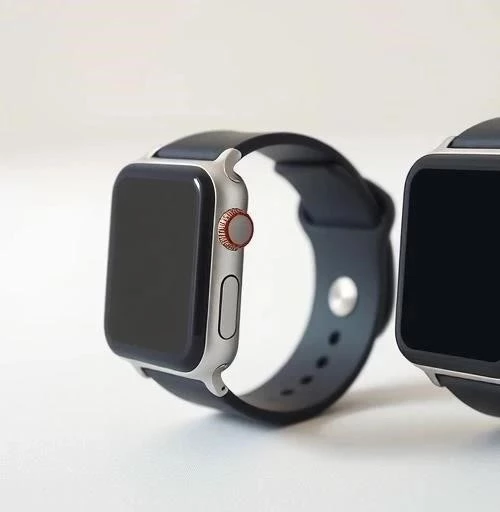
Apple Watch Series 2 and Series 3 share a similar design‚ so appearance alone can be misleading. Both came in 38 mm and 42 mm sizes‚ use a rectangular touchscreen‚ and have a Digital Crown and side button. A careful check of the model number is the most reliable way to identify one. Several external and technical clues can help confirm the result.
Check the model number
On the watch‚ open Settings > General > About. Find “Model Number.” It may initially show a part number; tap it to display the number beginning with “A.” You can also find identifying information engraved on the back of the case‚ though small lettering may be difficult to read.
- Series 2: common GPS models are A1758 (38 mm) and A1757 (42 mm).
- Series 3 GPS: A1858 (38 mm) and A1859 (42 mm).
- Series 3 GPS + Cellular: A1860 (38 mm) and A1861 (42 mm) in some markets.
Model numbers can vary by region and case material‚ so check the complete number against Apple’s identification information rather than relying on one example. Ceramic editions and regional cellular versions may use other numbers.
Look for the red Digital Crown
A red accent on the Digital Crown is a useful clue‚ but it applies specifically to Series 3 models with cellular connectivity. Series 3 GPS-only watches do not have this red marker‚ and Series 2 watches do not have cellular service. Therefore‚ a red crown strongly suggests a cellular Series 3‚ while the absence of red does not prove that a watch is Series 2.
Some Series 3 cellular cases also have a colored ring around the Digital Crown rather than a fully red crown. Case condition‚ replacement parts‚ and photographs can make this detail hard to judge‚ so treat it as supporting evidence‚ not a definitive test.
Check for cellular features
Series 3 was the first Apple Watch generation offered in GPS + Cellular versions. These models can connect to a supported mobile network when configured with an eligible carrier plan. Series 2 has GPS but no built-in cellular connection. On an alleged Series 3‚ check Settings for cellular options and verify the model number. A cellular menu alone may not confirm the exact model‚ because availability depends on configuration and carrier support.
Compare hardware and performance
Series 3 uses Apple’s S3 dual-core processor and W2 wireless chip‚ while Series 2 uses the S2 dual-core processor. Series 3 also includes a barometric altimeter for tracking elevation changes‚ such as stairs climbed. These differences are not easy to establish from the exterior; ordinary menus and basic use may not make the processor generation obvious.
The two generations have similar screen sizes and resolutions‚ and both are water resistant. Screen appearance‚ case dimensions‚ and the presence of GPS are therefore poor ways to distinguish them. Bands are generally interchangeable across these sizes and are not a reliable identifier either.
Verify before buying
- Ask the seller to show the model number in Settings‚ not just a listing or box.
- Compare the A-number with Apple’s model-identification information.
- For a claimed cellular Series 3‚ check the red crown detail and cellular model number.
- Confirm that the watch can be erased and paired with your iPhone; inspect its condition separately.
A box‚ receipt‚ or seller’s description can be mismatched‚ so the watch itself is the better source. If the model number is unreadable or does not match the claimed generation‚ ask Apple Support or an authorized service provider to help identify it.
The strongest distinction is the A-number in the watch’s About screen. A red Digital Crown and cellular settings point to a cellular Series 3‚ but Series 3 GPS models can look much like Series 2. Use the model number first‚ then treat design and feature clues as confirmation.

1 Comment. Оставить новый
The distinction between cellular and GPS-only Series 3 models is useful, especially the reminder that a red Digital Crown is supporting evidence rather than a definitive test. Checking the model number against Apple’s identification information is the clearest approach.