
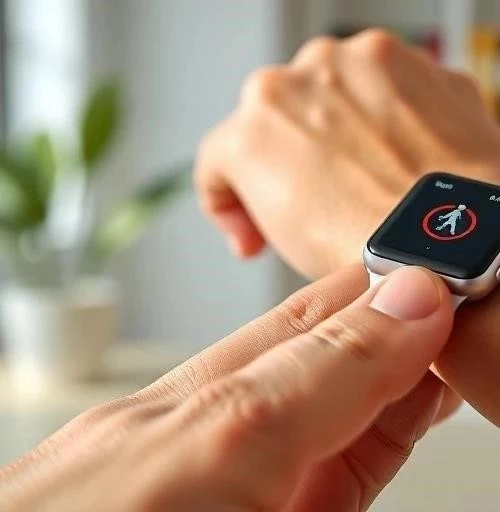
Apple Watch SE counts steps automatically—there is no separate pedometer switch to turn on. The key is to allow motion tracking, wear the watch correctly, and choose how you want to view the total. For dependable results, start with Apple’s built-in Health and Fitness features before adding another app.
Check motion tracking
- On your iPhone, open Settings > Privacy & Security > Motion & Fitness.
- Turn on Fitness Tracking. If the option is available, enable it for Health and Fitness too;
- Open the Health app, tap your profile picture, then select Devices. Choose your Apple Watch and check that it is connected and sharing data.
Names and menu locations can differ slightly by iOS or watchOS version. If you cannot find a setting, use Settings search. Health brings together activity data from your iPhone, watch, and compatible apps, so it is the best place to confirm that steps are being recorded.
Find your step count
On iPhone, open Health > Browse > Activity > Steps. You can view today’s total, change the date range, and check the source of the data. On Apple Watch, open the Activity or Fitness app and scroll through the available activity details; the exact screens depend on your software version. The familiar rings focus on movement, exercise, and standing, so steps may not appear as a ring.
Show steps on the watch face
Apple’s standard watch faces generally do not offer a step-count complication. To see steps at a glance, install a reputable pedometer app, such as Duffy or Pedometer++, from the App Store. Open it once and grant only the Health permissions it needs. Then press and hold the watch face, tap Edit, move to the complications screen, select a slot, and choose the app’s complication. If it is missing, check that the app is installed on the watch and supports that face.
Improve accuracy and fix missing steps
- Wear the watch snugly during ordinary movement and keep your personal details current in the Health profile.
- Allow time for data to sync. Your iPhone and watch can record steps separately; Health combines sources, so totals may update later or differ briefly.
- If counting stops, restart both devices, update their software, and recheck Fitness Tracking and Health access.
Bottom line: Apple Watch SE works as a step counter without extra setup. Use Health for the reliable record; add a complication only if seeing steps on the face matters to you.
9 Comments. Оставить новый
This is a concise, practical explanation of how to check whether steps are being recorded and where to view them. The accuracy tips are useful without promising that every movement will be counted perfectly.
This is a well-organized guide for someone who simply wants to know where their steps are recorded. The sections move logically from permissions to viewing the count and then to optional watch-face tools.
The article is helpful because it separates checking a step total from displaying one on the watch face. Its cautious wording about app permissions and software differences is also reassuring.
The guidance is accessible to less technical users, and the note about using Settings search is a helpful fallback when menu names differ. A brief explanation of how long syncing may take could make the troubleshooting section even stronger.
I like that the article sets expectations about standard watch faces instead of implying that a built-in step complication is always available. That detail could save readers time searching for an option their face does not support.
The article clearly distinguishes step tracking from the Activity rings, which should prevent a common misunderstanding. I also appreciate that it recommends checking Health before installing another app.
The troubleshooting advice is practical, especially the reminder to verify that the watch is connected and sharing data. Mentioning that menus can vary by software version makes the guidance more realistic.
The advice to check the data source in Health is useful because step totals can come from more than one device or app. It adds context beyond simply telling readers where to find a number.
The article balances built-in features with third-party apps without making an extra download sound necessary. That is a sensible approach for readers who prefer to keep their setup simple.