
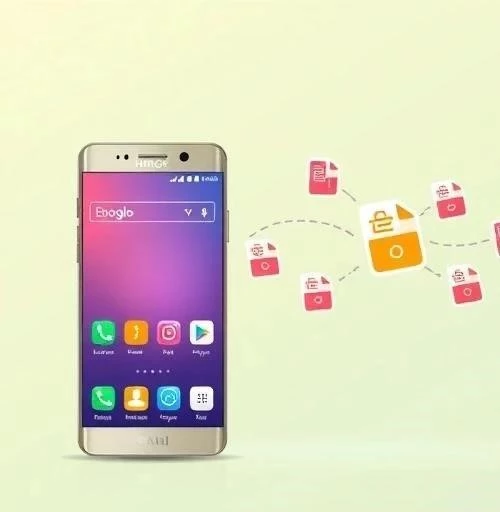
Moving from an HONOR phone to a Huawei phone is usually straightforward. You can copy contacts, photos, videos, messages and other data using Huawei’s Phone Clone app, a cable, cloud services or a computer. The best option depends on your phone models, Android versions and the type of information you want to move.
Before you begin, charge both phones, connect them to Wi-Fi and update their software if possible. Keep the old HONOR phone nearby until you have checked the new Huawei device. Do not erase or reset the old phone until you are sure the important data has transferred successfully.
Method 1: Use Huawei Phone Clone
Phone Clone is Huawei’s migration tool for copying data from an old phone to a new one. It can transfer common items such as contacts, photos, videos, calendar entries and, depending on the devices and software, messages and some apps. The exact categories available may vary by model and app version.
- Prepare the Huawei phone. During initial setup, look for the option to copy data from an old device. If setup is already complete, open or install Huawei Phone Clone, if it is available on your phone.
- Prepare the HONOR phone. Install Phone Clone from a trusted source, such as the official app store available on that device. Check the app’s publisher before downloading it. On some HONOR models, the app may already be installed.
- Set the phones’ roles. On the Huawei phone, choose that it is the new device. On the HONOR phone, choose that it is the old device. Select the HONOR phone’s operating system if prompted.
- Connect the devices. The Huawei phone will usually display a QR code or create a direct wireless connection. Follow the instructions on both screens; The phones may connect to each other’s temporary Wi-Fi network; internet access may not be needed during copying.
- Select and transfer data. Choose the categories you want, review the estimated transfer time, and start the process. Keep both phones close together, unlocked and connected until the app says it is finished.
If the connection fails, turn off any VPN, keep Wi-Fi and Bluetooth enabled, and allow Phone Clone the permissions it requests. Do not switch apps or restart either phone during the transfer. If a particular category is missing, use one of the alternatives below.
Method 2: Transfer with a cable
Some Huawei setup screens offer a wired data transfer. Connect the HONOR phone to the Huawei phone using a compatible USB cable and, if necessary, an adapter. Unlock the HONOR phone and approve the USB access or data-transfer prompt. Then follow the Huawei setup instructions to choose what to copy.
A cable can provide a stable connection, but not every combination of phone models supports the same transfer options. If the phones do not recognize each other, try another data-capable cable, check the USB prompts, or use Phone Clone instead. A charging-only cable will not transfer files.
Method 3: Copy data with Google or another cloud account
If Google services are available on both phones, you can sync contacts, calendars and other supported information by signing in with the same Google account on the Huawei phone and enabling the relevant sync options. Photos backed up to Google Photos can be viewed or downloaded after signing in. Cloud syncing is useful when a direct connection is not possible, but it may take time and use mobile data unless you connect to Wi-Fi.
Huawei phones differ in their support for Google services. If your new phone does not offer Google sign-in, use Huawei Cloud where available, or export the required data from the HONOR phone and import it another way. For example, contacts can often be exported as a .vcf file and then imported into the contacts app on the Huawei phone.
Transfer photos, videos and documents manually
You can copy files using a computer. Connect the HONOR phone with USB, unlock it, choose file transfer on the phone, and copy the folders you need to the computer. Common locations include DCIM for camera photos and videos, Pictures, Movies, Download and Documents. Disconnect it safely, connect the Huawei phone, and copy the files into suitable folders.
Alternatively, use a trusted file-transfer app or a USB flash drive with the correct connector. Check a sample of the copied files on the Huawei phone before deleting anything from the HONOR device.
Apps, chats and other information
Phone Clone may copy app installers or app information, but it cannot guarantee that every app will work on the new phone. Some apps must be installed again from AppGallery or another trusted source. App availability and Google-dependent features vary by Huawei model and region. Sign in to each app and check its own backup or transfer settings.
Messaging apps often require a separate migration. For WhatsApp, use the app’s built-in chat transfer or backup procedure and follow its current instructions; a general phone transfer may not move chat history. Banking apps, authenticator apps and work profiles may require reactivation. Before switching phones, save recovery codes and confirm that you can access the accounts used for verification.
SIM contacts are not necessarily included in a phone-to-phone transfer. Check whether your contacts are stored on the SIM, in a cloud account or in the phone’s memory. Move the SIM only when convenient, and confirm that calls, texts and mobile data work on the Huawei phone.
After the transfer: verify before you reset
- Open Contacts and check names and phone numbers.
- Review recent photos, videos, downloads and documents.
- Check messages, calendars, notes and call history if those matter to you.
- Open essential apps, sign in and confirm that their data is present.
- Make a fresh backup from the Huawei phone once everything is in place.
If the transfer stops or some items are absent, restart both phones, check available storage on the Huawei device and repeat the process with fewer categories selected. You can then copy missing files manually. Keep the HONOR phone unchanged until you have verified the result and recovered access to important accounts.
Which method should you choose?
For most users, Phone Clone is the simplest first choice because it guides you through a direct transfer. Use a cable when both phones support wired migration, cloud sync for contacts and supported online data, and a computer for large folders or files that did not copy. Combining methods is perfectly reasonable: transfer general content first, then handle chats, apps and account security separately.
4 Comments. Оставить новый
This guide makes the transfer process feel manageable, especially the reminder to keep the old phone until the new one has been checked.
The instructions are easy to follow, and explaining that the phones may use a temporary Wi-Fi connection helps set expectations.
The clear preparation steps are useful. I appreciate the note that available data categories can vary by phone model and software version.
A practical overview for anyone switching phones. The advice to use trusted download sources is a helpful security detail.