
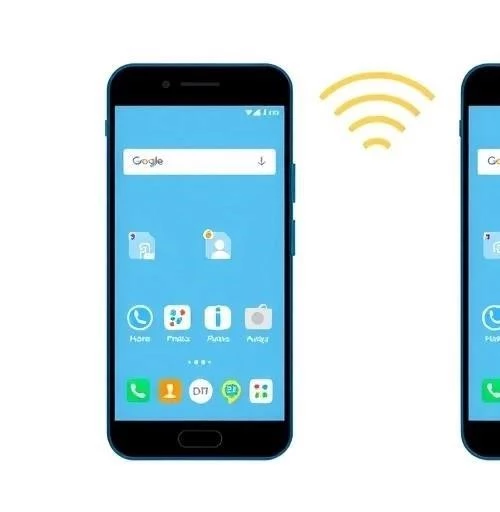
A new Xiaomi should feel like a familiar room with a better view—not an empty house you must furnish from scratch. MIUI 12 gives you several ways to move your digital life: Mi Mover for a direct phone-to-phone transfer, Xiaomi Cloud for synced information, and Google backup for an extra safety net. The smoothest plan is to prepare first, transfer second, and check everything before wiping the old phone.
Before the phones meet
Charge both devices, ideally above 50%, and keep them close together. Update MIUI and Mi Mover if updates are available; menu names can vary a little by model or region. Connect to Wi-Fi, turn off battery-saving restrictions temporarily, and make sure the new phone has enough free storage. A transfer can bring over more than you expect—especially photos and videos.
On the old phone, check that contacts, calendar events, notes, and photos are actually present and up to date. If you use a Xiaomi account, sign in and review Settings > Mi Account > Xiaomi Cloud (the exact route may differ). Enable sync for the data you want to keep, then allow the phone time to finish uploading. Cloud sync is a safety copy, not a magic moving truck: it only restores categories that were synced.
Method 1: Use Mi Mover for a direct transfer
- Open Mi Mover on both phones. On many MIUI 12 devices, find it under Settings > Additional settings > Mi Mover. On some versions it appears under Connection & sharing, or can be found by searching Settings for “Mi Mover.”
- Choose the roles. On the new Xiaomi, select that it is the receiving phone. On the old Xiaomi, select that it is the sending phone. Keep the screens awake while pairing.
- Connect the devices. The new phone will usually display a QR code for the old phone to scan. Follow the prompts; Mi Mover may create a direct wireless connection, so the phones do not necessarily need to be on the same Wi-Fi network.
- Select what to move. Pick the categories you need—such as contacts, messages, call history, photos, videos, documents, and supported apps. Review the estimated size before starting. Then tap Send or Start on the old phone and wait for completion.
Let the devices sit together until the progress screen says the job is done. Avoid opening other apps, switching off Wi-Fi, or restarting either phone. Large photo libraries can take a while; a progress bar that seems to pause is not always a failure. If the connection drops, reopen Mi Mover on both devices and try again, transferring fewer categories at once.
What Mi Mover may not bring along
Think of Mi Mover as a careful porter, not a perfect photocopier; Some apps may transfer but require you to sign in again; private app data, secure folders, banking credentials, game saves, and protected files may not move. Fingerprints, screen locks, Bluetooth pairings, and certain system settings are generally best set up afresh. Never assume that a transferred banking or authenticator app is ready for use until you have tested its sign-in and recovery options.
Messaging apps need special attention. For WhatsApp, use its own chat backup or built-in chat-transfer feature and follow the current instructions inside the app. Check that the backup is linked to the correct Google account or phone number. Other messengers may store chats in the cloud, but some keep them only on the device. Open each important app on the old phone and look for its backup or export settings before moving.
Method 2: Restore from cloud or Google backup
If the direct transfer is inconvenient, sign in to the same Google account on the new phone and restore from a recent Android backup during setup, when offered. You can also restore Xiaomi Cloud data by signing into the same Mi Account and enabling the relevant sync options; These routes work well for contacts, calendars, and selected settings, but they may not include every file or app’s private data.
For photos, open Google Photos or Xiaomi Gallery and confirm whether backup or cloud sync is complete. For documents and downloads, copy them separately to a computer, USB drive, or trusted cloud storage. A manual copy is less theatrical than a one-tap transfer, but it is dependable for files you cannot afford to lose.
If something goes wrong
- The phones cannot pair: restart both, keep them nearby, disable VPNs temporarily, and retry Mi Mover. Check that the app has the permissions it requests.
- The transfer stops: charge the phones, free space on the receiver, and move smaller groups of data rather than everything at once.
- Contacts or photos are missing: check the account used on each phone and verify that syncing finished. Look in the original app or cloud account before repeating the transfer.
The final check—and the safe goodbye
Before retiring the old Xiaomi, inspect the new one: open recent photos, search for a few contacts, check messages and call history, and launch your essential apps. Confirm that WhatsApp chats, authenticator access, and important documents are accounted for. Keep the old phone untouched for a few days if possible. Only after you are confident that the new device contains what you need should you back up anything remaining and factory-reset the old one.
In short: Mi Mover is the quickest bridge between two Xiaomi phones on MIUI 12; cloud and Google backups are useful safety ropes; and a final manual check keeps precious data from falling through the gap.

7 Comments. Оставить новый
A helpful guide that leaves room for MIUI’s ever-shifting menus. The alternate paths and Settings search tip make it feel written for real devices, not an imaginary perfect version of them.
A useful reminder that digital housekeeping begins before the new phone is switched on. The distinction between direct transfer and cloud restoration gives readers a better chance of choosing wisely.
The preparation checklist is quietly brilliant. Charging both phones and checking storage may not sound exciting, but neither does watching a transfer fail at 2% with your digital life in limbo.
This article has the energy of a careful friend standing nearby with a charger and a checklist. Clear, reassuring, and refreshingly honest that different transfer methods have different limits.
I appreciate the calm, practical tone. “A safety copy, not a magic moving truck” is the kind of line that might save someone from discovering their missing photos after the old phone is gone.
I like that this treats moving phones as more than copying files. The advice to verify what arrived before wiping the old device is a small, sensible bridge over a very common cliff.
This makes phone migration feel less like a leap of faith and more like packing a well-labeled suitcase. The reminder that cloud sync only restores what was actually synced is especially useful.