
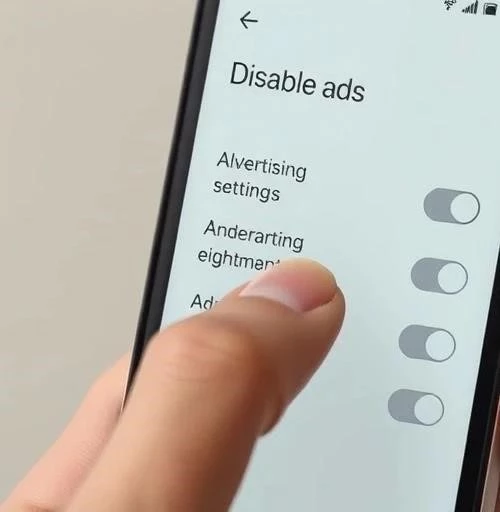
Your Redmi 6A should feel like a phone, not a tiny billboard that has learned your name․ The good news: most ads in Xiaomi’s MIUI interface can be reduced by switching off recommendations and promotional notifications․ You do not need to root the phone or install a mysterious “ad cleaner․” Menus differ slightly between MIUI versions, so if a label is missing, use Settings’ search box to look for the words Authorization, Recommendations, or Ads․
Turn off Xiaomi’s system ad service
Start with msa, the system service associated with many MIUI recommendations․ Connect to the internet, then open Settings → Passwords & security → Authorization & revocation․ Find msa, switch it off, and confirm․ MIUI may make you wait a few seconds or ask again; that is normal․ If the switch fails, try once more while connected, then restart the phone․
While you are there, look for GetApps and revoke its authorization only if you do not rely on it for app updates․ The name and availability can vary by software version․ Revoking authorization is reversible, but do not disable unfamiliar system components just because their names look technical․
Switch off personalized advertising
Open Settings → Privacy → Ad services or search Settings for Personalized ad recommendations․ Turn the option off․ On some Redmi 6A builds, the route is Settings → Additional settings → Privacy․ This setting limits personalization; it may not remove every advertisement․ A generic advert can still appear, like a shop window that no longer knows what you browsed․
Quiet the built-in apps
MIUI’s own apps can display suggestions in different places․ Check each app’s settings, because a single master switch may not exist on older builds․
- Security: Open Security, tap the gear icon, and disable Receive recommendations or similarly named options․ If Cleaner shows a recommendation after a scan, open Cleaner’s settings and turn its suggestions off too․
- File Manager: Open the side menu, choose Settings, then disable recommendations or online content if offered․
- Downloads: Open the app’s settings and switch off recommended content, if that control is present․
- Themes: Check its settings for recommendations and promotional notifications․ You can also stop notifications if you do not use the Themes app;
- Music, Video, and Mi Browser: Look through their settings for Online recommendations, Show ads, or Personalized services․ Turn off what you do not want; labels vary with the installed app version․
When an ad appears, note which app is open․ Recommendations inside a Xiaomi app are usually controlled there, not by a phone-wide switch․ Avoid tapping an advert just to investigate it; use the app’s settings instead․
Stop promotional notifications
Long-press an unwanted notification and tap Turn off notifications or Manage․ Alternatively, go to Settings → Notifications → App notifications, choose the app, and disable promotional categories or all notifications․ Keep useful alerts enabled for apps you depend on, such as messaging, security updates, or delivery services․
If an advert appears on the lock screen, check Settings → Lock screen for wallpaper carousel, magazine, or glance features and switch them off if available․ Then inspect notification settings for the app named on the alert․ Lock-screen options differ across MIUI releases․
Check for apps that bring their own ads
Ads that appear over the home screen or while no Xiaomi app is open may come from a recently installed app․ Go to Settings → Apps → Manage apps, sort by recently installed if possible, and review anything unfamiliar․ Uninstall apps you do not trust․ Also check Settings → Apps → Special app access → Display over other apps and revoke this permission from apps that have no good reason to use it․ The exact route may differ․
Do not install a random APK claiming to remove every ad․ Such tools may request broad access, collect data, or replace one nuisance with another․ Use the Play Store or a trusted official source for apps, and keep the phone’s security updates current where they are available․
Optional: reduce ads in the browser
In Mi Browser, open Settings → Privacy & security and enable its ad-blocking or pop-up controls if your version includes them․ You can also choose a reputable browser with built-in tracking protection․ Browser controls affect web pages, not adverts inside other apps․ Be wary of pages that claim your Redmi is infected and urge an immediate download; close the tab instead․
What about Private DNS?
Some Android versions offer Settings → Connection & sharing → Private DNS․ A reputable DNS filtering provider may block some known advertising domains, but it is optional and not a complete solution․ It can break sign-in screens, app features, or links, and the Redmi 6A’s Android version may not offer the setting․ If you try it, use a provider you trust, write down the original setting, and switch back to Automatic if anything stops working․ Avoid unknown DNS addresses․
A quick final sweep
- Revoke msa authorization, if the option is available․
- Disable personalized ad recommendations․
- Turn off suggestions inside Xiaomi apps you use․
- Block promotional notifications and review lock-screen features․
- Uninstall suspicious apps that show ads outside their own screens․
Restart the Redmi 6A and use it normally for a while․ You may not erase every advert—some apps and websites fund themselves that way—but you can make MIUI much quieter without risky modifications․ If a menu has a different name, search Settings for the feature rather than disabling random services․ Think of it as closing five small shop windows, not smashing the phone’s front door․


7 Comments. Оставить новый
This turns a fiddly settings hunt into a sensible checklist. I especially like the advice to check recommendations inside individual apps; sometimes the loudest billboard is hiding in the quietest corner.
The “shop window that no longer knows what you browsed” is a wonderfully clear way to explain the difference between personalized and generic ads. Practical advice, without pretending every switch makes advertising vanish.
A refreshingly cautious guide for an older phone. It offers useful steps while leaving room for MIUI version differences, instead of insisting every Redmi 6A has precisely the same menu labyrinth.
The best detail is the distinction between reducing targeted ads and removing every ad. That small dose of honesty saves readers from expecting a magic button—and makes the guide more trustworthy.
I appreciate the article’s calm approach: search Settings, check the version, and avoid disabling unfamiliar components. It reads like a map drawn by someone who remembers that phone menus enjoy moving the furniture.
Clear, grounded, and just playful enough to make privacy settings less dreary. The article treats the reader as capable—not as someone who needs a dubious app to rescue them from their own phone.
A useful little antidote to the “install this mystery cleaner” advice that often floats around. The reminder that revoking authorization is reversible makes the steps feel much less like a leap into the dark.