
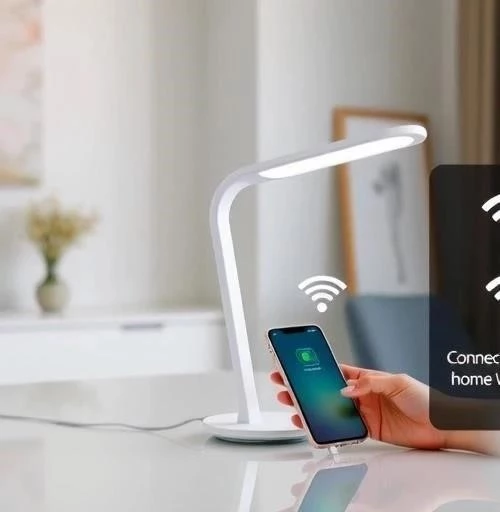
Setting up a Xiaomi smart lamp usually involves installing the Xiaomi Home app, connecting the lamp to your home network, and adding it to a room. Menu names and reset methods can vary by model, so use the instructions for your exact lamp if they differ from the steps below. A smart bulb and a complete smart lamp follow much the same process.
Before you begin
- Install the official Xiaomi Home app, also called Mi Home in some regions, from your phone’s app store.
- Sign in to your Xiaomi account, or create one.
- Check that your phone is connected to your home Wi-Fi and that you know its password.
- Keep the lamp close to the router during setup. Many Xiaomi lamps require a 2.4 GHz Wi-Fi network; some newer models also support 5 GHz. Check the product manual.
- Turn on Bluetooth and allow the app to use Bluetooth, local network, and location services if your phone requests these permissions. The exact permissions depend on your phone and app version.
Add the lamp in Xiaomi Home
- Connect the lamp to power and switch it on. For a bulb, fit it into a compatible socket and turn on the wall switch. Do not use a dimmer unless the lamp’s manual says it is supported.
- Open Xiaomi Home and tap the + button, usually at the upper-right corner. Choose Add device.
- If the lamp appears in the nearby-device list, select it. Otherwise, search for its name or choose the correct category, such as lighting. Confirm that the model shown matches your device.
- Follow the app’s prompts. Select your Wi-Fi network, enter its password carefully, and tap Next or Connect. Keep the app open and your phone near the lamp while it pairs.
- When setup finishes, give the lamp a clear name, such as “Bedroom lamp,” and assign it to a room. This makes it easier to find and use in scenes or voice commands.
Some models use Bluetooth to discover the lamp before transferring Wi-Fi details; others display a QR code or provide a temporary setup network. Follow the on-screen instructions for your device rather than trying to connect to an unrelated Wi-Fi network. If the app asks you to join a temporary network, return to the app after joining it.
If the lamp is not found
First, check that it has power and is switched on. Make sure the phone and lamp are within range of the router, then try adding the device again. Re-enter the Wi-Fi password and check whether the router is using a supported band and security mode. If your router combines 2.4 GHz and 5 GHz under one network name and pairing fails, temporarily separate the bands or use a 2.4 GHz network, if available.
Confirm that Xiaomi Home has the permissions it needs in your phone’s settings. Temporarily turn off a VPN, mobile hotspot, or network filter if it interferes with discovery. Updating the app, restarting the phone and router, or trying another phone can also help. Avoid changing router security settings unless you understand the consequences; restore any temporary changes afterward.
Reset and try again
If the lamp was previously paired or setup repeatedly fails, it may need a factory reset. Use only the reset sequence specified for your model: some Xiaomi lights reset through a particular series of power cycles, while others use a button or app option. A reset can erase saved network and device settings. After resetting, wait for the lamp to enter pairing mode, then add it again in Xiaomi Home.
Finish configuring the lamp
Open the lamp’s control page to adjust brightness, colour temperature, or colour if those features are supported. Explore schedules, timers, and automation rules to switch it on or off at chosen times. If you use a voice assistant, link Xiaomi Home through that assistant’s supported integration and follow its account-linking steps. Availability depends on the lamp, assistant, and region.
Useful tips
- Leave the wall switch on if you want to control the lamp remotely; cutting power disconnects it from the app.
- Keep the app and lamp firmware updated, and install updates when the lamp can remain powered during the process.
- If the lamp goes offline after a router change, update its Wi-Fi settings in the app or reset and pair it again.
- Choose the correct region in Xiaomi Home. Some products and features are available only in particular regions, and a mismatched region can prevent discovery.
Once the lamp appears online in its assigned room, test both app controls and the physical switch. If it still will not connect, consult the model-specific manual or Xiaomi support, and provide the exact model name, phone type, app version, and any error message.

4 Comments. Оставить новый
Helpful overview for first-time users. The troubleshooting details about permissions and keeping the lamp near the router make setup less confusing.
The step-by-step setup instructions are clear and practical. I especially appreciate the reminder to check whether the lamp requires a 2.4 GHz network.
A useful, easy-to-follow guide. The advice to name the lamp and assign it to a room is a small detail that can make everyday use simpler.
I like that the guide notes differences between models instead of assuming every Xiaomi lamp uses the same setup process.