
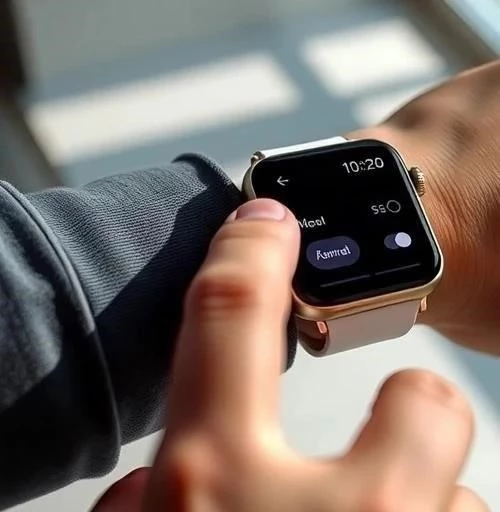
Apple Watch can show alerts from iPhone apps, calls, messages, and other services. You can choose which notifications appear, how they are delivered, and whether the watch makes a sound or uses haptics. Menu names and options can vary slightly by watchOS version, but most settings are managed in the Watch app on the paired iPhone.
Choose which apps can notify you
- Keep the iPhone and Apple Watch paired and nearby. On the iPhone, open the Watch app.
- Tap My Watch, then Notifications.
- Review the built-in Apple apps and the list of apps below them. Select an app to choose its notification behavior.
For many Apple apps, you can choose Mirror my iPhone or set up custom options. Mirroring generally uses the notification settings already selected on the iPhone. Custom settings let you adjust alerts on the watch independently, where available. For third-party apps, use the switch beside the app to allow or block notifications. Some apps offer only a mirror setting rather than additional controls.
Customize alerts
Open an app’s notification settings to see the available choices. Depending on the app, you may be able to turn off notifications, send them to Notification Center without an immediate alert, or allow sound and haptic alerts. For example, you might want calendar reminders to tap your wrist but prefer less urgent app notifications to remain quiet.
To adjust how alerts feel and sound, open the Watch app, tap Sounds & Haptics, and change options such as alert volume, haptic strength, or prominent haptics if offered. You can also change notification sounds and previews in the iPhone’s settings for individual apps. A silent or muted setting can prevent audible alerts without necessarily stopping haptic taps.
Manage privacy and previews
By default, a notification may show a short preview when you raise your wrist or tap the alert. To keep message details private, open Notifications in the Watch app and enable Notification Privacy, if available. The watch will then show that an alert arrived and reveal its details when you tap it. You can also review an app’s preview options on the iPhone under Settings > Notifications.
Use Focus and quiet modes
Focus lets you limit interruptions during work, sleep, exercise, or other activities. Set up or edit a Focus on the iPhone under Settings > Focus. If Share Across Devices is enabled, a Focus can apply to the watch as well as the iPhone. You can also use Silent Mode or Do Not Disturb from Control Center on the watch. These modes affect delivery, so check them if expected alerts seem missing.
Understand where alerts appear
In many situations, an alert appears on either the iPhone or the watch, rather than both. If the iPhone is unlocked and in use, the notification usually appears there; when the iPhone is locked or asleep, it may be sent to the watch, provided the watch is being worn and unlocked. Notifications may not reach the watch if it is locked, disconnected, or in a mode that silences alerts. App-specific rules can also affect delivery.
Troubleshoot missing notifications
- Check that Bluetooth is on, the devices are connected, and the watch is unlocked.
- In the Watch app, confirm that the app is allowed to send notifications and that its alert style is not set to silent or Notification Center only.
- Check Focus, Do Not Disturb, Silent Mode, and the iPhone’s notification permissions for the app.
- Restart both devices and install available software updates if the problem continues.
After changing settings, send a test notification or wait for a routine alert. Adjust one app at a time so it is easier to identify which setting controls the result. If only one app is affected, check its own settings and notification permissions on the iPhone before changing settings for the entire watch.

6 Comments. Оставить новый
The examples of adjusting sounds, haptics, and alert delivery make the guidance practical for different preferences.
This provides a helpful overview of notification controls, including the option to keep some alerts quiet.
The privacy section adds an important consideration for people who want to limit message previews on their watch.
The distinction between mirroring iPhone settings and choosing custom options is useful for understanding notification behavior.
The note that menus and options can vary by watchOS version helps set expectations when following the instructions.
The article clearly explains where to manage Apple Watch notifications and how settings differ between Apple and third-party apps.