
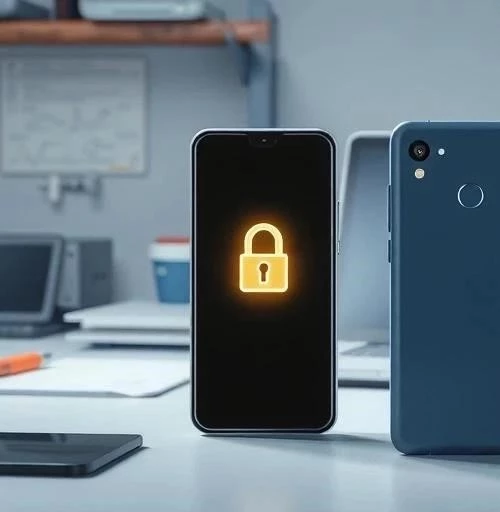
Rooting gives Android applications elevated privileges, but it is not an official Xiaomi-supported feature. The usual approach for the Redmi Note 10 Pro is to unlock the bootloader and install Magisk using a patched image from the phone’s own firmware. The process can erase data, affect warranty or support, and make the device less secure. Proceed only if you understand these risks.
Before you begin
- Back up photos, files, messages, and other important data. Bootloader unlocking normally performs a factory reset.
- Confirm the exact model and regional variant in Settings > About phone. “Redmi Note 10 Pro” can refer to different hardware or firmware; do not assume that an image for another variant is compatible.
- Charge the phone, use a reliable USB cable, and install current Android platform-tools on a computer. Download Xiaomi’s Mi Unlock tool and Magisk from their official sources only.
- Download the full fastboot ROM that matches your exact device and installed firmware version. Keep a copy of the original boot image and a recovery plan before changing anything.
Unlock the bootloader
On the phone, sign in to your Xiaomi account. Enable Developer options by tapping the MIUI version repeatedly in About phone. In Settings > Additional settings > Developer options, enable OEM unlocking and USB debugging, then open Mi Unlock status and link the device to the same Xiaomi account using mobile data if requested.
Turn the phone off, then hold Volume Down and Power to enter Fastboot mode. Connect it to a computer and follow the Mi Unlock tool’s on-screen instructions. Xiaomi may impose a waiting period; this is expected. Do not use unofficial services that promise to bypass it. Unlocking usually wipes the phone, so complete the backup first. After the phone restarts, set it up again and re-enable USB debugging if needed.
Patch the matching boot image
Extract the boot image from the exact fastboot ROM corresponding to the firmware installed on the phone. Copy it to the device, install Magisk from its official project, and choose Install > Select and Patch a File. Select that boot image. Magisk creates a patched image, which you then copy back to the computer. Do not download a patched image made for someone else’s phone or firmware: even a similar model name is not enough to establish compatibility.
Flash the patched image
Enter Fastboot mode again and connect the phone. Check that the computer detects it with fastboot devices. Follow current Magisk instructions for the device’s partition layout and Android version before flashing. If those instructions confirm that the image belongs in the boot partition, the command is typically:
fastboot flash boot magisk_patched.img
Use the actual patched filename. Never guess a partition, flash an image from a different firmware, or run a command you do not understand. If the instructions require a different procedure, stop and follow the current device-specific guidance instead. When flashing completes, reboot with fastboot reboot.
After rooting
Open Magisk and check that it reports an installed setup. Root access is granted per application; deny requests from apps that do not need it. Some banking, payment, streaming, or workplace apps may refuse to run on a modified phone, and root does not guarantee that these checks can be passed. System updates may remove root or cause a boot problem, so consult current instructions before updating and keep the original firmware available.
If the phone fails to start, avoid repeated experimental flashes. Use the exact stock firmware and reliable device-specific recovery instructions, or seek qualified repair help. Rooting is optional, and leaving the bootloader locked is the lower-risk choice for ordinary use.

2 Comments. Оставить новый
The bootloader-unlocking instructions are presented in a practical sequence, with helpful reminders about Xiaomi’s waiting period and the possibility of a factory reset. The provided text ends before the patching steps are complete.
The article clearly outlines the risks of rooting and emphasizes backing up data, checking the exact device variant, and using matching firmware. These precautions make the guidance useful for readers considering the process.