Removing apps you no longer use can make your Apple Watch easier to navigate and free up some storage. You can delete most third-party apps directly from the watch or manage them from your paired iPhone. The steps vary slightly depending on your watchOS version and app view.
Delete an app on the Apple Watch
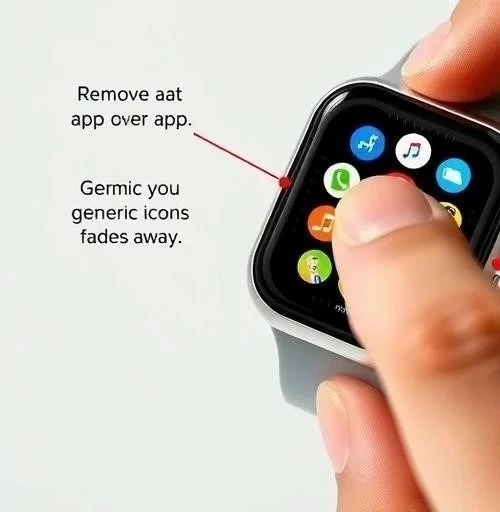
- Press the Digital Crown to open the Home Screen.
- If you see a grid of icons, touch and hold an app until the icons jiggle. Tap the X on the app you want to remove, then confirm by tapping Delete App.
- If you see an alphabetical list, swipe left on the app, tap the trash-can button, and confirm the deletion.
On some watchOS versions, you may need to tap Edit Apps after touching and holding an icon. Tap Done when you have finished. If an app has no delete control, it may be a built-in Apple app that cannot be removed in your current software version.
Remove an app using your iPhone
- Keep your Apple Watch near the iPhone it is paired with, then open the Watch app on the iPhone.
- Tap My Watch and scroll to the section showing apps installed on the watch.
- Choose the app, switch off Show App on Apple Watch, and confirm if prompted.
The app will be removed from the watch, but this action normally does not uninstall its iPhone version. To remove that version too, delete the app separately from the iPhone Home Screen or App Library. Menu wording can differ slightly between iOS and watchOS releases.
Stop apps installing automatically
When you install an iPhone app that offers an Apple Watch companion, the companion may appear on the watch automatically. To prevent this, open the iPhone Watch app, tap My Watch, then General, and turn off Automatic App Install. You can still install compatible apps manually from the Watch app or the App Store on your watch.
If you cannot delete an app
- No X or delete option: The app may be part of watchOS or otherwise non-removable. Check for a watchOS update; available options can vary by model and software version.
- The app returns: Check whether automatic installation is enabled, then remove the companion again.
- Storage is still low: Removing an app may not clear all of its documents or cached data. Review storage in the iPhone Watch app under General and Storage, if available, and remove other unused content such as music or downloaded media.
Before you delete
Deleting an app can remove watch-stored information associated with it. Check whether the app syncs important data to your iPhone or an online account before removal. You can reinstall many apps later from the App Store, but their settings or local data may not return unless they were backed up or synced. Removing an app is different from unpairing or erasing the entire watch; you do not need to reset your Apple Watch to uninstall one app.