
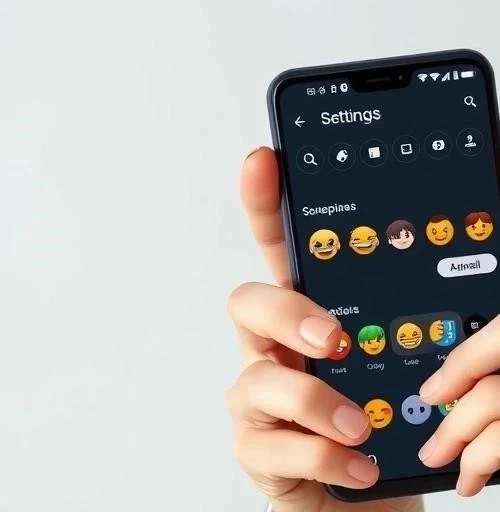
Emojis are tiny actors with oversized emotions: one phone gives you a smiling face, another gives the same face a completely different personality. On Xiaomi, changing their look is possible—but the right method depends on whether you mean the emojis in your keyboard, the system-wide emoji font, or the stickers inside a particular app. Think of these as three different costume departments.
First, find out which emojis you want to change
- Keyboard emojis: the symbols you select while typing. You can change keyboards or emoji suggestions, but this does not necessarily change how messages appear on screen.
- System emojis: the design Android uses to display emoji across many apps. Changing these usually requires a compatible theme, font option, or a more advanced system modification.
- App-specific artwork: some apps use their own emoji-like images, stickers, or reactions. A system font change may not affect them at all.
This distinction saves a lot of tapping. If an emoji looks different in your keyboard preview than it does in a message, the keyboard and the app may simply be drawing it differently.
Method 1: Try the Themes app
On many Xiaomi phones, the safest first stop is the built-in Themes app. Theme and font options vary by model, software version, and region, so the labels may not match these instructions exactly.
- Open Themes and look for Fonts, My account, or a search icon.
- Search for “emoji” or browse available fonts and themes. Read the description: some change the entire font, while others affect only emoji appearance.
- Open an option to preview it, then tap Download and Apply if you like the result.
- Follow any on-screen prompt to restart the phone or apply the font.
If there is no emoji or font section, that does not mean your phone is broken. Xiaomi’s catalogue and available customization tools differ across MIUI and HyperOS releases, countries, and devices. Use the official store options available on your phone rather than instructions meant for a different model.
Method 2: Change the keyboard’s emoji experience
If your goal is a different emoji button, easier searching, or better suggestions, change the keyboard—not the system font. For example, with Gboard, open Settings → Additional settings → Languages & input → Manage keyboards (menu names vary), enable Gboard, and select it as the current keyboard. Then open Gboard settings and explore Emojis, Stickers & GIFs.
You can also open any messaging app, bring up the keyboard, and tap the emoji icon. Search by name, browse categories, or adjust suggestions in the keyboard’s settings. These options change how you find and send emoji; they do not guarantee that the emoji’s design will change everywhere on the phone.
Why the change may not appear
- The app draws its own emoji. A theme may change system text but leave that app’s artwork untouched.
- The keyboard is not the system font. Selecting another keyboard changes the input tool, not necessarily the appearance of received messages.
- The theme is incomplete or incompatible. Check its description and compatibility before applying it.
- The screen needs refreshing. Close and reopen the app, restart the phone, and check the same emoji in more than one app.
One useful test: compare the same emoji in Settings, your notes app, and a chat. If it changes in some places but not others, you have discovered an app-specific difference—not a failed installation.
Advanced routes: proceed with care
Some third-party tools claim to replace the system emoji font. Their results depend on Android version and device configuration, and some methods require elevated access or changing system files. That can create security, stability, or update problems. Avoid unknown APKs, do not grant broad permissions just to preview a font, and back up important data before making advanced modifications. If a method asks you to unlock the bootloader or root the phone, pause and make sure you understand the consequences first.
How to undo the change
Return to Themes or the phone’s font settings, choose the default theme or font, and apply it. Restart if requested. If only one app still looks unusual, check that app’s appearance settings or update it. You generally do not need to erase your photos or reset the whole phone to restore the original emoji style.
The quick answer
For a new emoji style, check Xiaomi’s official Themes app for a compatible font or theme. For a better emoji keyboard, switch or customize your keyboard. For one stubborn app, inspect that app’s own settings. The small pictograms may look like universal language, but their costumes are chosen by several different performers—and knowing which performer you want to replace is the real trick.
7 Comments. Оставить новый
The “three costume departments” comparison is wonderfully vivid. It turns a confusing settings hunt into a tiny backstage tour of how emoji actually appear.
A useful reminder that the face you choose and the face someone else sees may be entirely different characters in the same conversation.
This makes emoji customization sound less like surgery and more like changing the lighting on a stage. A helpful way to begin without risking the whole production.
Emoji are miniature ambassadors, and this article explains why they sometimes arrive wearing different uniforms. Clear, charming, and easy to follow.
The distinction between keyboard symbols, system emoji, and app stickers is the little map I did not know I needed. Suddenly the mismatch makes sense.
A practical guide with a playful pulse. I especially like that it treats a missing menu as a regional quirk, not a personal failure.
I appreciate the gentle warning that menus change by region and software version. Nothing deflates a customization quest like instructions for a phone from another universe.