
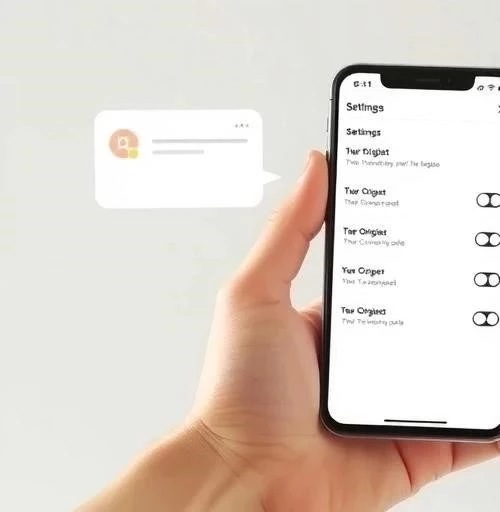
On Xiaomi‚ Redmi‚ and POCO phones‚ pop-ups may come from system recommendations‚ app notifications‚ or a third-party app. Menu names differ slightly between MIUI and HyperOS versions. The steps below reduce most built-in ads; there is no single switch that disables every recommendation.
Revoke the MSA authorization
MSA is a system service that can deliver ads. Open Settings > Passwords & security (or Fingerprints‚ face data‚ and screen lock on some versions) and choose Authorization & revocation. Turn off msa and confirm. If the switch fails‚ wait briefly and try again while connected to the internet. The option may be unavailable or named differently on some devices.
Disable recommendations in system apps
Open each app that displays promotions and check its settings for Recommendations‚ Receive recommendations‚ or Show ads. Turn the relevant option off. Check common sources such as Security‚ Downloads‚ Themes‚ GetApps‚ File Manager‚ Music‚ Video‚ and the Game Center. Some versions place these controls under Settings > Apps > System app settings; others keep them inside each app.
In the Security app‚ tap the gear icon and disable recommendations or promotional content if those options appear. In Downloads‚ open its menu or settings and turn off recommended content. In Themes and GetApps‚ check account or privacy settings as well. Labels and locations can change after software updates.
Turn off wallpaper and notification promotions
If the lock screen shows changing promotional content‚ open Settings > Lock screen and look for Wallpaper Carousel or Glance. Disable it if you do not use the feature. To stop pop-up notifications‚ go to Settings > Notifications & status bar > App notifications‚ select the app‚ and turn off unwanted notifications or floating banners. Keep essential alerts enabled.
Review personalized ads and browser alerts
Search Settings for Ad services or Privacy and switch off personalized ad recommendations if available. This may limit personalization‚ but does not necessarily remove every ad. In the browser‚ review website notification permissions and block sites you do not recognize. Also check recently installed apps: an unfamiliar app that shows ads over other screens may be responsible. Uninstall it and review its special permissions.
Optional: use Private DNS
Some users choose a reputable ad-blocking DNS provider. Open Settings > Connection & sharing > Private DNS‚ choose the provider hostname‚ and save. Availability and menu names vary. DNS filtering can block some ad domains‚ but may also affect websites or apps; switch back to Automatic if problems occur. Avoid unknown DNS services.
Check after updates
Restart the phone and test the apps that previously showed pop-ups. System updates can restore certain recommendations‚ so revisit their settings when needed. Avoid disabling unknown system components or using removal tools unless you understand the risks. These steps target Xiaomi’s built-in promotions; they do not replace checking app permissions or removing unwanted third-party software.

7 Comments. Оставить новый
The reminder to keep essential alerts enabled adds a helpful consideration when adjusting notification settings.
It is useful that the instructions note menu names can vary between MIUI and HyperOS versions.
The steps offer a straightforward overview while making clear that one setting may not remove every promotion.
The guidance distinguishes between disabling recommendations and managing notifications, two settings that can be easy to confuse.
The list of system apps provides a practical starting point for checking where promotional content may appear.
The article clearly separates system recommendations from app notifications, which makes the steps easier to follow.
The article appropriately notes that software updates may change the labels and locations of these controls.