
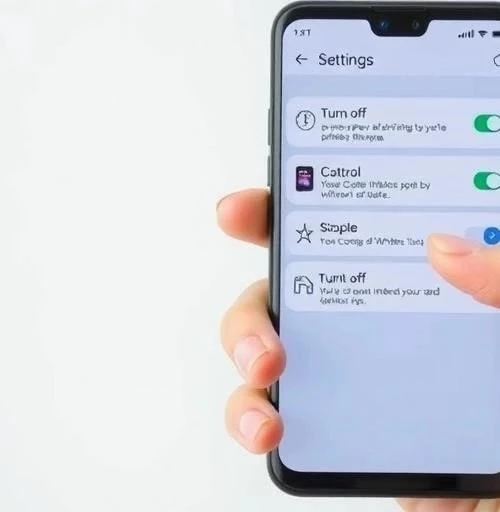
Digital Wellbeing is meant to be a quiet coach: it counts screen time, records app use, and offers tools such as Focus mode and bedtime settings. On a Xiaomi phone, though, you may prefer fewer dashboards and more privacy—or simply want the phone to stop reminding you how long you have been scrolling. The exact controls depend on your Android, MIUI, or HyperOS version, so try the options below in order.
First, look for the built-in switch
- Open Settings.
- Tap Digital Wellbeing & parental controls. If it is not visible, use the Settings search box and search for “Digital Wellbeing.”
- Open the menu, gear icon, or three-dot menu on that screen. Depending on your software version, look for an option such as Turn off usage access, Manage your data, or Digital Wellbeing settings.
- Switch off the available usage or activity access, then confirm. The wording and location can differ between Xiaomi models and software releases.
If you only want fewer interruptions, you may not need to switch off the whole service. Open the relevant Digital Wellbeing panel and turn off individual features such as app timers, Focus mode schedules, or bedtime reminders. This is the gentler route: the dashboard can remain available while its nudges go silent.
Check special app access
Android may control the service through a permission rather than a single master switch. In Settings, search for Usage access or open Privacy protection / Special permissions and find the usage-access list. Select Digital Wellbeing and turn its access off if that control is offered. Menu names vary, so searching Settings is often quicker than following a path copied from another Xiaomi phone.
Try disabling the app only if Xiaomi allows it
Go to Settings → Apps → Manage apps, search for Digital Wellbeing, and open its app-info page. If Disable is available, you can tap it and confirm. Some builds show only Force stop, or do not allow the app to be disabled because it is treated as a system component. Force stop is temporary: Android may start the service again later. Do not uninstall system packages or remove random apps just to hide the dashboard.
What changes—and what does not
Turning off access or disabling the app generally stops Digital Wellbeing from collecting or displaying new usage information. Existing screen-time history may remain until you clear it, if your version provides a data or history control. This will not make the phone faster in a dramatic way, and it does not disable every privacy or parental-control feature on the device. If a parent, school, or work administrator manages the phone, some controls may be locked; ask the administrator rather than trying to bypass management.
If the switch is missing
- Search Settings for both Digital Wellbeing and Usage access.
- Check Settings → Apps → Manage apps → Digital Wellbeing for available controls.
- Restart the phone after changing permissions, then revisit the dashboard to see whether tracking has stopped.
- Install official system updates if the menus look different; Xiaomi changes labels and layouts between MIUI and HyperOS versions.
A small privacy-minded finish
Afterward, open the Digital Wellbeing screen once more. If it no longer updates, the change worked; if it still shows activity, check usage access again and make sure you changed the right profile. On a phone with multiple user profiles, repeat the check in the profile you actually use. You can also review other app permissions separately, but avoid revoking permissions whose purpose you do not understand.
In short: start with the service’s own settings, then revoke usage access, and use Disable only when your Xiaomi offers it. There is no universal switch for every model. The best option is the one that quiets the feature you dislike without disturbing the rest of your phone.


3 Comments. Оставить новый
A refreshingly practical guide that treats privacy like a dimmer switch, not a fire alarm. The reminder to search Settings instead of trusting one-size-fits-all menu paths is especially useful on Xiaomi’s ever-shifting software.
This reads like a small map through a maze whose walls move with every update. The version caveats are welcome, and the step-by-step options make reclaiming a little digital breathing room feel manageable.
I like the quiet wisdom here: sometimes the answer isn’t deleting the dashboard, but simply silencing its chimes. That distinction makes the advice feel thoughtful rather than blunt.