
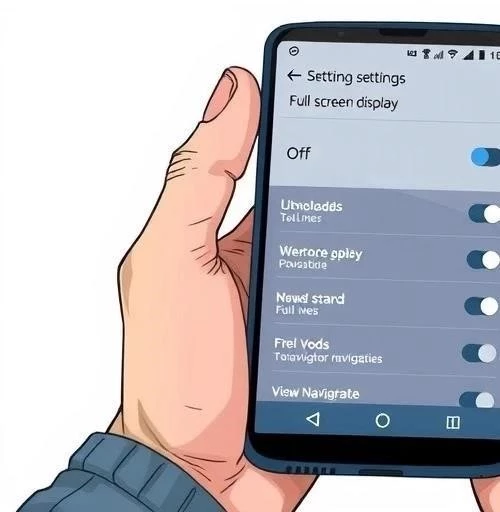
On Xiaomi phones, “full-screen mode” can refer to different settings: an app may hide the navigation bar, the phone may use gesture navigation, or a game may be displayed edge to edge. The steps depend on your MIUI or HyperOS version. Use the option that matches what you want to change.
Switch from gestures to navigation buttons
- Open Settings.
- Tap Home screen, then System navigation. On some versions, this is under Additional settings.
- Select Buttons instead of Gestures.
The Back, Home, and Recent apps buttons will appear at the bottom of the screen. If you prefer gestures but want the gesture hint to show, look for the option to hide or display the full-screen indicator in the same menu. Menu names can vary by phone and software version.
Disable full-screen mode for a particular app
Open Settings and use the search field to look for Fullscreen mode or Full-screen display. If your device offers an app list, select the relevant app and turn off its full-screen setting. On some versions, the control is in Display or Additional settings. Not every Xiaomi model has an app-by-app switch.
If the setting is unavailable, check the app’s own display or layout options. Some video players, browsers, and games enter full screen temporarily; tap the screen or use the app’s exit control to restore the usual view.
Exit full screen while using a game or video
Try swiping up from the bottom edge, or swipe inward from a screen edge if gesture navigation is enabled. In a video player, tap the screen and press the full-screen icon. In Game Turbo, open its in-game panel and use the exit or minimize control. A game may hide system controls again when it is relaunched; that behavior does not necessarily mean the phone-wide setting has changed.
If the setting is hard to find
- Search Settings for “navigation,” “full screen,” or “display.”
- Restart the app after changing its display options.
- Check for a system update if menus differ from these instructions.
Changing navigation style does not remove an app’s own full-screen controls. If only one app behaves differently, adjust that app rather than changing the phone’s navigation settings. Menu labels and available features vary across Xiaomi, Redmi, and POCO models.

6 Comments. Оставить новый
The note that menu names vary by software version is helpful for readers whose settings do not match the examples.
The instructions are organized by the result a reader wants, making it straightforward to find the relevant steps.
The article clearly distinguishes between navigation settings and app-specific full-screen behavior, which makes the instructions easier to follow.
The article explains that not every Xiaomi model offers an app-by-app full-screen control, setting realistic expectations.
The separate guidance for games and videos provides a practical way to exit full screen without changing phone-wide settings.
The Settings search suggestions offer a useful alternative when the listed menu paths are not available.