
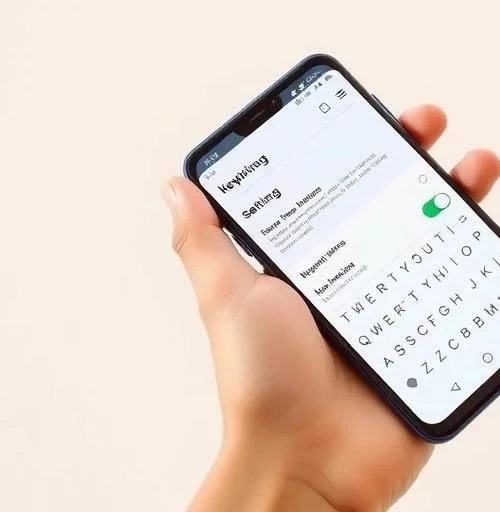
Think of your keyboard as the small door through which every message, search, and password leaves your fingertips. If Gboard is no longer the door you want, you can switch it off on a Xiaomi phone—but do it in the right order. First choose another keyboard; only then decide whether to hide Gboard, disable its app, or remove it if your phone allows that. Menu names differ slightly between MIUI and HyperOS, so treat the labels below as signposts rather than magic words.
Before you begin: install another keyboard
Android needs an active keyboard to enter text. If Gboard is the only enabled option, turning it off first can leave you without a convenient way to type. Install a replacement such as Microsoft SwiftKey or another keyboard you trust from Google Play or Xiaomi’s app store. Check the publisher and permissions before installing: a keyboard can process what you type, so choose carefully.
- Open the app store and search for the replacement keyboard.
- Install it, then open it if the app asks you to complete setup.
- Do not grant permissions you do not understand or need.
Step 1: enable the replacement keyboard
On many Xiaomi phones, open Settings → Additional settings → Languages & input → Manage keyboards. On some versions, look under Settings → System → Languages & input, or search Settings for “keyboard” or “manage keyboards.” Turn on the switch beside the keyboard you installed. Read the on-screen warning and confirm only if you are happy to use that app.
Enabling a keyboard does not yet make it the one that appears when you type. It simply adds it to the available choices. That distinction is the key to switching safely.
Step 2: make it the default
Return to Languages & input and tap Current keyboard, Default keyboard, or Keyboard, mouse & trackpad, depending on your software version. Select the replacement. You can also open a text box, bring up the keyboard, tap the small keyboard icon in the navigation area, and choose another enabled input method. If the icon is not visible, use the Settings route instead.
Test the change in a harmless place, such as a notes app. Open the keyboard, type a short sentence, and check that the new layout appears. If it does, Gboard is no longer your active keyboard—even though its app may still be installed and available.
Option A: switch Gboard off as an input method
If your goal is simply to stop seeing Gboard, this is usually the cleanest option. Go back to Settings → Additional settings → Languages & input → Manage keyboards, then turn off the Gboard switch. Keep your replacement enabled and selected as the default. On certain versions, the control may be called On-screen keyboard or appear inside Gboard’s own settings.
This turns off Gboard’s availability for typing; it does not necessarily uninstall the app or erase its stored settings. That is often preferable: you can bring it back later without downloading anything.
Option B: disable or uninstall the Gboard app
If you want to go further, open Settings → Apps → Manage apps, find Gboard, and open its app information page. If your phone offers Disable or Uninstall, you can use that option after confirming another keyboard is working. Some Xiaomi models treat Gboard as a system app and do not offer a Disable button. In that case, the switch in Manage keyboards is the practical way to turn it off.
Do not mistake Force stop for a permanent off switch: Android may start the app again when it is needed. Likewise, Clear cache or Clear data resets app information; it does not reliably disable the keyboard and may remove preferences or downloaded settings. Avoid deleting system components through unofficial tools. Removing a built-in app can cause problems after an update or leave you with no usable input method.
If the menus look different
- Search Settings. Try “Default keyboard,” “Current keyboard,” “Languages & input,” or “Manage keyboards.” Xiaomi reorganizes these menus between MIUI, HyperOS, Android versions, and regions.
- Look for the input picker. With a text field open, tap the keyboard symbol in the navigation bar or notification area, if shown.
- Check the replacement first. If it is missing from the list, reopen its app, finish setup, and confirm its switch is on in Manage keyboards.
- Restart only if needed. A restart can refresh the input-method list, but it cannot replace the steps above.
How to turn Gboard back on
Open Manage keyboards and enable Gboard again. Then visit Current keyboard or Default keyboard and select it. If you disabled the app, return to its information page and tap Enable. If it was uninstalled and is available in your store, reinstall it from the official listing.
The short version
Install another keyboard → enable it → select it as the default → switch off Gboard under Manage keyboards. Only try to disable or uninstall the Gboard app if Xiaomi provides the option and your replacement already works. The safest switch is the one you can reverse: keep one trusted keyboard active, test it, and then let Gboard step quietly offstage.
1 Comment. Оставить новый
The best detail here is the quiet distinction between enabling a keyboard and choosing it as the default. It turns a potentially frustrating settings hunt into a small act of digital housekeeping—and the reminder to treat keyboard permissions seriously is especially welcome. A keyboard is not just a tool; it is a very intimate doorway into your phone.