
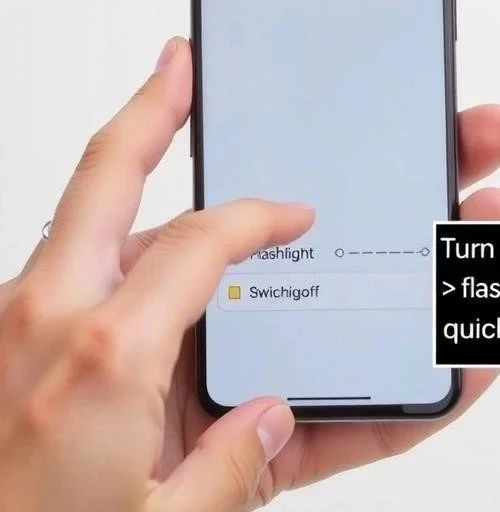
On most Huawei phones, the flashlight is controlled from the Quick Settings panel, the lock screen, or the Camera app. The exact layout can differ depending on the model and whether it runs EMUI or HarmonyOS, but the basic steps are similar. Try the first method below; if the flashlight remains on, use one of the alternatives.
Method 1: Turn it off from Quick Settings
- Unlock the phone, or wake the screen if it is already on.
- Swipe down from the top edge of the screen to open the notification panel.
- If only notifications appear, swipe down again to expand the Quick Settings shortcuts. On some models, you may need to swipe down with two fingers.
- Find the Flashlight, Torch, or torch-shaped icon. Its label may vary by software version.
- Tap the icon once. When the light is off, the shortcut should no longer appear highlighted.
If the flashlight shortcut is not visible among the first controls, swipe sideways through the shortcut pages or expand the panel fully. Huawei devices often show only a few controls when the panel is partly open.
Method 2: Use the lock screen
Some Huawei models provide a flashlight shortcut directly on the lock screen. Wake the display and look for a torch icon near the bottom corners. Depending on the device, tap the icon or press and hold it briefly to switch the light off. If the shortcut is not shown, or tapping it does not work, unlock the phone and use Quick Settings instead.
A lock-screen control may be unavailable on certain models or software versions. Its absence does not mean the flashlight cannot be turned off; it simply means you should use the notification panel or another method.
Method 3: Close the Camera app
If the rear light is being used as a camera flash or continuous light, open the Camera app and check its flash control. Set the flash to Off, or turn off any video-light or torch option that is active. Then leave the Camera app and check whether the light has gone out.
Closing the Camera app is not usually required when the torch was switched on from Quick Settings. However, it can help if the light is connected to a camera mode or another app that uses the phone’s LED.
If the flashlight will not turn off
- Tap the shortcut again. The control may have been pressed while the panel was still moving, so check its current state and try once more.
- Close apps that may use the camera. Exit the Camera app and any video, scanning, or other app that could be using the camera light. You can open the recent-apps view and close the relevant app, then try the torch control again.
- Lock and wake the screen. This can refresh a lock-screen shortcut if it appears unresponsive. After waking the phone, use the Quick Settings panel to check the flashlight state.
- Restart the phone. If the light stays on even though the control shows it is off, restart the device. A restart can clear a temporary software issue. Save any work first, then use the on-screen power menu and choose Restart.
- Check for a stuck control. If the flashlight turns back on immediately, check whether an app, shortcut, or accessibility feature is triggering it. Review recently installed apps and their permissions if the problem began after installing one.
Menu names and restart options vary by Huawei model. If the phone is frozen and does not respond to the normal power menu, follow the instructions in the device’s user guide for a forced restart. Avoid repeatedly pressing buttons without checking the model-specific guidance.
How to find or add the flashlight shortcut
If you cannot find the torch control, open Quick Settings and expand the panel. Look for an edit, pencil, or rearrange button, which may appear as a small icon near the top or bottom of the panel. Tap it and check the available shortcuts. If Flashlight or Torch is in the unused area, drag it into the active area and confirm the change. The editing process and icon may differ between software versions.
Once added, the control should be easier to reach the next time you need to switch off the light. If the shortcut is not listed, consult the phone’s built-in Help app or user guide for instructions specific to the model and software version.
Why it is useful to switch it off promptly
The flashlight uses battery power while it is on. Keeping it active can also warm the area around the camera, especially if the phone is inside a pocket or case. Turning it off when it is no longer needed helps avoid unnecessary battery use and heat. If the phone becomes unusually hot, switch off the torch, stop demanding apps, and let the device cool in a safe place.
Quick summary
For most Huawei phones, swipe down from the top of the screen, expand Quick Settings if necessary, and tap the Flashlight or Torch icon. If the control is missing, check the lock screen, swipe through the shortcut pages, or add the control using the panel’s edit option. If the light remains on, close apps that may be using the camera and restart the phone if needed.
These steps apply broadly, but Huawei menus can differ across models and software releases. When a label or control does not match the instructions, look for the torch-shaped icon or use the device’s built-in support information.


1 Comment. Оставить новый
The article gives clear, practical steps for turning off the flashlight on Huawei phones and notes that menus can vary by model and software version. The Quick Settings method is especially easy to follow.