
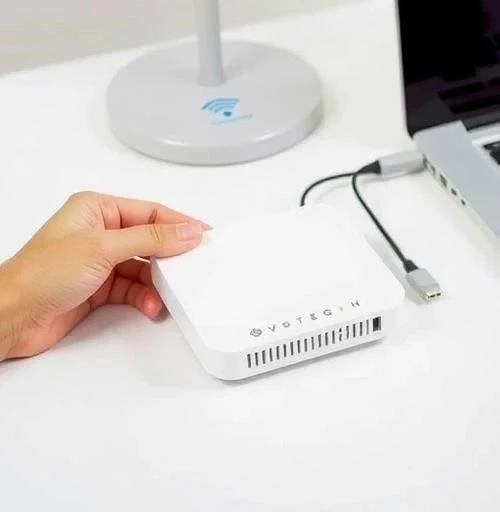
A Huawei modem is a little doorway: on one side is your phone line, SIM card, or internet provider; on the other is a whole house full of devices hoping to get online. Connecting to it is usually simple, but the exact route depends on the model. Some Huawei devices create a Wi-Fi network from a mobile SIM, some connect to a broadband line, and some are USB modems that plug straight into a computer.
This guide walks you through the common methods, explains what to do if the connection refuses to appear, and shows how to secure the network once you are inside. Model names, menus, and default addresses vary, so treat the labels printed on your device and its manual as your map—not every Huawei modem follows precisely the same trail.
Before you begin: identify your modem
Look at the device and find its model number, usually printed on a sticker on the underside or back. The label may also show a default Wi-Fi name (SSID), Wi-Fi password, login address, or administrator credentials. Keep this information nearby. A battery-powered mobile hotspot may have a screen or a button that displays the network details; a home router may place them on a sticker.
- Mobile Wi-Fi router: Takes a SIM card and shares mobile data wirelessly.
- Home modem or router: Connects to your provider’s broadband service and broadcasts Wi-Fi, often through a separate WAN or DSL connection.
- USB modem: Plugs into a computer’s USB port and may require a driver, connection app, or SIM card.
Check that the service is active, the SIM (if used) is inserted correctly, and the modem has power. If there is a SIM PIN, you may need to enter it before mobile data works. Do not guess repeatedly: several incorrect attempts can lock a SIM and require a PUK code from your carrier.
Method 1: Connect over Wi-Fi
- Turn the modem on. Give it a minute or two to start. Watch the indicator lights or screen. A power light should come on; a mobile model may take longer to register with the cellular network.
- Open Wi-Fi settings on your phone, tablet, or computer. On a phone this is usually under Settings; on a computer, select the wireless-network icon.
- Choose the modem’s network name. It may be printed on the label as “SSID.” If several similar networks appear, compare the name with the sticker or the device’s display.
- Enter the Wi-Fi password. Use the wireless password, not the administrator password for the modem’s settings page. Capital letters matter. Watch out for easily confused characters such as 0 and O or 1 and l.
- Wait for confirmation. Your device should show “Connected.” Open a webpage or app to test internet access.
If the network does not show up, move closer to the modem and refresh the available networks. Make sure Wi-Fi is enabled on the modem; some models have a separate Wi-Fi button or allow wireless broadcasting to be switched off in settings. If you have just changed the network name, search for the new name rather than the one printed on the old label.
Method 2: Open the settings page
Connecting to Wi-Fi joins your device to the modem. Opening the administration page lets you change its settings. First connect to the modem by Wi-Fi or Ethernet. Then open a browser and enter the local management address shown on the sticker or in the manual. Depending on the model and configuration, Huawei devices may use an address such as 192.168.8.1 or 192.168.1.1; these are examples, not universal addresses.
Type the address into the browser’s address bar, where website addresses go, rather than into a search box. If the page does not load, check the label for the correct address. You can also look up the device’s “default gateway” in your computer or phone’s network details; that gateway is commonly the router’s local address.
Sign in with the administrator details printed on the device or supplied by your internet provider. These credentials are separate from the Wi-Fi password, although on some models the setup process uses one password for more than one purpose. Follow the screen prompts. The menu may be called Settings, Advanced, Network, or Wi-Fi, depending on the model and firmware.
Once signed in, you can usually check connection status, change the wireless name and password, select a network band, or review connected devices. Change only what you need. A mysterious setting with an impressive name is still capable of disconnecting everyone in the house.
Method 3: Connect with Ethernet
If your modem has LAN ports, plug one end of an Ethernet cable into a LAN port and the other into your computer. Avoid a port marked WAN unless you are connecting the modem to another router or to a service-provider device as directed by your setup guide. Ethernet is useful for initial configuration, weak Wi-Fi, or troubleshooting because it avoids wireless interference. After connecting, wait briefly and open the management address in your browser.
Method 4: Set up a USB modem
Insert the SIM if your USB model uses one, then connect the modem to a USB port. Some devices install or launch connection software automatically; others need a driver or configuration app from Huawei or your carrier. Follow the prompts and allow installation only from a source you trust. If no setup window appears, check the modem’s documentation and your operating system’s network settings instead of downloading drivers from an unfamiliar website.
In the connection software, select the mobile network profile provided by your carrier, if prompted, and choose Connect. APN details are carrier-specific, so do not copy a random APN from another provider. If the modem is detected but cannot connect, ask the carrier for the correct APN and confirm that the SIM supports data service.
Make the connection your own
After setup, give your Wi-Fi a recognizable name and replace the factory password with a strong, unique one. A good password is long enough to resist guessing and not reused for email, shopping, or other accounts. Keep the administrator password private too: it protects the control panel, not just the wireless door;
- Use WPA2 or WPA3 security if the modem offers it. Avoid open Wi-Fi and outdated security options such as WEP.
- Install firmware updates offered through the official device interface or your provider. Updates can improve reliability and fix security problems.
- Save the new Wi-Fi details somewhere safe before disconnecting. You will need to reconnect devices using the updated name or password.
- Turn off remote administration if you do not need it, and do not share administrator credentials casually.
A guest network, if available, is a useful side entrance for visitors and smart devices. It can let guests access the internet without giving them your main Wi-Fi password. The exact options depend on the model and provider firmware.
If it will not connect: follow the clues
The Wi-Fi name is missing
Check that the modem is powered on and wireless broadcasting is enabled. Restart the modem, wait for it to finish starting, and scan again nearby. If possible, test with a second phone or computer. If no device can see the network, consult the manual for the Wi-Fi button or reset procedure.
The password is rejected
Re-enter it carefully, checking capitalization and similar-looking characters. Confirm that you are using the Wi-Fi password, not the admin password. If the password was changed previously, the printed default may no longer work. You may need to connect by Ethernet and review the settings, or reset the modem and configure it again.
You are connected, but there is no internet
“Connected” may mean only that your device reached the modem; the modem itself may still be offline. Check its signal or service lights, data balance, SIM placement, account status, and any provider outage notice. For a wired broadband modem, make sure the service cable is firmly attached to the correct port. Restart the modem and allow several minutes for it to reconnect.
The settings page will not open
Confirm that your device is connected to this modem, then enter its local address in the browser’s address bar. Disable a VPN temporarily if it routes local traffic elsewhere. If the address is uncertain, find the default gateway in the network details. Avoid entering bank or email passwords into a page unless you have verified that it is the modem’s local interface.
The reset button is the last door, not the first
A factory reset can restore access when settings are lost, but it also erases custom Wi-Fi names, passwords, and possibly provider configuration. Restarting is different: it switches the modem off and on without deliberately wiping settings. If you choose a factory reset, follow the model’s manual exactly; the button may need to be held for a particular length of time. Before doing it, make sure you have the information needed to set up the internet again. If your provider manages the device, contact them first.
A quick connection checklist
- Identify the Huawei model and read the label;
- Power it on and wait for its service lights to settle.
- Join the correct SSID with the Wi-Fi password, or connect by Ethernet or USB.
- Test internet access; if needed, open the local settings address.
- Secure the Wi-Fi and administrator accounts with unique passwords.
Think of the modem as a lighthouse rather than a magic box: power is its lamp, signal is the beam, and the Wi-Fi password is the key to its little harbor. Once you know which model you have and which kind of connection it uses, setup becomes a sequence of small, sensible steps. If those steps still lead to a dark shore, your carrier or Huawei support can help identify model-specific settings without guesswork.



4 Comments. Оставить новый
A refreshingly practical guide: it doesn’t pretend every Huawei model follows the same map. The warning about SIM PIN guesses is the quiet hero here—one less tiny mistake turning into a carrier-support quest.
This turns a tangle of SSIDs, SIMs, and indicator lights into a calm checklist. I’d never thought of identifying the modem first as choosing the right key before trying the door.
The “device as a doorway” image makes setup feel less like wrestling with blinking lights and more like opening a small portal. I especially appreciate the reminder that the sticker is the modem’s passport.
Useful without being bossy, and vivid without getting lost in metaphors. The distinction between a mobile hotspot, home router, and USB modem saves readers from following instructions meant for an entirely different creature.