
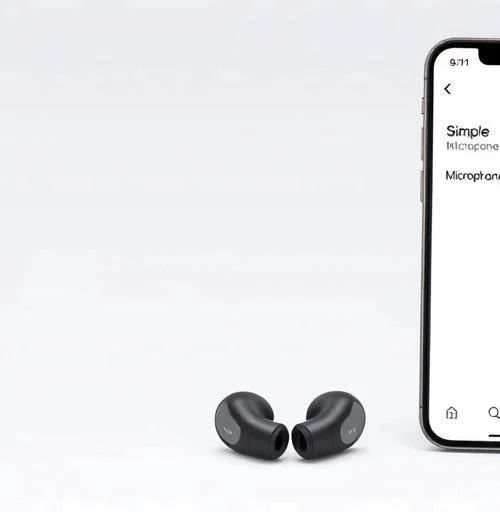
A tiny microphone can feel like a very loud thing. Maybe you want privacy during a call, need to stop a meeting app from picking up your room, or simply want your Xiaomi headphones to play sound without listening back. The good news: you can usually mute or disable microphone access. The catch: there is no single switch that works for every Xiaomi headset, phone, and app.
“Xiaomi headphones” covers wired models, Bluetooth earbuds, and headsets sold under names such as Redmi or Xiaomi. Some have a physical mute control; others rely on the app or device they are connected to. Use the guide below to find the right switch for your setup—and to check that it really worked.
First, identify what you want to switch off
These are three different actions, often mistaken for one another:
- Mute during a call: the other person temporarily stops hearing you. Your headphones remain connected and keep playing sound.
- Block microphone access for an app: a phone or computer refuses to let a selected app use the mic. This is the best option when you want a lasting, app-specific privacy setting.
- Stop the headset from being used as the input device: your phone or computer uses a different microphone, such as the one built into the device. The headset can still provide audio output.
There is also a fourth possibility: disconnect or unpair the headphones. That stops the Bluetooth connection entirely, so it is a blunt instrument—not a microphone-only switch.
Look for a mute control on the headphones
Inspect the earbuds, charging case, cable, and any inline remote. A headset may have a button marked with a microphone symbol, a mute icon, or a clear call-control label. If it does, press it once while in a call and check the call screen or ask the other person whether your voice has stopped. Some controls only mute during calls; they may do nothing when no call is active.
Button layouts differ between models, and tapping or holding the wrong touch area may end a call, pause playback, or launch a voice assistant. Don’t assume a long press is a mute command. Check the quick-start sheet or the manual for your exact model name, usually printed on the box, case, or in Bluetooth settings.
If there is no microphone mute button, that does not mean the mic is always live. In most cases, an app must be using it before it transmits your voice. You can control that access on the connected phone or computer.
Mute the microphone in the app you are using
For a meeting, voice chat, or phone call, the fastest solution is normally the app’s own Mute button. Look for a crossed-out microphone on the call screen. Tap it once, then confirm that the icon changes to show you are muted. Some apps display a notice when another participant is speaking, but do not rely on that as proof—check the icon or test with someone you trust.
App mute is convenient, but it may apply only to that call. When you join another meeting or open a different recording app, its microphone permissions and mute controls may be separate. If you want to prevent an app from listening at all, change its microphone permission in your device settings as well.
On an Android phone or tablet
Menu names vary with Android version and the phone maker’s software. On Xiaomi phones, settings can also differ between MIUI and HyperOS releases. Try this general route:
- Open Settings.
- Go to Privacy, Security & privacy, or Permission manager.
- Choose Microphone.
- Select the app you want to restrict, then choose Don’t allow or the closest available option.
On some Android versions, you can also open Settings > Apps > [app name] > Permissions > Microphone. If the app is currently using the microphone, Android may show a microphone indicator near the top of the screen. Tapping the privacy indicator, where supported, can reveal which app is using it.
Android’s system-wide microphone access control, when available, is usually in Quick Settings or under Privacy. Turning it off can block microphone access across apps, not just through the Xiaomi headset; That may stop voice calls, voice messages, recordings, and voice assistants from working. Use it when you want a broad privacy pause, not merely to silence one call.
Important: blocking an app’s microphone permission usually blocks the phone’s microphones too. It does not necessarily mean “use the phone mic instead of the headset mic.” For that, check the call or app’s audio-input selector, if it offers one.
On an iPhone or iPad
To deny microphone access to a particular app, open Settings > Privacy & Security > Microphone, then switch off that app. Depending on your iOS or iPadOS version, you may also find its permission under Settings > [app name] > Microphone.
For a call in progress, use the mute button in the calling app or on the call screen. To use the device’s built-in microphone rather than the headset microphone, open the call’s audio route or speaker menu and choose an available device option. The precise choices depend on the app, operating system, and connected accessories.
Revoking microphone permission is stronger than muting a call: an app may be unable to record voice messages or start voice features until permission is restored. If a feature stops working afterward, revisit the same settings and grant access again.
On a Windows computer
Windows lets you manage microphone access at the system and app levels. Open Settings > Privacy & security > Microphone and review microphone access, app permissions, and desktop-app access. Switch off access for the app you want to block. Labels and layout can differ between Windows versions.
To keep the headphones for listening but select a different input, open Settings > System > Sound. Under Input, choose another microphone, such as the computer’s built-in mic. In a meeting app, also check its own audio settings: it may have a separate input selector that overrides the Windows default.
For a quick meeting mute, use the app’s microphone button. Some keyboards and headsets have their own mute keys, but a keyboard shortcut may vary by computer or application. Verify the mute state on screen rather than assuming that a key combination worked.
On a Mac
On recent macOS versions, open Apple menu > System Settings > Privacy & Security > Microphone. Turn off permission for the app you want to block. For a specific call, use the app’s mute button. To choose a different input device, open System Settings > Sound > Input and select the microphone you want to use, if it is available.
Changing the system input may affect more than one app, while an app’s own input selector may affect only that app. If the headset stays selected after you change the setting, quit and reopen the calling app, then check its audio menu again.
Can the Xiaomi Earbuds app turn the mic off?
Some Xiaomi or Redmi companion apps offer controls for gestures, noise cancellation, transparency, firmware updates, or other headset features. Those controls do not automatically mean that the app can disable the call microphone. Available options depend on the exact headphone model, the app version, and the phone.
Open the official companion app, connect the headphones, and inspect the settings for your model. If you find a clearly labeled microphone or call-mute control, follow its instructions and test it. If there is no such option, don’t interpret noise cancellation, transparency mode, or touch-control customization as a microphone-off switch: those features serve different purposes.
Keep Bluetooth audio, but avoid the headset mic
On some phones and computers, the headset can provide playback while another microphone handles your voice. Look in the active call or meeting’s audio settings for separate Speaker/Output and Microphone/Input choices. Select the Xiaomi headphones for output and the device’s built-in microphone for input.
This split setup is not supported in every app or Bluetooth mode. A device may treat the headset as one combined call accessory, or may switch to a lower-quality call-audio mode when its microphone is active. If you cannot choose input and output separately, use the app’s mute control or block its microphone permission instead.
How to check that the microphone is really muted
- Start a test call or open the app’s audio settings.
- Check the mute icon or the selected input device.
- Speak briefly, then ask the other participant whether they can hear you—or use the app’s microphone test.
- Look for your phone or computer’s microphone privacy indicator, if available.
- Close the call or app when finished, especially if you changed permissions only for a temporary test.
A headset may still show as “connected” after its microphone is muted; that is normal. Bluetooth connection status tells you that the accessory is linked, not that it is currently sending voice. Likewise, hearing playback does not prove that the microphone is active.
If the mic keeps turning on
- Check the app: make sure you muted the active call, not a different screen or chat.
- Review permissions: confirm that the app has not been granted microphone access again after an update or reinstall.
- Check voice assistants: headset gestures or wake-word features may launch an assistant. Disable the relevant feature or change its microphone permission if you do not use it.
- Reconnect: disconnect and reconnect the headphones, then reopen the calling app. This can resolve a stuck audio route.
- Restart and update: restart the phone or computer, and install available system, app, or headset firmware updates from official sources.
- Test another app or device: this helps distinguish a headset issue from an app setting or operating-system permission.
If the microphone still transmits after you have denied access at the operating-system level, check whether you changed the permission for the correct app and whether another app is handling the call. If you need immediate certainty, end the call, close the app, and disconnect the headphones. For a privacy-sensitive conversation, do not rely on an untested gesture.
What not to do
Do not cover the microphone opening and assume it is disabled. That may muffle sound, but it does not switch off the electronics or guarantee privacy. Avoid unofficial “mic-disable” apps that request broad permissions, and don’t dismantle earbuds to reach a tiny microphone: doing so can damage the battery, seals, or charging contacts.
Also, don’t confuse noise cancellation with muting. Active noise cancellation is designed to reduce some outside sounds you hear; it is not a promise that your outgoing voice is blocked. Transparency mode, equalizer settings, and volume controls are not microphone switches either.
The shortest reliable answer
For a quick mute, tap the microphone icon in your call or meeting app—or use a clearly identified mute button on the headset. For a lasting block, revoke microphone permission for the app in Android, iOS, Windows, or macOS settings. To keep listening through Xiaomi headphones while talking through another mic, select separate input and output devices if your device and app support it.
Because controls vary by model, the safest rule is simple: mute in the app, manage permission in the operating system, and verify the result. Your headphones can keep the soundtrack; you decide when the microphone gets a speaking part.

6 Comments. Оставить новый
I like the privacy-first distinction between app permissions and the headset’s input selection. The article makes a technical setting feel less like wandering through a maze of menus and more like choosing the right key.
This is refreshingly practical about the Xiaomi name covering many different kinds of headphones. It avoids pretending there’s one magic setting and instead gives readers a useful way to identify their particular setup.
A helpful start for anyone whose earbuds have more touch controls than obvious buttons. The advice to inspect the case and inline remote is a small detail, but it could save a lot of tapping in the wrong places.
The reminder to test the mute instead of trusting the button is excellent. A tiny microphone icon can inspire a lot of confidence; a quick check with the person on the other end turns that confidence into certainty.
Calling disconnection a “blunt instrument” is memorable—and accurate. It’s a neat way to explain why cutting the whole Bluetooth connection is not the same as silencing just the microphone.
I appreciate how this guide separates muting a call from blocking an app’s access. Those switches may look like twins, but they live in different rooms—and knowing which door to close makes all the difference.