
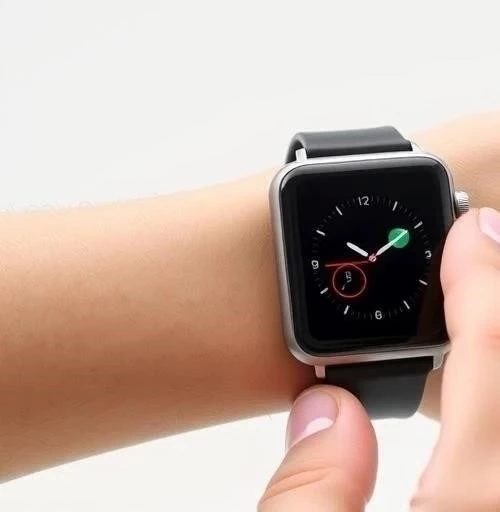
If the Apple Watch display is enlarged and you have to move around it to see everything‚ the Zoom accessibility feature is probably enabled. You can turn Zoom off in the watch’s settings or in the Watch app on your iPhone. The steps below apply to recent versions of watchOS; menu wording may vary slightly by version.
Turn Zoom off on Apple Watch
- Press the Digital Crown to open the app list or Home Screen.
- Open Settings.
- Tap Accessibility‚ then tap Zoom.
- Switch Zoom off.
If the display is magnified so much that you cannot easily reach Settings‚ first use the Zoom gestures to restore a normal view. Double-tap the screen with two fingers to zoom out. If necessary‚ drag with two fingers to move the view until the controls you need are visible. Once the screen is manageable‚ follow the steps above.
Use the Watch app on iPhone
- Keep your Apple Watch near your iPhone and open the Watch app.
- Tap My Watch‚ then choose Accessibility.
- Tap Zoom and turn the feature off.
The change should apply to the paired watch. If the setting does not appear to update‚ wait a moment‚ check that the devices are connected‚ and reopen the Zoom screen.
If Zoom keeps turning on
The Accessibility Shortcut may be assigned to Zoom. When activated‚ the shortcut can switch an accessibility feature on or off. To remove Zoom from the shortcut‚ open Settings on the watch‚ go to Accessibility‚ and open Accessibility Shortcut. Deselect Zoom‚ or choose another feature. You can also check the corresponding accessibility options in the Watch app on iPhone.
On Apple Watch models that use the Digital Crown for the Accessibility Shortcut‚ pressing the crown three times may toggle the selected feature. If Zoom returns after you use that shortcut‚ review its configuration. Avoid changing other accessibility settings unless you intend to use them.
Adjust magnification instead of disabling it
If you sometimes need larger content‚ you can leave Zoom enabled and reduce its maximum magnification. Open Settings > Accessibility > Zoom and adjust the maximum zoom level. With Zoom active‚ double-tap with two fingers to change magnification and drag with two fingers to pan around the screen. These gestures differ from a single-finger tap or swipe used for ordinary navigation.
Check other display settings
If the screen is not enlarged but text or icons merely look bigger‚ check Settings > Display & Brightness and review text-size options. Bold Text and larger text affect readability‚ but they are separate from Zoom. Turning off Zoom will not reset those preferences. If the display remains unusually enlarged after Zoom is disabled‚ restart the watch: press and hold the side button‚ use the power controls‚ then turn it back on. Do not force-restart unless the watch is unresponsive.
In brief
For most cases‚ the fix is Settings > Accessibility > Zoom > Off. If the screen is too magnified to navigate‚ double-tap with two fingers to zoom out first. If magnification returns‚ check whether Zoom is selected as the Accessibility Shortcut.

5 Comments. Оставить новый
A clear overview of the available options for managing Zoom on Apple Watch. The suggestion to check the device connection if settings do not update is sensible.
The instructions clearly explain how to turn off Zoom using either the Apple Watch or the paired iPhone. The troubleshooting tips are also useful when magnification makes the settings difficult to access.
The article covers both disabling Zoom and checking the Accessibility Shortcut if the feature keeps turning on. The directions are straightforward and easy to follow.
The explanation of using two fingers to zoom out or move around the display is a helpful addition for people who cannot easily reach the Settings app.
This is a practical guide with steps organized by device. Mentioning that menu wording can vary by watchOS version helps set appropriate expectations.