
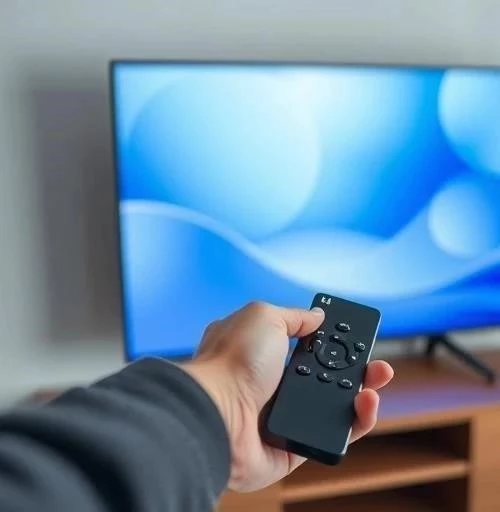
The Xiaomi TV A2 43 has a wonderfully ordinary first step: give it power and press the button․ The less ordinary part is finding the right button, pairing the remote, and getting through the first-time setup without mistaking a quiet screen for a broken television․ Follow this guide to bring your new screen to life․
Before you press anything
- Place the TV safely․ Attach the supplied feet or mount the set on a compatible wall bracket, following the manual․ A 43-inch screen is easier and safer to handle with another person․
- Connect the power cable․ Check that it is firmly seated in the TV and plug the other end into a working wall outlet․ If you use a power strip, make sure its switch is on․
- Choose your starting connections․ You can connect an antenna, HDMI device, or network cable now, or do it later․ For the simplest first start, connect power and leave other devices off․
Switch it on with the remote
Insert the batteries in the remote, matching the plus and minus marks in the battery compartment․ Point the remote toward the TV and press the power button once․ It is usually marked with the familiar broken-circle symbol․ Allow a few seconds for the Xiaomi logo or setup screen to appear; the display may take a little longer on its first start․
If the remote does not respond, move closer and try again․ Check the battery direction, replace weak batteries, and make sure nothing is blocking the front of the television․ Some remote functions use Bluetooth, while power may also use infrared, so aiming toward the TV is a good first test․
Find the TV’s own power control
No remote? Look underneath the television, around the lower edge near the center or the Xiaomi logo, for a small physical button or control․ Its exact position can vary by production version․ Press it briefly to turn the TV on․ On models with a multi-function button, short presses may move through options and a longer press may confirm a selection․ Consult the printed quick-start guide if the on-screen menu appears rather than the home screen․
Pair the Bluetooth remote if prompted
During setup, the TV may ask you to pair its remote․ Keep the remote close to the screen and follow the on-screen instructions․ If pairing does not begin, try holding the Home and Menu buttons together for several seconds, while standing near the TV․ The Menu key may show three horizontal lines․ Button combinations can differ between remote versions, so use the pairing animation or manual as the final reference․
Complete the first-time setup
- Select your language and country or region․ These choices affect menus, available services, and channel settings․
- Connect to Wi-Fi by selecting your network and entering its password, or use Ethernet if the television is wired to your router․
- Sign in to a Google account if you want to download apps, sync preferences, or use Google services․ You can usually skip sign-in and add an account later․
- Accept or adjust privacy and service settings․ Read the choices rather than racing through them; you can often change permissions later in Settings․
- Scan for broadcast channels if an antenna or compatible cable feed is connected․ For streaming, open the relevant app after the network is ready․
The A2 43 uses a smart-TV interface, but the exact screens and available services can vary by region and software version․ Let any initial update finish before unplugging the TV․ It may restart during the process; that is usually normal․
It still will not turn on? Try this sequence
- Check the outlet: test it with another device, and confirm any wall or strip switch is on․
- Reseat the cable: unplug the TV from power, wait about 60 seconds, reconnect it securely, then press power once․
- Look for a standby light: its presence and behavior can vary․ A light does not necessarily mean the screen is faulty; it may indicate standby․
- Disconnect accessories: temporarily remove HDMI and USB devices, then try starting the television again․ A connected device can sometimes complicate startup or input selection․
- Test the physical button: if that works but the remote does not, focus on batteries, pairing, or the remote itself․
If the TV makes repeated clicking sounds, shows no signs of power after these checks, or starts and immediately shuts down, stop experimenting and contact Xiaomi support or your retailer․ Do not open the casing; internal components can retain dangerous electrical charge․
After the screen wakes up
To watch a connected player or game console, press the remote’s input/source button and select the HDMI port you used․ To return to streaming, press Home and open an app․ If the picture is black but you can hear sound, check the selected input and wake the connected device before changing settings․
Quick version: connect power, insert the remote batteries, press Power, pair if asked, then follow the setup wizard․ If the remote is missing, use the small control beneath the TV․ A calm first minute is often all the A2 needs before its screen turns from dark glass into a window․
1 Comment. Оставить новый
A refreshingly practical guide that treats the first TV setup like a tiny expedition: check the batteries, find the elusive button, and give the screen a moment to wake. That calm reminder may save more frustration than any fancy feature ever could.