
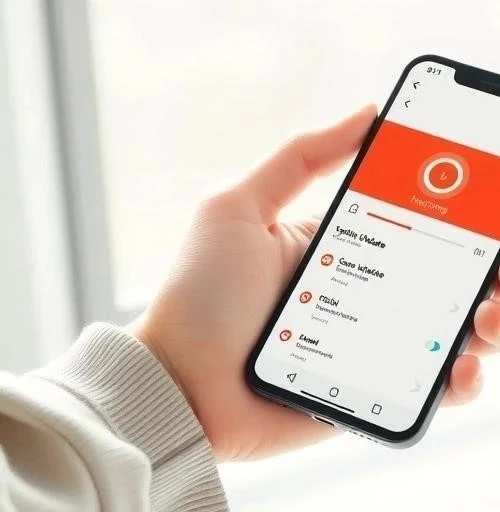
Updating a Huawei phone can provide security fixes‚ bug corrections‚ and‚ when an update is available‚ newer system features. The exact process depends on the phone model‚ region‚ software version‚ and mobile operator. A system update may install a newer Android release‚ but it may instead update Huawei’s EMUI interface or provide security and stability improvements without changing the Android version. Follow the steps below to check for an official update safely.
Before you begin
First identify the exact model and current software version. Open Settings and look for About phone or About device. The page usually shows the model name‚ Android version‚ EMUI version‚ and build number. Menu names can vary slightly between devices. Knowing the model is useful because Huawei releases updates separately for different phones and markets; instructions for one model do not necessarily apply to another.
- Charge the phone. Aim for at least 50% battery‚ or keep the device connected to a reliable charger during the update.
- Connect to a stable Wi-Fi network. System packages can be large. Using Wi-Fi can avoid mobile-data charges and reduce interruptions.
- Make a backup. Save important photos‚ contacts‚ documents‚ and other files to a computer‚ external storage‚ or a trusted cloud service. Updates are designed to preserve personal data‚ but a backup protects against unexpected problems.
- Check available storage. Remove or move files if the phone is nearly full. The update screen may state how much free space is needed.
- Keep account details available. After a restart‚ the phone may ask for the screen-lock code or account credentials.
Method 1: Check for an update in Settings
- Open Settings.
- Tap System & updates‚ then Software update. On some versions‚ the update option appears directly in Settings or under a differently named system menu.
- Tap Check for updates or Check for updates on the software-update screen. If prompted‚ allow the phone to connect to Huawei’s update service.
- If an update is offered‚ review the version information and release notes. Confirm that the update is intended for your device‚ then select Download and install.
- Wait for the download to finish. The phone may verify the package and restart to complete installation. Do not switch it off or force a restart while installation is in progress.
- When the phone starts again‚ unlock it and allow the system a few minutes to finish setup. Return to the update screen or About phone to confirm the installed version.
If the phone offers a choice between downloading automatically over Wi-Fi and receiving a notification when an update is available‚ either option can be selected according to preference. Availability of these controls depends on the software version. An update may also arrive in stages‚ so two phones of the same model may receive it at different times.
Use the My Huawei or Support app
On some devices‚ Huawei’s My Huawei or Support app provides update information or links to system settings. Open the app and look for device services‚ updates‚ or software support. The app’s name and available functions vary by country and phone. If it directs you to Settings‚ complete the update there and follow the on-screen instructions. Use only the app preinstalled by Huawei or obtained through an official channel for your region.
Method 2: Update with Huawei HiSuite
If the phone does not display an update over the air‚ Huawei’s HiSuite desktop program may offer another official way to check. HiSuite availability and supported functions can differ by operating system‚ model‚ and region. Download the program only from Huawei’s official website‚ and check that it supports your phone before proceeding.
- Back up important files. Install and open HiSuite on a compatible computer.
- Connect the phone using a good-quality USB cable. Unlock the phone and approve the connection prompts. Depending on the device‚ you may need to enable HiSuite or allow access to phone data.
- Follow the instructions shown in HiSuite to establish the connection. If the program offers a software update‚ read the displayed details before starting it.
- Keep the cable connected and the computer powered on until HiSuite and the phone confirm that the process is complete. Do not disconnect the device during installation.
If HiSuite does not recognize the phone‚ try another USB port or cable‚ unlock the screen‚ and check for a connection prompt on the handset. Restarting both devices may help. Avoid downloading update packages from unofficial websites or using recovery files intended for a different model or region.
Why an Android upgrade may not be available
Seeing “Your software is up to date” does not necessarily mean the phone has the newest Android release available on the market. It means that the update service has not offered a newer compatible package for that device at that time. Huawei’s release schedule depends on the exact model‚ country‚ carrier‚ and software build. Older phones may no longer receive major Android upgrades‚ though some models may still receive separate security updates.
It is also important to distinguish Android from EMUI. Android is the underlying operating system on many Huawei phones‚ while EMUI is Huawei’s software interface and feature set. An EMUI update can change the interface or add functions without changing the Android version. Conversely‚ a package may include both a system upgrade and an EMUI update. Check About phone after installation to see which version numbers changed.
Some newer Huawei models or regional versions use HarmonyOS rather than Android. Their update path and available applications may differ. Do not assume that a phone can be switched between HarmonyOS and Android through a standard update. Check Huawei’s official information for the exact model and market.
Google apps and services are another separate issue. Their availability depends on the particular Huawei device and its original software configuration. Installing a system update does not necessarily add Google Play or Google Mobile Services to a phone that does not include them. Confirm compatibility before changing software or relying on instructions written for another model.
Troubleshooting update problems
No update appears
Confirm the model and region‚ connect to Wi-Fi‚ restart the phone‚ and check again later. Updates can be released gradually. If the device is managed by a carrier or organization‚ its update schedule or settings may also affect availability. Huawei Support can confirm whether a release is intended for your specific model and market.
The download or installation fails
Check the connection‚ battery level‚ and available storage‚ then try again. If a download repeatedly stops‚ restart the router or use another reliable Wi-Fi network. Do not delete system files or attempt to force installation of a package. If the phone displays an error code‚ record it and consult Huawei’s official support resources.
The phone seems slow after updating
Immediately after a major update‚ apps and system services may need time to optimize. Keep the phone charged and connected to Wi-Fi for a while‚ then restart it once if needed. Install app updates from the relevant official app store. If problems continue‚ back up your data and contact support before considering a reset. A factory reset erases personal data and should not be the first troubleshooting step.
Should you install an unofficial Android ROM?
For most users‚ the safest choice is to install software offered through the phone’s own update service or Huawei HiSuite. Unofficial firmware‚ modified system images‚ and guides for bypassing device restrictions can cause the phone to stop working‚ erase data‚ weaken security‚ or prevent future updates. They may also affect warranty or service eligibility. A package for a similar-looking phone is not necessarily compatible. Do not proceed unless you fully understand the risks and have verified authoritative‚ model-specific instructions.
To check for an Android or EMUI update on a Huawei phone‚ open Settings > System & updates > Software update and check for updates. Back up data‚ charge the device‚ use a stable connection‚ and install only a package offered for the exact model. If Settings shows no update‚ consult Huawei’s official support information or check whether HiSuite supports the device. The update available may be a security patch or EMUI release rather than a new Android version‚ and some phones use a different operating system. Model and regional availability determine which updates can be installed.

1 Comment. Оставить новый
The article clearly outlines the main preparations and steps for checking Huawei phone updates. The reminder that menus and update availability can vary by model and region is especially useful.