
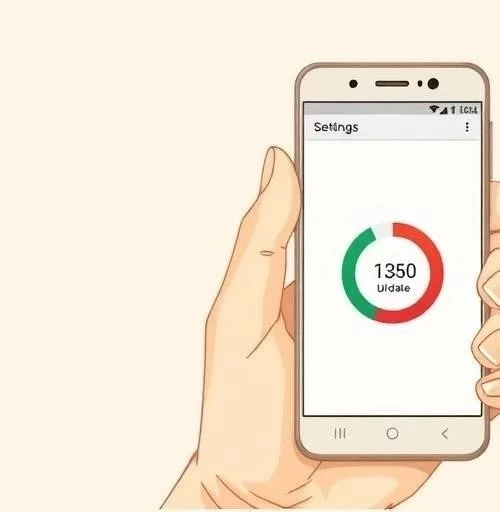
The Redmi 4X can be updated through the phone’s built-in updater when an official update is available for its model and region. Because this is an older device, it may no longer receive new Android or MIUI releases. The updater will show whether an official package is available; do not assume that a newer version advertised for another Xiaomi phone is compatible.
Before you begin
- Back up photos, contacts, messages, and other important files. A routine update usually preserves data, but problems or manual flashing can erase it.
- Charge the phone to at least 50%, or keep it connected to power, and use a stable Wi-Fi connection.
- Check the exact model and current software under Settings > About phone. Leave enough free storage for the download and installation.
Check for an official update
- Open Settings and tap About phone.
- Choose System update or tap the MIUI version panel. The wording can differ by software version.
- Tap Check for updates. If an update appears, review its version and release notes, then select Download update.
- After the download finishes, tap Reboot and update or follow the on-screen instructions. Keep the phone powered on while it installs; the first restart may take several minutes.
If no update is offered, the installed software may already be the latest official release available for that device or region. Try again later over Wi-Fi, and restart the phone if the updater does not load. Do not repeatedly reset the device to make an update appear.
Manual installation: use caution
Manual installation is intended for experienced users. A recovery ROM must be an official package specifically made for the Redmi 4X and the correct region. Confirm the model and package details on Xiaomi’s official support channels before proceeding. Never install firmware for a similar-looking Redmi model: incompatible files can make the phone unusable.
If the built-in updater supports selecting an update package, use only the verified file and follow Xiaomi’s instructions for that software version. Do not rename files or use an unofficial download simply to bypass a verification error. Fastboot flashing generally requires an unlocked bootloader and a computer; it can erase all data and carries additional risk. Avoid it unless you understand the procedure and have checked the correct device-specific instructions.
If the update fails
- Check the internet connection, available storage, battery level, and downloaded file.
- Restart the phone and check for the update again. If installation repeatedly fails, note the error message and contact Xiaomi support or a qualified repair service.
- Do not interrupt an installation or disconnect power during flashing. If the phone cannot start afterward, seek device-specific assistance rather than trying firmware for another model.
After a successful update, check About phone to confirm the installed version. Restore backed-up data if needed. For security, keep a screen lock enabled and install apps only from sources you trust.
2 Comments. Оставить новый
The guidance is generally clear and appropriately cautious about older devices and manual updates. The final sentence appears incomplete, so the instructions would benefit from a complete ending before publication.
The article gives practical preparation steps and clearly distinguishes the built-in updater from manual installation. Its warnings about model and region compatibility are especially useful for reducing the risk of installing unsuitable firmware.