
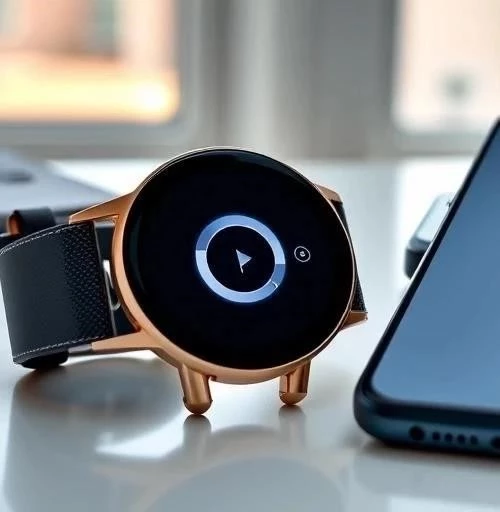
Keeping your Galaxy Watch software current is worth the few minutes it takes. Updates can introduce features, improve performance, and fix bugs or security issues. The exact screens and availability vary by watch model, phone, region, and carrier, so an update may not appear on every device at the same time.
Before you begin
Charge the watch sufficiently, or place it on its charger, and use a reliable Wi-Fi connection where possible. Keep the watch and phone close together during a phone-based update. Back up important information if the option is available: updates normally preserve personal data, but a backup is a sensible precaution. Do not turn off or reset the watch while installation is in progress.
Update using Galaxy Wearable
- Open the Galaxy Wearable app on the Android phone paired with your watch. If prompted, reconnect the watch or complete any required setup.
- Tap Watch settings. Depending on the app version, this may be labelled Settings or Galaxy Watch settings.
- Select Watch software update or Software update, then tap Download and install.
- If an update is offered, read the on-screen information and follow the prompts. Leave the devices connected while the file downloads and the watch restarts.
If the app says the software is up to date, there may be no update available for your model yet. Check again later rather than installing files from unofficial websites; unofficial firmware can damage the watch or compromise its security.
Check directly on the watch
On many models, you can check without opening the phone app. Open Settings on the watch, choose Software update or Watch software update, and tap Download and install if shown. Menu names differ across generations. Some models or connection configurations may require Galaxy Wearable, so use the phone method if the option is missing.
If the update fails
First, check the internet connection, battery level, and available storage. Restart both the phone and watch, reopen Galaxy Wearable, and try again. Make sure the app and relevant phone software are current as well. If downloading stalls, move closer to the phone or try a stable Wi-Fi network. Avoid repeatedly resetting the watch: a reset can erase data and usually is not the first fix. If an error persists, note its wording and consult Samsung support for instructions specific to your model.
After installation
Let the watch finish restarting, then check the software-update screen for its installed version. Confirm that notifications and any essential watch features still work. Updating through official settings is the safest approach: it keeps the process model-appropriate while helping your watch remain reliable and protected.
9 Comments. Оставить новый
The troubleshooting suggestions start with reasonable basics such as checking the connection, battery, and storage. Those are straightforward checks to try before looking for more complicated fixes.
The preparation section is a helpful addition because a stable connection and sufficient battery can prevent avoidable interruptions. The recommendation to back up important information is also a sensible precaution.
The advice to use official update channels is important. Avoiding firmware from unofficial websites helps protect both the watch’s security and its ability to function properly.
Including a direct-on-watch option is useful for readers who want to check for updates without navigating the phone app. The note that some configurations may still require Galaxy Wearable keeps that advice appropriately qualified.
This article is practical because it explains what to do when no update appears, rather than implying that every watch should have one available. Checking again later is safer than attempting an unofficial installation.
This is a clear overview for someone who has not updated a Galaxy Watch before. It sets realistic expectations by noting that an update may not be available for every model at the same time.
The guide does a good job of balancing concise instructions with cautions about installation. In particular, telling readers not to turn off or reset the watch mid-update could help prevent unnecessary problems.
This guide makes the update process easy to follow by explaining both the Galaxy Wearable app method and the option to check directly on the watch. The reminder to keep the devices connected during installation is especially practical.
I appreciate that the instructions acknowledge menu names can vary between models and app versions. That qualification makes the steps more useful than a guide that assumes every Galaxy Watch has identical settings.