
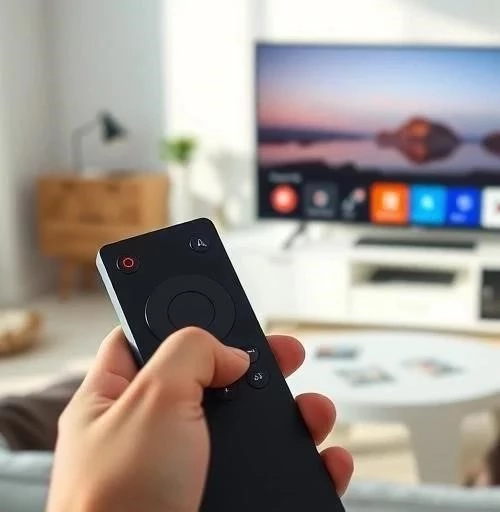
A Xiaomi remote is a small wand with two different ways to reach your screen. Many models use Bluetooth for menus and voice commands, while an infrared (IR) signal handles basic controls on compatible devices. The exact buttons and pairing method vary by remote, TV and Mi Box, so treat the instructions on your screen—and your model’s manual—as the final word.
Prepare the remote
- Insert fresh batteries, matching the plus and minus marks. If the remote is rechargeable, give it a charge.
- Turn on the Xiaomi TV or TV box and keep the remote nearby. For first-time pairing, staying within about 20 cm is a sensible starting point.
- Remove obstacles between the remote and the device. This matters especially for infrared commands, which need a clear path to the receiver.
Pair it with your TV or Mi Box
Follow the on-screen setup prompt if one appears. Otherwise, open Settings and look for Remotes & Accessories, Bluetooth or a similarly named menu. Choose the option to add a device, then press and hold the pairing-button combination shown by your model’s instructions. Some remotes use two buttons together; there is no single combination that fits every Xiaomi remote. When the remote appears on screen, select it and confirm the connection.
If pairing fails, move closer, replace the batteries, restart the TV or box, and try again. Keep other Bluetooth devices from crowding the setup. A remote may also control basic functions through IR without being Bluetooth-paired, but that does not necessarily enable voice search or full menu navigation.
Learn the useful buttons
Power turns the TV or box on and off. The directional ring moves through menus; press its center to select. Back returns to the previous screen, while Home opens the main interface. Volume buttons adjust sound, and a mute button—if present—silences it. Streaming-service shortcuts open their named apps when those apps are installed and supported. A shortcut is a door, not a subscription.
Speak instead of typing
On a voice-enabled remote, press and hold the microphone or voice-assistant button, wait for the listening indicator, and speak clearly. Try “Find nature documentaries” or “Open settings.” Release the button when you finish, unless your model indicates another method. Voice features need a working Bluetooth connection, microphone permissions and, for online searches, internet access. Avoid saying passwords or private information aloud.
When buttons misbehave
- Nothing responds: check battery direction and charge; make sure the TV has power.
- Power works, menus do not: the IR path may be clear while Bluetooth pairing is lost. Pair the remote again in Settings.
- Voice search fails: reconnect Bluetooth, check the network and microphone permissions, then test from the home screen.
- One device ignores volume or power: check HDMI-CEC or device-control settings. Not every TV, soundbar or box supports every command.
If your remote has a reset or re-pair procedure, use the instructions for that exact model; avoid random button combinations. A firmware update may help with persistent software issues, but update through the TV’s settings rather than an unknown download. If the remote is damaged, choose a compatible replacement and verify the model before buying.
A little care goes a long way
Keep the remote dry, wipe it gently, and don’t store it with leaking batteries. Point it toward the TV when using IR; Bluetooth generally works without aiming. Once paired, the remote should feel less like a gadget and more like a tiny stage manager: one press brings the next scene into view.
1 Comment. Оставить новый
A refreshingly practical guide that treats the remote less like magic and more like a tiny, model-specific piece of technology. The reminder that an app shortcut is “a door, not a subscription” is especially sharp—and the pairing advice wisely avoids pretending every Xiaomi remote speaks the same button-language.