
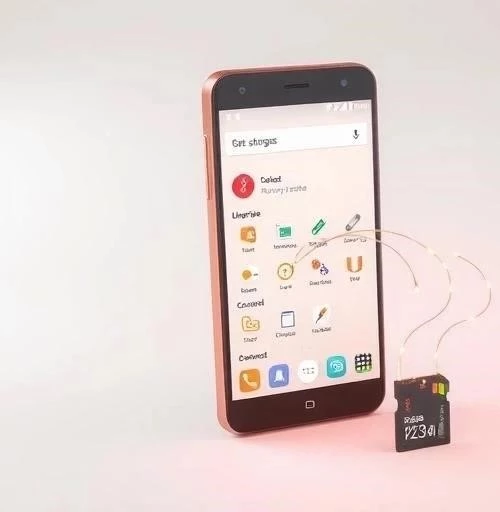
Turning an SD card into “internal” or adopted storage can seem like an easy way to solve a Xiaomi phone’s storage shortage. However, this option is not available on every Xiaomi model or software version. MIUI and HyperOS may offer only portable storage, and the menus and Android features vary by device. Check your phone’s settings before following instructions: if it does not support adopted storage, formatting alone cannot reliably make the card behave like built-in memory.
First, understand the trade-offs
Portable storage is removable and is generally suitable for photos, videos and documents. Adopted storage is different: Android formats and encrypts the card for use by that particular phone. The card may become unreadable in other devices, and removing or damaging it can cause apps or files to stop working. A microSD card is also usually slower and less durable than internal flash memory. It can add capacity, but it is not a substitute for a phone with more built-in storage.
Back up the card before proceeding. Formatting erases its contents. Keep a separate copy of important files, charge the phone, and use a reputable, sufficiently fast card. Do not begin if you may need to move the card between phones or use it in a camera.
Check the Xiaomi settings first
- Insert the card and open Settings → About phone to note your Android, MIUI or HyperOS version.
- Look under Settings → Storage for the SD card and an option such as “Format as internal” or “Use as internal storage.” Menu names differ by version.
- If that option is present, select it and follow the on-screen prompts. Confirm only after backing up: the process erases the card. If offered, choose whether to move eligible data, then allow the phone to complete the transfer without removing the card.
If you see only “Format as portable,” your software may not support adopted storage through the normal interface. Do not assume that an online guide for a different Xiaomi model applies to yours.
ADB: an advanced, model-dependent method
Some Android builds expose storage commands through Android Debug Bridge (ADB), but Xiaomi firmware can restrict or ignore them. This is not an official, guaranteed Xiaomi procedure. Use it only if you understand command-line tools and accept the risk of data loss; keep a backup and do not proceed if the commands report errors.
- Install Google’s Android Platform Tools on a computer. On the phone, enable Developer options by tapping the MIUI/OS version entry repeatedly in About phone, then enable USB debugging. Connect by USB and approve the computer prompt.
- In a terminal, run
adb shell sm list-disks. Identify the SD-card disk reported by your phone; do not copy an example disk number from another device. - Only if the device supports it, run
adb shell sm partition DISK private, replacingDISKwith the exact identifier shown. This repartitions and erases the card. A mixed public/private partition is possible on some builds, but the syntax and support vary; avoid experimenting on a card with needed data.
Afterward, check Settings → Storage. If the card is not shown as adopted, apps cannot move, or the phone behaves inconsistently, stop rather than repeating commands. Restore the card to portable storage using the phone’s storage settings if available; that will erase it again. Disable USB debugging when finished.
Practical recommendation
For most Xiaomi owners, portable SD storage is the safer choice for media, while built-in storage should hold apps and system data. Use adopted storage only when the phone explicitly supports it, the card is fast and dedicated to that phone, and you have a backup. If the feature is absent or unreliable, free space by removing downloads, clearing safe-to-delete caches, moving photos to a computer or cloud backup, or choosing a phone with more internal storage. These options are less likely to leave the device unusable after a card failure or software update.



6 Comments. Оставить новый
I appreciate that the article explains the risks before giving steps. The warning about encryption and losing access to the card on another device helps readers understand why adopted storage is not simply a convenient upgrade.
The advice to check the actual Storage settings rather than rely on instructions for another model is sensible. Xiaomi software varies, so this approach is more reliable than assuming that every phone has the same menu or feature.
This is a useful, cautious guide because it makes device compatibility the first thing readers should verify. The distinction between portable and adopted storage is especially important, since formatting a card does not guarantee that a Xiaomi phone will treat it as internal memory.
The backup and removal warnings are practical and well placed. Since formatting erases data and adopted storage can affect apps, readers benefit from being told to prepare first instead of discovering the consequences midway through the process.
The explanation that a microSD card may be slower and less durable than built-in storage adds helpful context. It sets realistic expectations and makes clear that extra card capacity is not always equivalent to having a larger internal drive.
This article balances the potential benefit with the limitations instead of promising a workaround that may not exist. Its clearest takeaway is to proceed only when the phone itself offers the adopted-storage option and the user has backed up the card.