
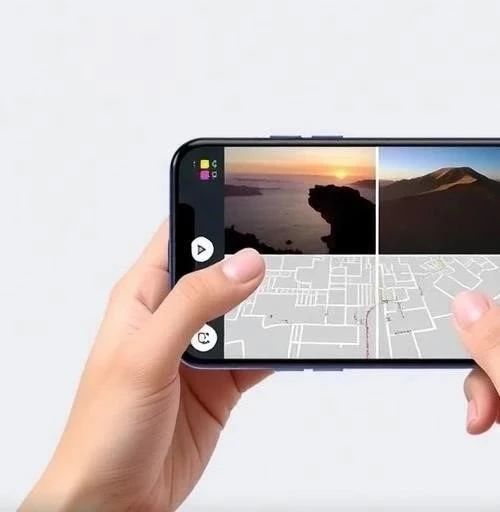
Split screen lets you use two apps at once—for example‚ you can watch a video while messaging or check a webpage while taking notes. The Redmi 9C’s menus can vary slightly with its MIUI version‚ and some apps do not support this feature. Try the steps below first.
Open two apps in split screen
- Open the first app you want to use. Check that it supports split screen; many games‚ camera apps and streaming services may not.
- Open the Recent apps screen. With gesture navigation‚ swipe up from the bottom and pause. With three-button navigation‚ tap the square or Recent button.
- Find the app’s card. Tap and hold its app icon‚ or tap the icon above the preview‚ to open the available actions.
- Choose Split screen (sometimes shown as two rectangles). If you do not see this option‚ check the troubleshooting tips below.
- Select the second app from the recent-apps list. If it is not there‚ return to Home‚ open it‚ and then go back to Recent apps to select it.
The two apps should now appear in separate panels. Drag the divider between them up or down to give one app more room. In landscape orientation‚ the panels may sit side by side. Rotate the phone if the apps and screen rotation allow it.
Exit or switch apps
Drag the divider all the way to the top or bottom edge to close one panel and return to the remaining app. You can also open Recent apps and dismiss the split-screen view. To change an app‚ tap its panel and use Home or Recent apps to open another supported app; the exact behavior depends on MIUI.
If “Split screen” is missing
- Update MIUI and the apps in Settings > About phone‚ then restart the device.
- Check another app: the feature is unavailable for apps that do not allow multi-window use.
- Open Settings and search for “Split screen” or “Buttons shortcuts.” Some MIUI releases offer a shortcut‚ such as pressing and holding the Recent button‚ but the available choices differ by version.
- Make sure you are using the standard Recent apps screen‚ not a floating-window menu. If the option is still absent‚ your installed software may not provide split screen for that app or configuration;
On some versions‚ the feature is hidden or limited‚ so there may be no setting that can force an incompatible app to work. Avoid third-party “split screen” tools that request unnecessary permissions. The built-in option is the safest choice. Menu names and gestures can differ after updates‚ but the Recent apps screen is the best place to begin.

4 Comments. Оставить новый
I appreciate the troubleshooting tips, especially the reminder that some apps do not support split screen.
The step-by-step instructions make split screen easy to try, and the note about MIUI versions is helpful.
Clear and practical guidance. Explaining both gesture and button navigation makes the steps useful for more people.
The advice on resizing the panels and closing split screen is useful for anyone new to this feature.