
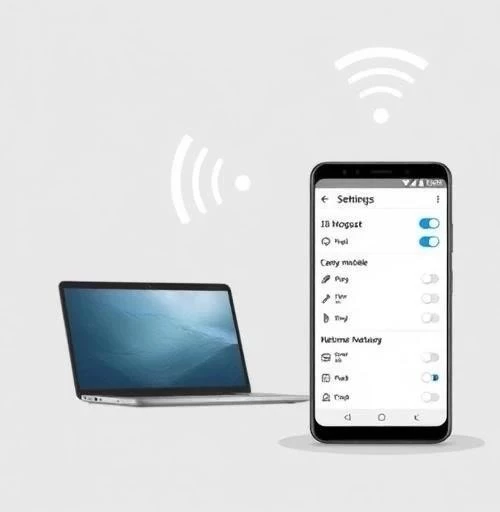
Your Redmi Note 8 Pro can lend its mobile connection to a laptop, tablet, or a friend’s phone. Think of it as a tiny router with a camera: it takes internet from your SIM and shares it over Wi-Fi, USB, or Bluetooth. The names of menus may vary a little between MIUI versions, but the basic steps are the same.
Before you switch on the hotspot
Check that mobile data is working: open a web page with Wi-Fi turned off. Your carrier plan must allow tethering, and your phone needs a usable cellular signal. Sharing internet can consume data quickly, especially when a computer starts updating files or streaming video. If your plan has a limit, check it first.
For a longer session, charge the phone or keep it plugged in. Hotspot mode uses extra battery and can make the handset warm. Place it somewhere ventilated rather than under a pillow or in direct sun.
Share internet over Wi-Fi
- Open Settings on the phone.
- Tap Connection & sharing or, on some MIUI versions, Portable hotspot.
- Choose Portable hotspot, then open Set up portable hotspot or Set up Wi-Fi hotspot.
- Give the network a name you can recognize. Set a strong password, then save the changes.
- Turn on Portable hotspot. On the other device, open Wi-Fi, select that network, and enter the password.
Can’t find the setting? Use the search box at the top of Settings and type “hotspot.” You can also swipe down from the top of the screen to open Quick Settings. If the hotspot tile is hidden, edit the tiles and add it for one-tap access.
Choose sensible hotspot settings
Use WPA2 security, or the strongest compatible option shown in the setup screen. Avoid an open network: anyone nearby could connect, use your data, or inspect unencrypted traffic. A password with several unrelated words, numbers, and symbols is easier to remember than a short guessable phrase. Share it privately, and change it if it has spread too widely.
If an older laptop cannot see the hotspot, look for a band setting and try 2.4 GHz. It usually reaches farther and works with more devices than 5 GHz, though it may be slower in a crowded area. If available, set a device limit and turn off the hotspot automatically when nobody is connected. These controls can reduce unwanted connections and wasted battery.
Use USB tethering for a wired connection
Connect the Redmi Note 8 Pro to a computer with a USB cable that supports data, unlock the phone, then open Settings > Connection & sharing (or Portable hotspot) and enable USB tethering. The option may appear only after the cable is connected. Some computers need a moment to recognize the phone. A charge-only cable will not work; try another cable or USB port if the toggle stays unavailable.
USB tethering is useful when you want a direct link and would rather not broadcast a Wi-Fi network. Depending on your computer and setup, the cable may also keep the phone charging, though it can still get warm.
Bluetooth tethering: the quiet alternative
Pair the phone with the other device in Bluetooth settings. Then return to the sharing settings and switch on Bluetooth tethering. On the receiving device, connect to the paired phone and choose its internet or network-access option if prompted. Bluetooth is convenient for light browsing and uses little power, but is generally slower than Wi-Fi or USB.
If the connection refuses to cooperate
- No internet on any device? Turn off Wi-Fi on the phone and check mobile data, signal strength, and your carrier’s tethering rules.
- Hotspot not visible? Confirm it is enabled, move the devices closer, and try the 2.4 GHz band.
- Password rejected? Forget the saved network on the receiving device, then reconnect using the current password.
- It disconnects? Disable battery-saving restrictions for hotspot use, check automatic shutoff settings, and keep the phone cool.
- USB option is greyed out? Connect a data-capable cable first and unlock the phone.
When finished, switch the hotspot or tethering option off. Your Redmi Note 8 Pro is then back to being a phone—not a tiny café router glowing in your pocket.
2 Comments. Оставить новый
The “tiny router with a camera” is a wonderfully odd image—and a useful one. This guide makes tethering feel less like hunting through a maze of settings and more like opening a small, secure bridge between devices.
I like that the advice considers the phone’s whole life, not just the hotspot switch: battery, heat, data limits, and security all get a place at the table. It’s practical guidance with the quiet wisdom of someone who has watched a laptop devour a data plan.