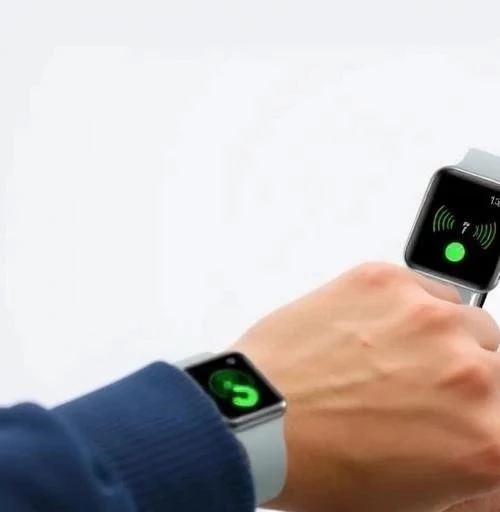
Apple Watch’s Walkie-Talkie feature lets you have short, voice-based conversations with another Apple Watch user. It feels like using a two-way radio, but it is not a traditional radio: it uses an internet connection through Wi-Fi or cellular service. You do not need to install a separate app, but both people must have compatible devices and the feature available in their region.
Before you begin
- Both people need an Apple Watch that supports Walkie-Talkie and the Walkie-Talkie app installed. Update watchOS if the app or feature is missing.
- Each person needs FaceTime set up on a paired iPhone and must be signed in to FaceTime with an Apple Account. Walkie-Talkie relies on FaceTime services, even though you talk through the watch.
- Both watches need an internet connection, either through Wi-Fi or cellular. Bluetooth to the paired iPhone can also help provide connectivity.
- The feature is not available in every country or region. Availability can also depend on device, software, carrier, and local restrictions.
Turn on FaceTime on your iPhone
On the iPhone paired with your Apple Watch, open Settings, then tap Apps > FaceTime. On some iOS versions, FaceTime appears directly in the main Settings list. Turn FaceTime on and check that you are signed in with your Apple Account. Make sure at least one reachable phone number or email address is selected. Ask your contact to check the same settings on their iPhone.
Open Walkie-Talkie and invite a contact
- Press the Digital Crown on your Apple Watch to open the app view, then tap the yellow Walkie-Talkie icon. You can also ask Siri to open Walkie-Talkie.
- Tap Add Friends or the plus button, choose the person you want to contact, and send an invitation.
- Ask the other person to accept the invitation on their watch. Until they accept, the contact may appear as invited or unavailable rather than ready to talk.
- When the invitation is accepted, the contact appears in the app. Tap their name to start a conversation.
If you do not see a contact, confirm that their Apple Account is saved in Contacts and that both of you have FaceTime configured. An invitation may take a little time to arrive. You can remove a contact or send an invitation again from the Walkie-Talkie app if necessary.
Talk using the watch
Tap a contact’s name. When the screen says you are connected, press and hold the Talk button, speak, then release it when you have finished. Keep holding the button while talking; releasing it sends the voice message and lets the other person respond. For a clearer exchange, speak naturally and pause between turns. The other person hears your voice through their watch speaker or connected audio device.
If the connection is not ready, wait for the contact to become available or try again later. Walkie-Talkie is designed for quick, live voice exchanges, so it is not the same as leaving a voicemail or making a regular phone call.
Set your availability and silence interruptions
Open Walkie-Talkie on your watch and use the availability control at the top of the screen to switch Available on or off. When you are unavailable, contacts cannot start a Walkie-Talkie conversation with you. You can also use Control Center: press the side button to open it, then tap the Walkie-Talkie control. Depending on your watchOS version, you may need to add that control to Control Center first.
Silent Mode does not necessarily make you unavailable. If you need to avoid interruptions, turn availability off or use a Focus mode. Focus settings can affect whether someone can reach you, so check the behavior on your watch if you are expecting an invitation or call.
Fix common problems
- The app is missing: Check that Walkie-Talkie is available in your region, update watchOS, and look in the watch’s app list. If needed, check the App Store on the watch or the iPhone’s Watch app.
- An invitation will not arrive: Confirm that FaceTime is enabled and signed in on both paired iPhones, check each person’s Apple Account contact details, and make sure neither watch is set to unavailable.
- A contact appears unavailable: Ask them to open Walkie-Talkie, turn availability on, and check their Wi-Fi or cellular connection. Restarting both watches and iPhones may help.
- You cannot hear speech: Raise the speaker volume, disconnect unwanted Bluetooth headphones, and test the watch speaker with another audio app. Move to a place with a stronger connection.
- The connection keeps dropping: Check that the watch has internet access, install available software updates, and try again after restarting the devices. A weak Wi-Fi or cellular signal can interrupt the conversation.
Privacy and practical tips
Only add people you know and want to talk to. Turn availability off when you do not want to be interrupted, and remove a contact if you no longer want them in your Walkie-Talkie list. Before speaking, remember that your voice may play aloud through the watch speaker; use headphones or move somewhere private if the conversation is sensitive.
In short, enable FaceTime on both paired iPhones, open Walkie-Talkie on each watch, accept an invitation, and keep both devices connected to the internet. Once the contact is available, press and hold Talk to speak, then release the button to hand over the conversation.