
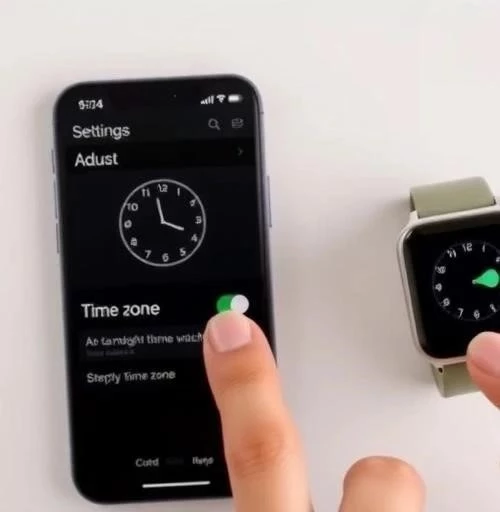
An Apple Watch normally gets its time and time zone from its paired iPhone. In most cases, you do not change the time zone directly on the watch: update the iPhone’s settings, and the watch should follow. This is the best approach when travelling or when the displayed local time is incorrect.
Set the time zone on your iPhone
- Open Settings on the iPhone paired with your Apple Watch.
- Tap General, then Date & Time.
- Turn on Set Automatically. Your iPhone will use your location and network information to set the correct date, time, and time zone.
- Make sure the iPhone is connected to the internet and that Location Services are available. Keep the watch near the phone for a short time so their settings can sync.
When automatic setting is enabled, the time zone is selected for you. If you have just arrived in another region, it may take a little while for the iPhone to recognize the new location and update. Open the Clock app or check the time again after the phone has connected to a mobile or Wi-Fi network.
Choose a time zone manually
If you need to select a specific time zone, you can do so on the paired iPhone. Go to Settings > General > Date & Time and turn off Set Automatically. Tap Time Zone, enter a city in the search field, and select the appropriate result. The Apple Watch should then reflect the iPhone’s setting after it syncs.
Manual time setting can be useful in limited situations, but it may cause confusion when you travel or when daylight-saving rules change. If the time does not update as expected, turn automatic setting back on and check that the iPhone has a working connection and permission to determine its location.
Check Location Services
If Set Automatically is on but the iPhone cannot determine the correct zone, review its location settings:
- On the iPhone, open Settings > Privacy & Security > Location Services and make sure Location Services are enabled.
- Scroll down and tap System Services.
- Check that Setting Time Zone is enabled, if this option is available on your iOS version.
- Return to Date & Time and confirm that automatic setting is still on.
Menu names can vary slightly between iOS versions. If a setting is unavailable, install any available software updates and consult the current settings on your device.
Want to see another city’s time?
You may not want to change the watch’s main time zone at all. To keep your local time while checking the time elsewhere, add a city to the iPhone’s Clock > World Clock list. You can also use a World Clock complication on an Apple Watch face, where supported, to display a chosen city. This shows another location’s time without changing the time used by the watch’s system.
Set the watch face a few minutes ahead
Apple Watch has a separate option for displaying a time that is slightly ahead. On the watch, open Settings > Clock, tap the control for advancing the displayed time, and turn the Digital Crown to choose an offset. This changes the time shown on the watch face only. It does not change the actual system time, time zone, alarms, notifications, or calendar events. To return the face to the correct time, set the offset back to zero.
If the watch still shows the wrong time
- Check that the iPhone and Apple Watch are paired and close to each other.
- Verify the iPhone’s time zone, date, and automatic-setting options.
- Wait briefly for the devices to sync, then restart both devices if needed.
- Install available iOS and watchOS updates if the problem continues.
A watch face may also show a different city or a second time through a complication. Check the face’s customization settings before changing the iPhone’s time zone; the complication may simply be displaying a selected location.
In short
For the correct local time, change or verify the setting on the paired iPhone under Settings > General > Date & Time. Leave Set Automatically enabled for normal use and travel. Use World Clock to follow other cities, and use the watch-face offset only when you deliberately want the face to run a few minutes fast.
3 Comments. Оставить новый
Clear and practical instructions. I especially appreciate the reminder that the Apple Watch generally follows the paired iPhone’s time-zone settings.
The automatic and manual options are explained simply, and the troubleshooting tips are helpful for anyone whose watch has not updated after travelling.
A useful guide that sets expectations well: changing the setting on the iPhone is usually the key, while the watch updates after syncing.