
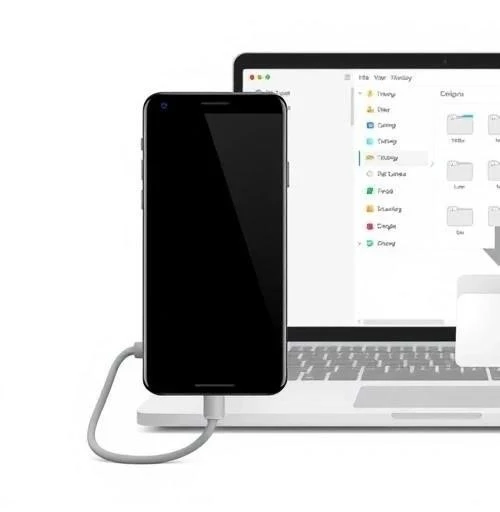
Downloading a Xiaomi update can feel like watching a parcel disappear into a locked room: the phone says “downloading‚” the progress bar reaches 100%‚ and yet no obvious file appears. That is usually normal. The destination depends on how you got the firmware—through the phone’s updater‚ a browser‚ or a computer—and on your device’s MIUI or HyperOS version.
If you used the phone’s built-in updater
When you tap Download update in Settings‚ Xiaomi’s updater generally manages the package itself. It may place it in a temporary or protected system location‚ such as an update cache or an OTA-related folder. Android restricts access to many of these locations‚ so they may not appear in the ordinary file manager. The exact path can vary by model‚ Android version‚ and updater release.
Some versions leave a visible package in internal storage under downloaded_rom—often shown as /downloaded_rom—or in a folder called Download. Others keep the file in a location you cannot browse without special access‚ then remove it after installation or cleanup. In other words‚ there is no single‚ guaranteed folder for every Xiaomi phone.
Try this: open File Manager and search internal storage for downloaded_rom‚ then check Download and Documents. If nothing is there‚ the updater may be holding the package privately; that does not mean the download failed. You can check progress or retry from Settings → About phone → MIUI version or HyperOS version (the wording varies).
If you downloaded a ROM in a browser
A firmware package you downloaded yourself normally goes to the browser’s chosen download location. On the phone‚ that is commonly Internal storage/Download. In Chrome‚ open the menu and choose Downloads; in another browser‚ look for its downloads list or settings. The file may have a long name and an archive extension such as .zip.
If you changed the browser’s save location‚ used a download manager‚ or saved to a memory card‚ look there instead. File Manager’s search can help: search by the model name‚ the build number‚ or “.zip.” A downloaded file is not necessarily an installed update—it is just the package waiting to be verified and applied.
If you downloaded firmware on a computer
On Windows‚ macOS‚ or Linux‚ the ROM usually lands in the browser’s Downloads folder unless you selected another location. Recovery ROMs are commonly delivered as ZIP files. Fastboot ROMs often arrive as compressed archives that need to be extracted; their extracted folder contains the files used by Xiaomi’s flashing utility. The archive itself and the extracted firmware folder are different things.
After copying a package to your phone‚ keep it in an easy-to-find internal-storage folder and follow the instructions for that exact ROM type; Do not rename files casually or assume a Fastboot package can be installed through the normal updater. The supported installation method depends on the package and device.
Why you might not find the file
- The updater uses protected storage. Modern Android limits what file managers can see.
- The update was already installed. Temporary files may be deleted automatically.
- You are looking on the wrong storage. Check internal storage‚ SD card‚ browser downloads‚ or the computer used to fetch it.
- The download did not finish. A partial file may be removed or may not be offered to the updater.
- Folder names differ. MIUI‚ HyperOS‚ Android releases‚ and regional builds do not all behave alike.
Before installing: check the label on the parcel
Firmware must match the precise Xiaomi‚ Redmi‚ or POCO model and its region. A ROM for a similar-looking phone—or for a different regional variant—can fail to install and‚ in the worst case‚ leave the device unusable. Check the model number and build information in Settings → About phone‚ and use a trustworthy source. Prefer the built-in updater or Xiaomi’s official channels where available; avoid mystery links and modified packages.
Keep your battery charged and back up important data before a major update. Do not interrupt installation once the phone begins applying it. For manual flashing‚ read the instructions for your exact device and ROM type first; unlocking the bootloader or using the wrong flashing procedure can erase data and carries real risk.
The short answer
For a browser download: usually Internal storage/Download. For an updater download: possibly downloaded_rom‚ but often a temporary or protected system location that you cannot browse. For a computer download: usually the computer’s Downloads folder‚ unless you chose another destination. If no file is visible‚ the updater may simply be doing its work behind the scenes.
Think of Xiaomi firmware as a delivery with three possible addresses: the public shelf in Downloads‚ the courier’s temporary depot inside Android‚ or the folder on your computer. First identify which route you used; then look at the matching address.

4 Comments. Оставить новый
Clear, calm, and pleasantly free of tech-support panic. The distinction between an update handled by the phone and a ROM saved through a browser is the key that makes this explanation click.
A refreshingly practical answer to a small, maddening mystery. The reminder that the updater may keep its package somewhere protected is especially useful—it saves readers from mistaking Android privacy for a failed download.
This turns a missing file into less of a digital ghost story. I especially appreciate the caveat that the exact location varies by model and software version; a useful guide should leave room for Xiaomi’s many little kingdoms.
I like that this avoids pretending every Xiaomi phone follows one map. Firmware folders seem to move like hidden doors between versions, and the advice to search downloaded_rom and check the browser’s own downloads list gives readers sensible first steps.