
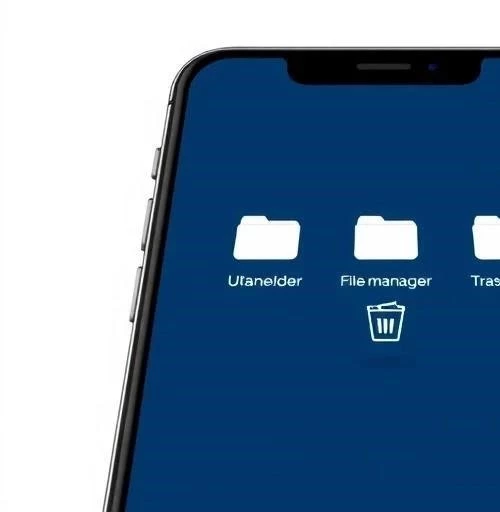
Xiaomi phones do not have one universal trash folder for every deleted item. The location depends on which app you used‚ your MIUI or HyperOS version‚ and whether cloud backup is enabled. If you deleted a photo‚ file‚ note‚ or message‚ check the relevant app first: its own recycle bin may keep deleted items temporarily.
Deleted photos and videos
Open Gallery and look for Albums‚ then scroll to Recently deleted or Deleted items. On some versions‚ the folder is under the Gallery menu‚ which you can open by tapping the three-dot icon. Select an item and tap Restore to return it to your albums‚ or choose Delete permanently to remove it. The folder may not appear if nothing has been deleted‚ the feature is unavailable in your region or software version‚ or the retention period has ended.
Gallery items may be kept for a limited time; the exact period can vary. If you use Google Photos instead‚ open Google Photos‚ tap Collections (or Library on an older version)‚ and choose Trash or Bin. Items backed up to Google Photos are generally kept there for up to 60 days; unbacked-up items may be removed sooner. Check the notice displayed in the app‚ since its rules can change.
Deleted files and downloads
Open Xiaomi’s File Manager and check its menu or settings for Trash‚ Recycle bin‚ or Recently deleted. The exact label and availability differ between app versions. If you cannot find a bin‚ use the app’s search or browse the original folder‚ such as Downloads‚ Documents‚ or DCIM. Some file managers delete items immediately instead of retaining them‚ so a missing file may not be recoverable from the phone.
If the file was synced or backed up‚ check the corresponding service as well. For example‚ files uploaded to Google Drive may be in Drive’s Trash; open Drive‚ tap the menu‚ and select Trash. A cloud bin is separate from the Xiaomi Gallery or File Manager bin. Restoring a cloud copy may download it again‚ so check that you have enough storage.
Notes‚ contacts‚ and messages
For a deleted note‚ open the notes app and look for Recently deleted or Trash in its folders or menu. Xiaomi Notes may show this folder only when there are recoverable notes‚ and the location can vary by version. For contacts‚ check the Contacts app’s Fix & manage‚ Organize‚ or trash option‚ if available‚ and review the account used to sync them. Deleted SMS messages may have no recycle bin unless you use an app or backup that provides one. A backup can sometimes restore messages‚ but restoring it may replace newer data.
If you cannot find the bin
- Open the same app you used when deleting the item; bins are usually app-specific.
- Check the app’s menu‚ Albums or folders‚ and settings. Search for “Recently deleted‚” “Trash‚” or “Recycle bin.”
- Update the app and check your MIUI or HyperOS version under Settings > About phone. Menu names differ between releases.
- Check cloud accounts and backups‚ including Google Photos‚ Google Drive‚ Xiaomi Cloud where available‚ or a computer copy.
Do not clear app data‚ empty a bin‚ or create large amounts of new data until you have checked recovery options. Permanent deletion‚ an expired retention period‚ or storage cleanup can make restoration impossible. Avoid installing unfamiliar recovery apps or giving them broad access to personal files. If an important item is missing and no backup exists‚ stop using the phone and consult a reputable data-recovery specialist; recovery is not guaranteed‚ especially on encrypted modern devices.
In short: start with Gallery’s Recently deleted folder for photos‚ File Manager for documents‚ and the relevant app or cloud service for everything else. There is no single Xiaomi trash bin for the whole phone.
4 Comments. Оставить новый
I appreciate that this guide distinguishes Xiaomi’s own apps from Google Photos and Drive. That clarification can prevent people from overlooking a separate cloud trash folder.
The step-by-step directions make the recovery options easy to follow, and the article appropriately notes that menus and retention periods can vary. It would be helpful to see the remaining section on notes and contacts.
A useful overview for anyone trying to find a recently deleted photo or file. The caveat that some apps delete items permanently is important and sets realistic expectations.
This is a clear, practical guide that explains why deleted items may be stored in different places depending on the app and software version. The reminders about checking the relevant cloud service are especially useful.