
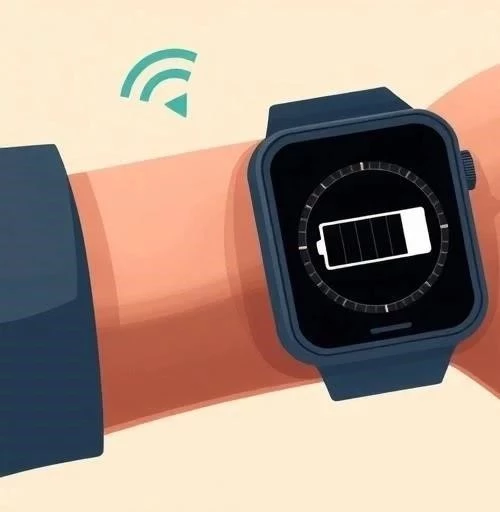
An Apple Watch battery can seem to run down much faster than expected, but there is rarely one universal cause․ Battery life depends on the model, its age, signal conditions, settings, and how the watch is used․ Before assuming the device is faulty, it is worth checking which of these factors has changed․
Common reasons for rapid drain
- Heavy screen use․ An always-on display, frequent wrist raises, long workouts, and repeated notifications keep the screen active․ Brightness also matters: a brighter display generally uses more power․
- Weak cellular or Wi-Fi signal․ When a watch struggles to stay connected, it may use more energy searching for a network․ This is especially noticeable on cellular models used away from the paired iPhone․
- GPS and workout tracking․ Outdoor workouts use GPS, while heart-rate measurements and other sensors continue working in the background․ A long run or hike can therefore consume more charge than ordinary daily use․
- Background activity․ Frequent app refreshes, navigation, music streaming, and repeated alerts add up․ A newly installed app or a software update may temporarily increase activity as data synchronizes․
- Battery ageing․ Rechargeable batteries gradually lose capacity․ If the watch is older, it may simply hold less charge than it did when new․ Heat and repeated charge cycles can contribute to this natural wear․
How to identify the cause
First, compare the drain with your usual routine: note the charge level at bedtime and again after a normal day․ Then check Settings > Battery for recent usage and Battery Health for maximum capacity․ A sudden change after installing an app or updating watchOS points to software or syncing; a steady decline over months is more consistent with ageing․ One unusually short day is not enough to diagnose a fault․
Practical steps to improve battery life
- Install available watchOS updates, then restart the watch and iPhone․ After an update, allow time for background syncing to finish․
- Reduce display brightness or turn off the always-on display if you do not need it․
- Limit unnecessary notifications and background refresh, particularly for apps you rarely use․
- For workouts, disable features you do not need, and avoid streaming music over cellular when a downloaded playlist will do․
- Keep the watch and iPhone within reliable connection range when possible; poor reception can increase power use․
When to seek service
If the battery still drains unusually fast after settings and software are checked, unpairing and pairing the watch again may help—but back up important data first․ If Battery Health shows substantially reduced capacity, or the watch shuts down unexpectedly, contact Apple Support or an authorized service provider․ Do not expose the watch to extreme heat in an attempt to charge it faster․ In short, quick drain is often explained by display, connectivity, or workload; persistent drain despite sensible changes may indicate a worn battery that needs professional assessment․

9 Comments. Оставить новый
This article gives a balanced explanation of the factors that influence battery life. Its emphasis on model, age, settings, and signal conditions makes clear why results can differ between users.
The article balances everyday settings with battery ageing rather than focusing on only one explanation. Checking Battery Health alongside recent usage is a practical recommendation.
The distinction between a sudden change and a gradual decline is especially useful. It gives readers a practical way to decide whether to investigate recent software activity or consider battery ageing.
The examples of GPS, workouts, and background activity make the explanation concrete. It is reasonable to consider how a watch was used before concluding that its battery is defective.
This is clear and appropriately cautious. Mentioning that syncing after an update may temporarily increase activity helps prevent readers from mistaking a short-lived change for a lasting hardware problem.
The suggested comparison between bedtime and the end of a normal day is straightforward and easy to follow. It should help readers notice a consistent pattern instead of reacting to one unusual day.
I appreciate that the article explains how weak connectivity can affect battery life, since that cause is easy to overlook. The advice to check battery usage also makes the troubleshooting process more evidence-based.
This is a helpful overview because it avoids assuming that every battery problem has the same cause. Comparing usage with a normal day seems like a sensible first step before changing settings or seeking service.
I found the troubleshooting sequence sensible: check usage, consider recent changes, and then try basic software steps. That approach is more useful than immediately assuming the watch needs repair.